


Claude Code can connect to external tools like GitHub, Slack, and Jira through MCP servers, but running those tools locally usually means pasting API tokens into your terminal or config files. That works for a quick test. It gets risky once you’re connecting accounts you use every day, because those credentials sit exposed to whatever content your agent reads.
Arcade.dev solves this by acting as a secure action runtime between Claude Code and the tools it calls, so your credentials stay vaulted and every action is authorized at the moment it happens. This guide walks through connecting Claude Code to Arcade, why that setup is safer than pasting tokens into your terminal, and a few workflows you can try right after.
Quick Summary: Setting Up Arcade.dev with Claude Code
Key Setup Steps at a Glance
- Create an Arcade MCP Gateway and select the external tools you want Claude Code to use.
- Add the Arcade Gateway to Claude Code as a remote HTTP MCP server with
claude mcp add --transport http arcade "<YOUR_ARCADE_GATEWAY_URL>". - Verify the server with
claude mcp get arcadeandclaude mcp list. - Complete OAuth authorization from Claude Code’s
/mcppanel or withclaude mcp login arcadewhen the gateway requires sign-in.
What This Integration Solves
- Vaults tool credentials centrally, eliminating the need for local
.envfiles or raw tokens in the terminal. - Automates execution-time authorization so every action uses your own account’s permissions in the moment, rather than a static token an agent could misuse, which also reduces the risk of a credential being exfiltrated and misused outside your session.
What Is Arcade.dev, and Why Does Claude Code Need an Action Runtime?
The Problem with Local MCP Tool Execution
Automating workflows from your terminal with Claude Code, such as investigating Datadog alerts or drafting GitHub PRs, is straightforward. Executing basic Model Context Protocol (MCP) tools locally is easy too, but doing it securely takes more care.
MCP standardizes how agents connect to external systems via MCP Servers and Tools, removing the need for bespoke integration code for every tool. Moving beyond a basic setup exposes gaps like prompt injection vulnerabilities, missing audit trails, and parameter hallucination from brittle integrations. Injecting raw API keys into your local environment adds real risk on top of that if your agent interacts with malicious context and produces undesired actions.
How Arcade.dev Closes the Security Gap
Arcade.dev is a production-grade action runtime that acts as a secure, shared execution layer between Claude Code and the tools it calls. It keeps secrets out of the LLM context, so credentials can’t be exfiltrated even if the agent is exposed to malicious content.
It replaces static, hardcoded API tokens with dynamic, out-of-band authorization using the standard MCP auth specification. Arcade handles managed authentication and reliable tool execution through a centralized control plane, so you can execute cross-platform workflows via delegated execution without ever placing credentials where a prompt injection could reach them.
How to Connect Claude Code to Arcade.dev (Quickstart)
Step 1: Create an Arcade MCP Gateway
Create an Arcade account, create an Arcade MCP Gateway, and select the tools you want Claude Code to use.
Step 2: Add the Gateway as a Remote HTTP Server
claude mcp add --transport http arcade "<YOUR_ARCADE_GATEWAY_URL>"You can also configure the server in JSON. When you use JSON, include type: "http"; Claude Code treats a server without type as a local stdio server and rejects URL-only entries.
~/.claude.json
{
  "mcpServers": {
    "arcade": {
      "type": "http",
      "url": "<YOUR_ARCADE_GATEWAY_URL>"
    }
  }
}
Step 3: Verify and Authenticate the Connection
Confirm that Claude Code registered the server:
claude mcp get arcade
claude mcp list
claude mcp login arcade
If the gateway requires OAuth, open Claude Code and run /mcp, then complete the browser-based sign-in flow for the Arcade server. You can also start the OAuth flow directly from your shell with claude mcp login arcade.
Why Native Claude Code MCP Setup Puts Your Credentials at Risk
Three Risks of Injecting Tokens Locally
Pasting personal access tokens (PATs) directly into your local environment works fine for a quick, one-off test. Relying on it as your everyday setup carries real risk.
- Prompt injection exfiltration. If Claude Code reads a malicious web page or repo issue while your tokens sit in its context, an attacker can hijack those hardcoded tokens to exfiltrate your data. Arcade solves this by keeping your tokens vaulted out-of-band, entirely out of the LLM context.
- No centralized visibility. A raw terminal session doesn’t leave you a record of what your agent actually did. Arcade logs every action it takes on your behalf, so you can check exactly what ran and when.
- Parameter hallucination. Thin wrappers force the LLM to guess complex, nested JSON payloads, which increases token costs and failure rates, and can send the wrong request to a real account. Arcade solves this with a catalog of agent-optimized tools that validate schemas before execution.
Native Token Injection vs. the Arcade.dev Action Runtime
| Architectural dimension | Native local token injection | Arcade.dev Action Runtime |
|---|---|---|
| Where your credentials live | Exposed to local config and LLM context | Vaulted securely out-of-band |
| Authorization | Persistent, blanket access via a hardcoded token | Execution-time authorization per action, scoped to your own account |
| Tool design | Thin wrappers lead to parameter hallucination | Agent-optimized tools that validate schemas |
| Visibility into actions taken | Fragmented, ephemeral terminal logs | A record of every action, tied to the tool and account it touched |
Building this kind of protection yourself would mean handling OAuth flows, token refreshes, and structured logging. That’s real engineering effort. Arcade gives you that layer out of the box, without you having to build or maintain it. The same tradeoff shows up in other terminal clients too, whether you’re connecting MCP tools to Codex or wiring up OpenCode.
How to Configure Arcade.dev
Local and User Scope Explained
Arcade keeps two authentication layers separate, one for how Claude Code connects to your Gateway, and one for how the Gateway connects to each third-party service using your own account.
claude mcp add --transport http --scope user arcade "<YOUR_ARCADE_GATEWAY_URL>"| Parameter | Purpose |
|---|---|
--transport http |
Registers Arcade as a remote HTTP MCP server. |
<YOUR_ARCADE_GATEWAY_URL> |
The Arcade MCP Gateway endpoint from your Arcade dashboard. |
--scope user |
Makes the server available across every project on your machine, while staying private to you. Stored in ~/.claude.json. |
(no --scope flag) |
Defaults to local scope: available only in the current project. Also stored in ~/.claude.json. |
/mcp or claude mcp login |
Starts OAuth authentication for remote servers that require sign-in. |
Secret Management Without .env Files
Since Arcade acts as a secure intermediary, you do not need to inject .env files or manage local secret vaults for the tools you connect. Use the Arcade dashboard and Claude Code’s MCP OAuth flow so tool credentials are authorized out-of-band and handled by the gateway.
Things to watch for
- Claude Code requires
type: "http"for JSON entries that include aurl; URL-only JSON entries are treated as invalidstdioconfigs. - Remote HTTP MCP servers support OAuth. Complete sign-in through
/mcporclaude mcp login arcade. - If a tool call is long-running, set a per-server
timeoutfield in the JSON config or scope the request so the upstream system returns faster.
3 Claude Code and Arcade.dev Workflows You Can Try Today
These three workflows build directly on the gateway you configured above, with no extra tool connections or approval steps. Each one takes a minute or two to run and produces a single, obvious result to check, like a PR summary, a saved document, or a linked ticket.
Summarize the Changes on a Pull Request Branch
This workflow only needs read access to GitHub, so a minimally scoped personal access token without write or comment permissions is enough. Swap in the name of any branch that has an open pull request.
summarize the PR changes made in the branch : test-branch-2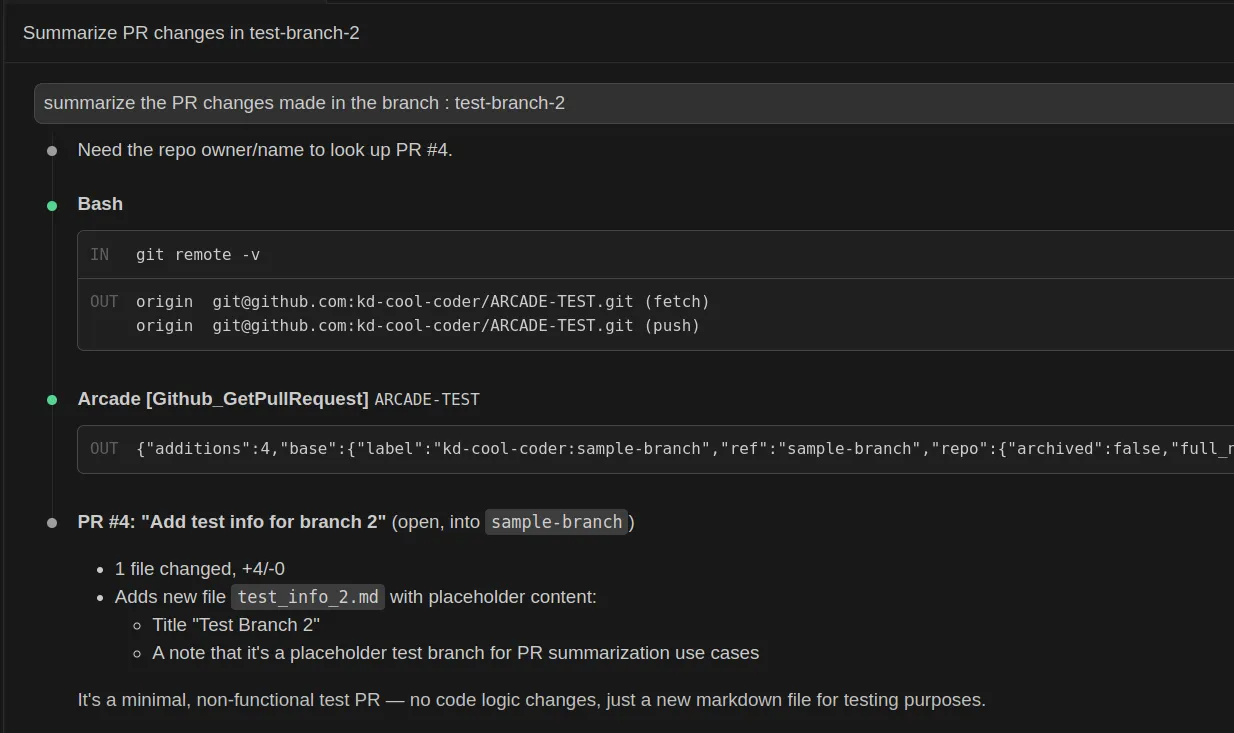
Turn a Slack Thread into a Google Doc Summary
Google Docs and Microsoft Word are both available as Arcade toolkits, so turning a conversation into a shareable document only requires one of those two connections.
Summarize today's discussion in the #claude-integration-test Slack channel and save it as a new Google Doc.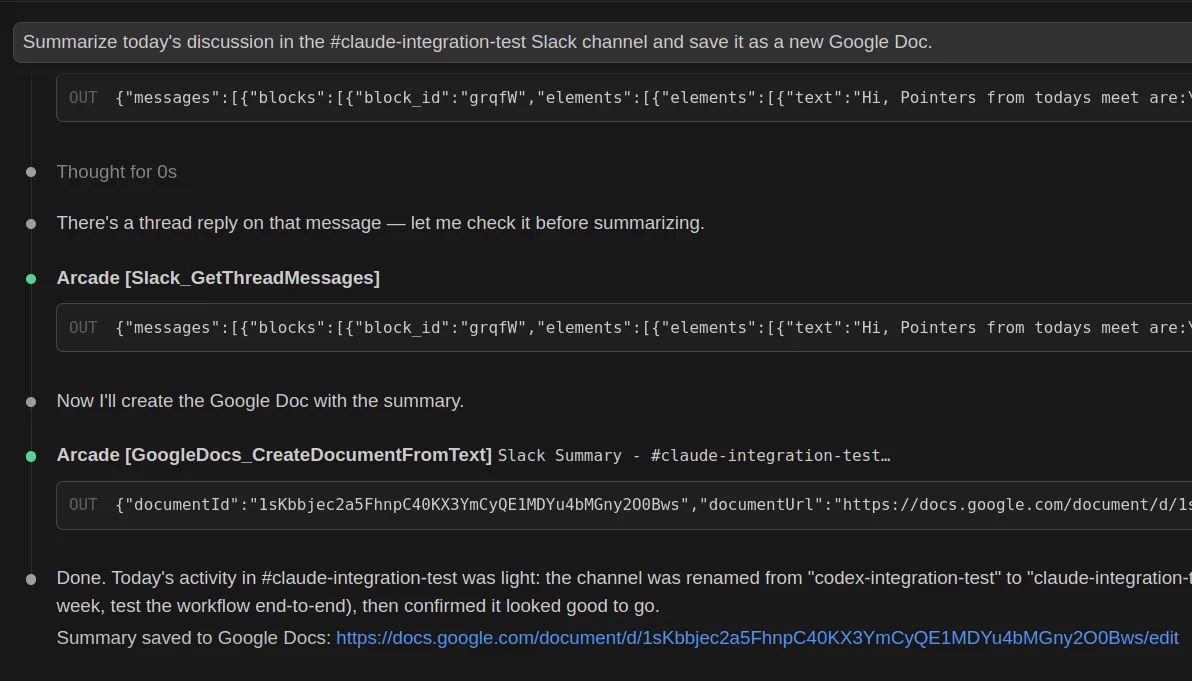
Flag a Row in Google Sheets and Create a Jira Issue
A tracking sheet is a simple way to flag work that needs follow-up, but someone still has to notice the flag and open a ticket. Set up a simple sheet with columns like Task, Status, and Error, then mark one row’s Status as “failure” to test the workflow.
Check the [Sheet name] Google Sheet for any row where Status is "failure" and create a Jira issue for it assigned to me.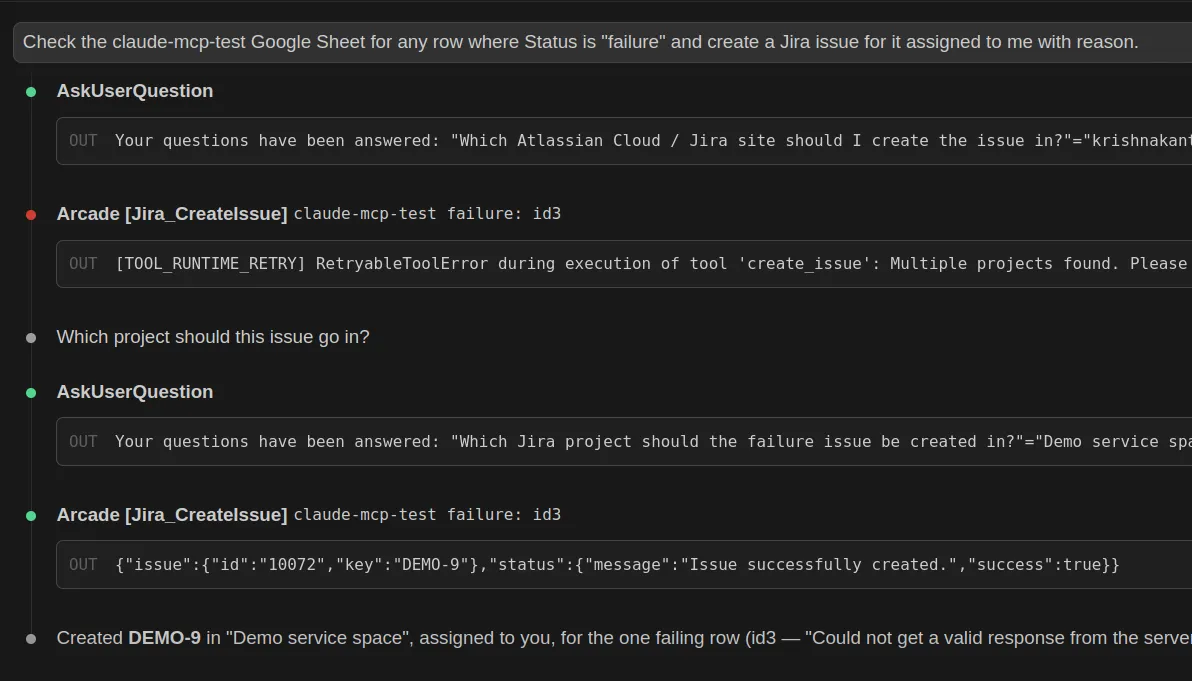
Once these click, the same pattern scales to on-call work. We wrote up a longer example of Claude Code as an AI SRE that chains PagerDuty, Datadog, and Snowflake through the same gateway.
How to Troubleshoot Claude Code MCP Server Connections
Common Connection Errors and Fixes
Diagnosing failures requires understanding how the Claude Code client, the remote HTTP transport, and external MCP Servers and Tools interact.
| Symptom | Likely Cause | Concrete Fix |
|---|---|---|
MCP server "arcade" has a "url" but no "type" |
JSON config omitted type: "http". |
Add "type": "http" to the arcade server entry. |
| 401 or 403 Unauthorized | The user has not completed OAuth for the remote gateway. | Run /mcp in Claude Code or claude mcp login arcade to complete the secure OAuth flow. |
| Tool silently fails or hallucinates parameters | Claude is guessing payload structures for a thin wrapper. | Ensure you invoke Arcade’s agent-optimized tools, which enforce strict formatting pre-execution. |
| Server disconnected or not listed | The gateway URL is wrong, unreachable, or added under a different scope. | Check claude mcp get arcade, claude mcp list, and verify <YOUR_ARCADE_GATEWAY_URL>. |
Diagnosing 401 and 403 Authorization Errors
The most common non-obvious failure is a malformed JSON config. If you configure Arcade through .mcp.json or ~/.claude.json, remember that a URL entry must also include type: "http".
401 and 403 errors occur when Claude Code has registered the server, but the remote gateway still needs authentication. If you encounter authorization errors, check your integration status directly in the Arcade Dashboard and use Claude Code’s /mcp panel to complete or refresh OAuth.
Conclusion: Securing Your Claude Code Integration
Connecting Claude Code to external tools is straightforward. Doing it securely, even for your own day-to-day workflows, means moving away from raw API keys sitting in your terminal or config files.
By integrating Arcade.dev, you replace brittle local configurations with an action runtime that handles execution-time authorization, runs reliably through agent-optimized tools, and gives you one place to manage everything you’ve connected.
Create your first Arcade integration and test it today.
Frequently Asked Questions
Can I use native API keys instead of Arcade.dev for Claude Code?
Yes, you can manually add API keys into your .env file or ~/.claude.json. However, this leaves your credentials in your local runtime environment, where an indirect prompt injection could trigger a tool call that exposes them. Any record of what happened also stays local to that machine, not centralized across your tools.
Can I use Claude Code’s built-in tool config instead of a dedicated action runtime?
Built-in configs work fine for a quick, one-off test. Once you’re connecting real accounts you use every day, like Gmail, GitHub, or Slack, a dedicated action runtime like Arcade keeps your credentials out of the LLM context and handles OAuth and schema validation for you.
Where do I add the Arcade server in Claude Code?
Use ~/.claude.json for a local- or user-scoped setup. For Arcade, register a remote HTTP server with type: "http" and url: "<YOUR_ARCADE_GATEWAY_URL>".
Why does Claude Code show “claude code tool execution failed mcp”?
This can indicate a server connection, authentication, timeout, or tool execution failure. Check claude mcp get arcade, run /mcp to confirm authentication, and narrow large queries so the external service returns data faster.
Do I need to rotate or refresh OAuth tokens myself?
No. Arcade centrally manages token refresh and rotation lifecycles, removing the need to store or manually update long-lived tokens locally.
What transport should I use with Claude Code for Arcade.dev?
Use the remote HTTP transport for the current documented Arcade setup: claude mcp add --transport http arcade "<YOUR_ARCADE_GATEWAY_URL>".
How do I verify the Arcade gateway if Claude can’t connect?
Run claude mcp get arcade and confirm the server has type: http and the expected gateway URL. Then run claude mcp list or open /mcp in Claude Code to check connection and authentication status.