

“Today, 65% of our product team’s code is created by our internal version of Claude Tag.”
That’s Anthropic, talking about its own engineering team. And this is not code autocomplete or a chatbot generating snippets in isolation. Claude Tag is a shared agent inside Slack that teammates mention by name to investigate bugs, pull metrics, work support tickets, and complete longer-running tasks. It reads thread context, connects to approved tools and codebases, and posts results back in the same conversation.
The question is not whether Claude Tag is impressive. It is: what would your team delegate if you had one?
You do not need to recreate Anthropic’s entire product to find out. This tutorial recreates Claude Tag’s core interaction pattern, not Anthropic’s proprietary product. Start with one high-value Slack workflow, give the agent a small toolset, and use Arcade.dev for the action layer: tool connectivity, authorization, and controlled access to external systems.
Key takeaways: Claude Tag and building your own Slack AI agent
- Claude Tag is Anthropic’s shared AI agent for Slack. It lets teams mention
@Claudein selected channels to complete multi-step work using conversation context, connected tools, and codebases. - Claude Tag turns Slack into the agent interface. It can remember relevant channel context, work asynchronously, use a dedicated identity, and return results in the thread where the request began.
- You can recreate the core Claude Tag pattern. This tutorial builds a Claude Tag-style Slack AI agent with Python, Slack Bolt, OpenAI, and Arcade.
- Arcade provides secure tool access. The example connects the agent to read-only GitHub, Datadog, and PagerDuty tools while Arcade handles authorization, credentials, tool execution, and access controls.
- Start with one bounded workflow. Incident triage is a strong first use case because it crosses multiple systems, produces reviewable evidence, and does not require irreversible actions.
- Production agents need explicit safeguards. Restrict the agent to approved Slack channels, use dedicated or per-user identities, require human approval for consequential writes, log its actions, and maintain a kill switch.
What is Claude Tag and why does your team want it?
Anthropic launched Claude Tag on June 23, 2026 as a beta for Enterprise and Team customers. The operating model is simple: Claude joins selected Slack channels as a teammate. Anyone in the channel can tag @Claude with a request. It breaks the task into stages, works through them using connected tools, and replies in-thread with what it produced. Once a thread is active, anyone there can steer it without re-mentioning the agent.
What makes this different from a personal chatbot is that the work happens in public. The channel is the interface, the context, and the audit trail. A single shared Claude instance serves an entire channel, building persistent memory as it follows along. It can work asynchronously, schedule its own follow-up tasks, and combine context from Slack threads, Google Drive docs, ticketing systems, and data warehouses into a single answer.
The underlying insight is not about AI capabilities. It is about where work starts. Most cross-functional tasks begin as a Slack message. Someone asks a question, flags a problem, or requests information that lives across three systems. The true value of shared agents is when it can do useful work in a place where that work already begins.
Do not build an AI employee. Pick one workflow.
The fastest way to stall an agent project is to scope it as “an AI that can do anything.” Start with one workflow. Choose something that is:
- Frequent. The team does it every week, ideally every day.
- Cross-system. It requires pulling context from two or more tools (Slack, GitHub, a dashboard, a CRM).
- Tedious to investigate manually. Someone has to copy-paste between tabs, summarize findings, and post an update.
- Easy for a human to review. The agent produces a summary or recommendation, not a final irreversible action.
Some high-value starting points:
Incident triage across Slack, GitHub, and observability tools. When errors spike after a deployment, the agent pulls recent commits, queries Datadog for error rates and latency, checks PagerDuty for related incidents, and posts a structured summary with evidence links.
Support escalation summaries using your ticketing system, CRM, and internal docs. Instead of an engineer spending 15 minutes rebuilding context on an escalated ticket, the agent does it in seconds and posts the summary in the escalation channel.
Product-feedback triage that reads a Slack thread, extracts the core request, checks for duplicates in Linear or Jira, and creates a properly tagged issue with the original thread linked.
Account research that pulls together CRM data, recent email threads, product usage metrics, and internal notes before a customer call.
Start narrow. A focused agent earns trust faster than a broadly capable one.
How does a Claude Tag-style Slack agent work?
The architecture behind a Claude Tag-style agent has four layers:
- Slack is the interface. Users tag the agent in a thread. Slack delivers the triggering event; your application retrieves thread context via the API and displays results.
- The model is the reasoning layer. It understands the request, decides what information it needs, and synthesizes a response. Use whatever LLM and agent framework fits your stack.
- Arcade is the action layer. It connects the agent to approved tools, handles authorization and token management, and enforces access policy. The model never sees credentials.
- Your app handles orchestration. Task state, retries, async job processing, and posting updates back to Slack.
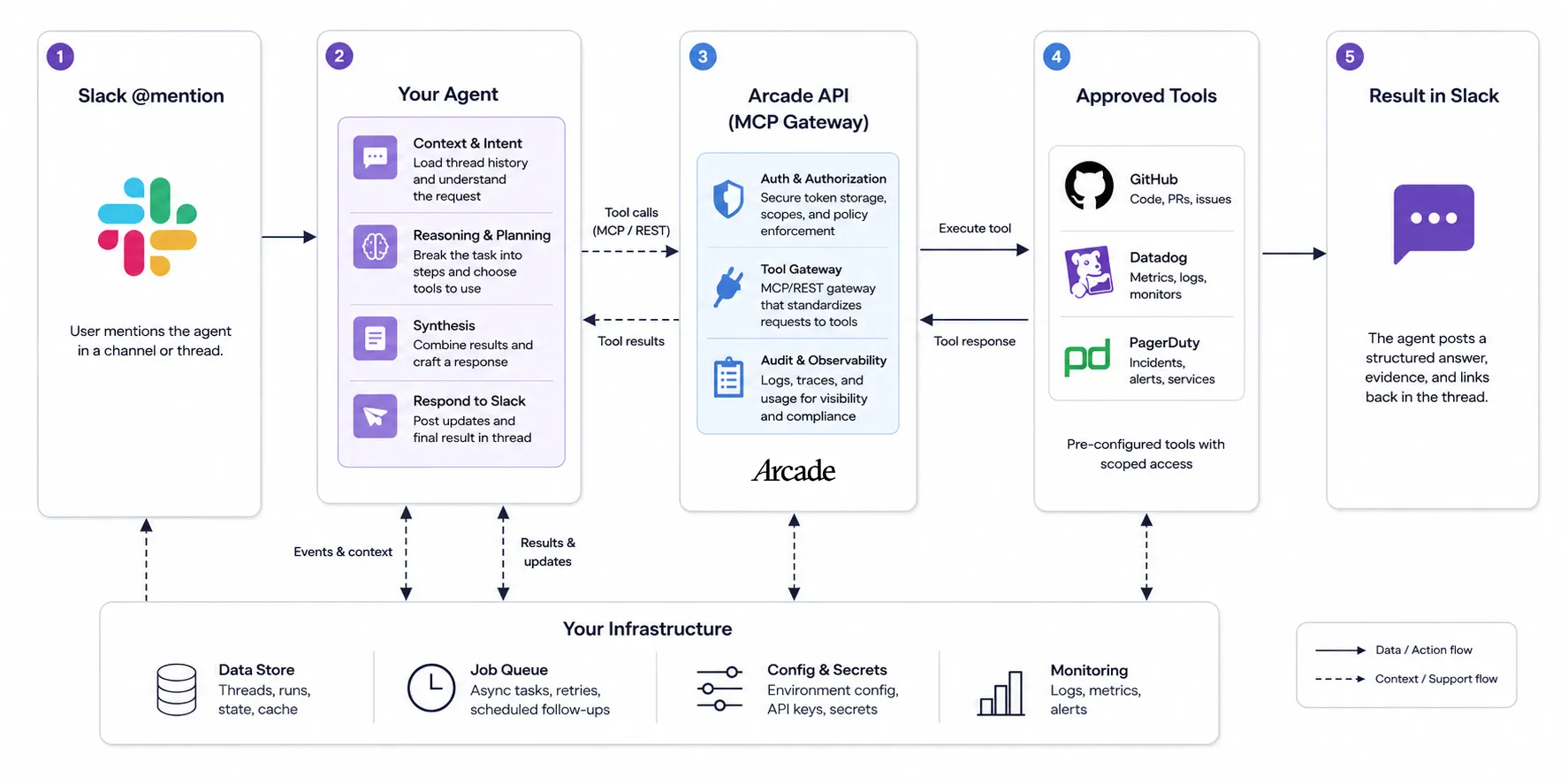
Each layer is independently replaceable. Swap the model, change the framework, add tools. The boundaries stay clean.
What we are building is a shared agent, not a multi-user agent. Every tool call runs under a single service identity regardless of who tagged the bot. Step 4 covers how to add per-user authorization if your use case requires it.
This prototype starts a run only when mentioned. Claude Tag’s production experience supports unmentioned follow-ups within an active thread. To add that behavior, subscribe to message.channels and message.groups, track active thread IDs, and filter out bot-generated messages. That is a production extension beyond the scope of this walkthrough.
How to build a Claude Tag-style Slack agent with Arcade
This walkthrough uses Python with Slack’s Bolt framework and the Arcade Python SDK. The same pattern works with any language or agent framework that supports MCP or Arcade’s REST API.
Prerequisites
You need Python 3.8+, permission to create and install a Slack app, an Arcade account and API key, and an OpenAI API key. For local Slack Events API testing, also install and authenticate the ngrok CLI or another public HTTPS tunnel.
python3 -m venv .venv
source .venv/bin/activate
python -m pip install slack-bolt arcadepy openai
Step 1: Create the Slack app and event trigger
Create a Slack app at api.slack.com/apps. Under OAuth & Permissions, add the bot scopes app_mentions:read, chat:write, channels:history, and groups:history. Install the app to your workspace, then copy the Bot User OAuth Token (xoxb-...) and Signing Secret from the app settings.
You now have everything needed to set the environment variables:
export SLACK_BOT_TOKEN="xoxb-..."
export SLACK_SIGNING_SECRET="..."
export ARCADE_API_KEY="..."
export ARCADE_USER_ID="you@company.com"
export OPENAI_API_KEY="..."
export SLACK_ALLOWED_CHANNEL_IDS="C0123456789"
For ARCADE_USER_ID, use the email associated with your Arcade account. Arcade’s default development verifier expects that identity. This is the single shared identity under which every tool call executes. All mentions in all approved channels resolve to this one account. It does not create GitHub or PagerDuty service accounts on its own. If the agent must act under a dedicated downstream identity, use dedicated accounts during the OAuth flows in Step 2.
Replace C0123456789 with your actual Slack channel ID. Open the channel in Slack’s web or desktop app and copy the C... portion of its URL (https://app.slack.com/client/T.../C...). See Slack’s guide to locating IDs for details.
SLACK_ALLOWED_CHANNEL_IDS restricts the agent to specific channels, enforcing the per-channel scoping that Claude Tag uses. Comma-separate multiple channel IDs. If different channels need different permissions or toolsets, you will need a channel_id-to-identity mapping or separate deployments.
Slack’s three-second rule is the critical implementation detail. Your endpoint must return HTTP 200 within three seconds or Slack marks delivery as failed and retries up to three times. Bolt handles acknowledgement automatically when you use the standard decorator pattern. For production workloads where agent processing takes longer, offload work to a task queue. Deduplicate on Slack’s top-level event_id before enqueueing work, otherwise retries can execute the same tools twice.
Save this as app.py:
import logging
import os

from slack_bolt import App
from agent import run_agent  # Step 3

ALLOWED_CHANNEL_IDS = {
    value.strip()
    for value in os.environ["SLACK_ALLOWED_CHANNEL_IDS"].split(",")
    if value.strip()
}

app = App(
    token=os.environ["SLACK_BOT_TOKEN"],
    signing_secret=os.environ["SLACK_SIGNING_SECRET"],
)


@app.event("app_mention")
def handle_mention(event, client, say, context, logger):
    if event["channel"] not in ALLOWED_CHANNEL_IDS:
        logger.warning("Ignoring mention from unauthorized channel %s", event["channel"])
        return

    # Ignore messages from bots (including this one) to prevent loops
    if event.get("bot_id"):
        return

    thread_ts = event.get("thread_ts") or event["ts"]

    try:
        # Retrieve up to 50 messages of thread context.
        # Production implementations should follow
        # response_metadata.next_cursor for longer threads.
        replies = client.conversations_replies(
            channel=event["channel"],
            ts=thread_ts,
            limit=50,
        )
        bot_user_id = context.get("bot_user_id")
        transcript = []
        for message in replies.get("messages", []):
            text = message.get("text", "")
            if bot_user_id:
                text = text.replace(f"<@{bot_user_id}>", "").strip()
            if text:
                speaker = message.get("user") or message.get("bot_id", "unknown")
                transcript.append(f"{speaker}: {text}")

        say("On it. Gathering context...", thread_ts=thread_ts)

        result = run_agent(
            os.environ["ARCADE_USER_ID"],
            "\n".join(transcript),
        )
        # Slack recommends keeping messages under 4,000 characters.
        # Truncate or chunk longer responses in production.
        say(result, thread_ts=thread_ts)
    except Exception:
        logger.exception("Agent failed")
        say(
            "I couldn't complete that investigation. Check the application logs.",
            thread_ts=thread_ts,
        )


if __name__ == "__main__":
    logging.basicConfig(level=logging.INFO)
    # This is Bolt's built-in development server. For production,
    # deploy through a supported web-framework adapter (e.g. Flask + Gunicorn).
    app.start(port=int(os.environ.get("PORT", "3000")))
A few things to note. Bolt handles signing-secret verification automatically when you pass signing_secret to the App constructor. The channel allowlist on the first check enforces per-channel scoping so the agent only responds in channels you have explicitly approved. The conversations_replies call retrieves up to one page of thread context so the agent sees more than just the triggering message. Slack’s Events API delivers only the triggering event, not the thread history, so your app must fetch it. And the event.get("bot_id") guard prevents the agent from responding to its own messages and creating an infinite loop.
Step 2: Connect GitHub, Datadog, and PagerDuty with Arcade
Arcade connects your agent to external systems through a curated set of tools. For incident triage, you need read-only tools from GitHub, Datadog, and PagerDuty. Select specific tools rather than loading entire toolkits. Toolkits include write operations that contradict a read-only agent’s scope, and a narrower tool list helps the model pick the right tool more reliably.
These tool names match Arcade’s current GitHub, Datadog, and PagerDuty catalogs:
TOOL_NAMES = [
    "Github.ListRepositoryActivities",
    "Github.GetPullRequest",
    "Datadog.AggregateEvents",
    "Datadog.SearchLogs",
    "Pagerduty.ListIncidents",
    "Pagerduty.ListLogEntries",
]
Authorize tools before first use. GitHub and PagerDuty require OAuth authorization. Datadog requires API credentials configured as Arcade secrets (DATADOG_API_KEY, DATADOG_APPLICATION_KEY, and DATADOG_SITE). Configure the Datadog secrets in the Arcade secrets dashboard, then save the following as authorize.py and run it once to complete the OAuth flows:
from arcadepy import Arcade
import os

arcade = Arcade()
user_id = os.environ["ARCADE_USER_ID"]

OAUTH_TOOLS = [
    "Github.ListRepositoryActivities",
    "Github.GetPullRequest",
    "Pagerduty.ListIncidents",
    "Pagerduty.ListLogEntries",
]

for tool_name in OAUTH_TOOLS:
    auth = arcade.tools.authorize(tool_name=tool_name, user_id=user_id)
    if auth.status != "completed":
        print(f"Authorize {tool_name}: {auth.url}")
        arcade.auth.wait_for_completion(auth.id)

print("All OAuth-backed tools authorized.")
Open each URL and complete the OAuth consent. Arcade stores the tokens and refreshes them automatically. Subsequent calls reuse the authorization until it expires, is revoked, or a tool requires additional permissions. See Arcade’s authorization guide for the full setup flow.
If your agent framework supports MCP natively, you can alternatively create an Arcade MCP Gateway that federates these tools behind a single Streamable-HTTP endpoint. The gateway serves tool definitions over MCP, so your agent discovers exactly the tools you curated. The direct SDK approach shown here works with any framework.
Tool selection is both a technical and product decision. The fewer tools the agent sees, the more reliably it picks the right one.
Step 3: Build the tool-calling agent loop
This is the piece that connects the Slack trigger to the tools. Your agent runtime sits between Slack and Arcade: it receives the thread transcript, uses an LLM to decide what tools to call, and executes them through Arcade.
Arcade is framework-agnostic. It works with LangGraph, the OpenAI Agents SDK, CrewAI, Mastra, Pydantic AI, Google ADK, or any MCP-compatible client. The integration has two touchpoints, both through the arcadepy SDK: tools.formatted.get to load tool definitions, and tools.execute to run them.
Save the following as agent.py. This is the run_agent function imported in Step 1, using the OpenAI Chat Completions API directly:
import json
import os

from arcadepy import Arcade
from openai import OpenAI

arcade = Arcade()   # reads ARCADE_API_KEY from env
llm = OpenAI()      # reads OPENAI_API_KEY from env

# Load tools once at startup, not on every request
TOOL_NAMES = [
    "Github.ListRepositoryActivities",
    "Github.GetPullRequest",
    "Datadog.AggregateEvents",
    "Datadog.SearchLogs",
    "Pagerduty.ListIncidents",
    "Pagerduty.ListLogEntries",
]

OPENAI_TOOLS = []
ARCADE_NAME_BY_FUNCTION = {}

for arcade_name in TOOL_NAMES:
    definition = arcade.tools.formatted.get(
        name=arcade_name,
        format="openai",
    )
    OPENAI_TOOLS.append(definition)
    ARCADE_NAME_BY_FUNCTION[definition["function"]["name"]] = arcade_name

SYSTEM_PROMPT = (
    "You investigate production incidents using only the supplied read-only "
    "tools. Return a concise summary, evidence with source identifiers or "
    "links, a recommended next step, and an Actions taken section. Never "
    "claim a query succeeded unless its tool result confirms success."
)

MAX_TOOL_ROUNDS = 8


def run_agent(user_id: str, query: str) -> str:
    messages = [
        {"role": "system", "content": SYSTEM_PROMPT},
        {"role": "user", "content": query},
    ]

    for _ in range(MAX_TOOL_ROUNDS):
        response = llm.chat.completions.create(
            model=os.getenv("OPENAI_MODEL", "gpt-4.1"),
            messages=messages,
            tools=OPENAI_TOOLS,
            store=False,
        )
        msg = response.choices[0].message
        messages.append(msg)

        if not msg.tool_calls:
            return msg.content or "No response was produced."

        for tc in msg.tool_calls:
            arcade_name = ARCADE_NAME_BY_FUNCTION[tc.function.name]
            result = arcade.tools.execute(
                tool_name=arcade_name,
                input=json.loads(tc.function.arguments),
                user_id=user_id,
            )

            if result.success and result.output:
                value = result.output.value
            else:
                error = (
                    result.output.error.message
                    if result.output and result.output.error
                    else "Unknown tool error"
                )
                value = {"error": error}

            messages.append({
                "role": "tool",
                "tool_call_id": tc.id,
                "content": json.dumps(value, default=str),
            })

    raise RuntimeError("Agent exceeded the maximum number of tool rounds")
A few things worth noting. Tools are loaded once at module level using formatted.get for each specific tool, which avoids pulling in unwanted write operations and eliminates per-request overhead. The ARCADE_NAME_BY_FUNCTION mapping handles the translation between OpenAI’s function names and Arcade’s tool names. The loop caps at MAX_TOOL_ROUNDS to prevent runaway execution. Structured tool failures returned by Arcade are fed back to the model as tool results, so it can report issues in its summary rather than crashing silently. Network and SDK exceptions still bubble to the outer Slack handler. And store=False disables storage of the Chat Completion as application state. It does not itself enable Zero Data Retention; API requests may still generate abuse-monitoring logs according to your organization’s data-control settings.
Arcade documents formatted.get, formatted.list, and the OpenAI format here. Chat Completions remains supported, and GPT-4.1 supports function calling. OpenAI recommends the Responses API for new projects, but the pattern above is valid. For a complete Slack-to-Arcade reference implementation using LangGraph, see ArcadeAI/SlackAgent. For other frameworks, see Arcade’s framework-specific setup guides.
Step 4: Run and test the agent
With all three files saved:
- Run
python authorize.pyonce to complete the OAuth flows. - Run
python app.pyto start the Bolt development server. - In another terminal, run
ngrok http 3000to expose the server. - In your Slack app settings, set the Request URL to
https://<your-ngrok-host>/slack/events, subscribe toapp_mention, and reinstall the app if Slack prompts you. - Invite the bot to your test channel with
/invite @YourBotand try a mention.
Step 5: Configure identity and secure tool access
The prototype above is a shared agent: one fixed service identity (ARCADE_USER_ID) handles every tool call, no matter which teammate tagged the bot. That is the right starting point for a read-only agent, but it is not the only option. A multi-user agent, where each person authorizes tools under their own identity, requires a different auth pattern. Which identity the agent uses, and whether users need to authorize tools themselves, depends on the access model you choose.
A useful architecture for recreating the Claude Tag pattern uses two identity models. Public launch material confirms Claude Tag’s channel-scoped shared identity, and the DM model extends naturally from it:
In shared channels, the agent acts under its own dedicated identity, not the tagging user’s. Permissions are scoped per-channel.
In DMs, the agent runs with the user’s own connectors and credentials.
Replicate this with Arcade’s auth patterns:
For shared-channel agents (like #eng-incidents), use a fixed service identity as shown in Steps 1 through 3. If you are connecting through an MCP Gateway instead of the direct SDK, Arcade Headers authenticates the gateway connection. An important distinction: Arcade Headers authenticates the connection to the gateway itself, but it does not bypass OAuth authorization required by individual tools like GitHub or PagerDuty. Gateway authentication and tool-level authorization are separate layers. That is why the one-time setup in Step 2 is necessary regardless of which auth mode you choose.
For personal DM agents, the tools change too. Instead of shared incident-response tools, a DM agent might access a user’s own Gmail, Calendar, or Drive. Use per-user OAuth through Arcade’s tools.authorize flow. When a tool requires the user’s own credentials, Arcade returns an authorization URL. Your app posts that URL to the user in Slack, waits for consent, then resumes execution. The model never sees the token.
def authorize_and_execute(arcade, slack_client, channel_id, user_id):
    """Authorize a tool for a specific user and execute it."""
    auth = arcade.tools.authorize(
        tool_name="Gmail.ListEmails",
        user_id=user_id,
    )
    if auth.status != "completed":
        # In a DM, use a persistent message (no need for ephemeral)
        slack_client.chat_postMessage(
            channel=channel_id,
            text=f"Please authorize Gmail access: {auth.url}",
        )
        arcade.auth.wait_for_completion(auth.id)

    return arcade.tools.execute(
        tool_name="Gmail.ListEmails",
        user_id=user_id,
    )
Arcade stores and refreshes OAuth tokens automatically. Subsequent calls reuse the authorization until it expires, is revoked, or a tool requires additional permissions.
Note that Step 1 does not currently implement DM support. To add it, you need the bot scope im:history, the bot event message.im, and a separate @app.event("message") handler that checks event["channel_type"] == "im" and filters out bot messages. Slack does not deliver DMs as app_mention events. See Slack’s message.im documentation.
For a per-user identity without requiring email scopes in Slack, Arcade accepts any consistent unique identifier. A composite Slack identity like f"{body['team_id']}:{event['user']}" works and avoids the need for users:read or users:read.email permissions.
For production multi-user agents, use Arcade’s custom user verifier so end-user identity is verified against your own identity system rather than relying on Slack ID mapping alone. Note that production multi-user OAuth also requires your own provider OAuth app credentials, since Arcade’s default OAuth apps use the Arcade verifier.
Step 6: Return auditable results in Slack
Trustworthy agents show their work. Structure every response so a human can verify what happened before acting on it.
Here is what a good incident-triage response looks like in Slack:
Summary: Checkout error rate increased 340% starting at 14:32 UTC, correlating with deployment v2.41.3 merged at 14:28.
Evidence:
- Datadog: p99 latency spiked from 220ms to 1,400ms at 14:32
- GitHub: PR #1847 modified the payment validation middleware
- PagerDuty: No prior incidents on checkout-service in the last 7 days
Recommended next step: Review the diff in PR #1847, specifically checkout/validation.py lines 84-112. Consider a rollback if error rate does not stabilize within 15 minutes.
Actions taken: Read-only queries to GitHub, Datadog, and PagerDuty. No writes performed.
The “actions taken” line matters. It tells the team exactly what the agent did and, just as importantly, what it did not do.
How to secure and govern a Claude Tag-style Slack agent
Governance is not a compliance afterthought. It is what lets teams deploy useful agents in the first place. Without clear controls, security teams will block the project before it ships.
Start read-only. Give the agent query access to GitHub, Datadog, and PagerDuty. Do not grant write access until the team has confidence in the agent’s judgment.
Require approval before consequential writes. Opening a PR, acknowledging a PagerDuty incident, posting to a customer-facing channel: these should require a human to confirm. Arcade’s Contextual Access hooks let you enforce this with pre-execution webhooks that allow, deny, or modify tool execution. Your application collects the human approval and resumes the job; Contextual Access handles the policy-enforcement layer.
Scope tool access by workflow. The incident agent should not see CRM tools. The support agent should not see deployment tooling. Separate tool sets per workflow enforce this structurally, whether you use explicit tool lists in the SDK or separate MCP Gateways.
Log what the agent did. Arcade’s audit logs capture administrative actions by default. Combine these with your application-level logs and downstream SaaS audit trails so you can always answer: what did the agent do, under which identity, in which system?
Make it easy to stop. A kill switch is a feature. Revoking the agent’s dedicated API key or disabling the Slack app should take seconds.
Build the Slack agent your team will actually tag
The goal is not an AI agent that can do everything. It is one dependable agent that removes friction from a workflow your team performs every week.
Pick the workflow. Define the toolset. Wire up the Slack trigger. Connect the tools through Arcade.dev. Start read-only, return inspectable results, and expand scope as trust builds.
The team that ships a useful agent in one channel next week will learn more than the team that spends a quarter designing a platform for every channel.
Start here:
- Identify one recurring, cross-system workflow your team performs in Slack
- Pick a small read-only toolset from Arcade’s tool catalog
- Authorize those tools for your service identity (
python authorize.py) - Build the Slack trigger with thread context retrieval and error handling
- Deploy, observe, and expand deliberately
Explore Arcade’s tool catalog, authorization guides, and MCP Gateway documentation to get started. The code from this guide is on GitHub. Fork it and build something useful.
Frequently Asked Questions
What is Claude Tag?
Claude Tag is Anthropic’s shared AI agent for Slack, launched on June 23, 2026 for Enterprise and Team customers. Unlike the previous Claude in Slack integration, which ran as a personal assistant under each user’s own account, Claude Tag operates as a shared teammate in channels. Anyone can tag @Claude, and the entire exchange is visible to the channel. It reads thread context, uses connected tools, and posts structured results in-thread.
How is Claude Tag different from Claude in Slack?
Claude in Slack gave each user a private instance that acted under their personal permissions and usage quota. Claude Tag replaces that with a single shared identity per channel, scoped by an admin. Work is visible to the whole channel, anyone can pick up a conversation where someone else left off, and Claude builds persistent context as it follows along. Anthropic will automatically migrate existing Claude in Slack workspaces to Claude Tag on August 3, 2026.
Can you build your own version of Claude Tag?
Yes. Claude Tag’s core interaction pattern is reproducible: a Slack event trigger, an LLM reasoning loop, and authorized access to external tools. This tutorial builds that pattern with Python, Slack Bolt, and Arcade. Arcade handles tool connectivity and OAuth token management so you can connect to systems like GitHub, Datadog, and PagerDuty without managing credentials yourself. The result is not Anthropic’s proprietary product, but a Claude Tag-style agent you fully control.
What does Arcade do in a Slack AI agent?
Arcade is the action layer between your agent and external tools. It handles three things: loading tool definitions formatted for your LLM, executing tool calls with the correct credentials injected at runtime, and managing OAuth authorization flows so the model never sees tokens or API keys. You choose which tools the agent can access, and Arcade enforces that scope on every request.
Does my Slack AI agent have access to user passwords or API keys?
No. Arcade manages all credentials on the server side. When a tool requires OAuth (like GitHub or PagerDuty), the user completes a consent flow once and Arcade stores and refreshes the token. When a tool requires API keys (like Datadog), those are configured as secrets in the Arcade dashboard. The LLM and your application code never see raw credentials. Arcade injects the right token at execution time.