


Cursor can reach beyond your codebase into tools like Slack and Jira through MCP servers, but connecting those tools locally usually means pasting API keys into a config file. That’s fine for a quick test. It gets risky once you’re relying on it for accounts you use every day, because those credentials sit exposed to whatever content the agent reads.
Arcade.dev closes that gap by acting as a secure actions runtime between Cursor and the tools it calls. It gives you a centralized registry of 8,000+ agent-optimized tools and stores your credentials separately from the model’s context, so every action is authorized at the moment it happens, against your own account. A prompt injection can’t extract credentials directly.
As an actions runtime, Arcade manages authentication and authorization through OAuth 2.1 and OIDC, hosts tools for reliable execution, and logs every action taken on your behalf. It’s agnostic to models, frameworks, and clients, since the same setup pattern works whether you’re connecting Claude Code or Pi.
This guide walks through connecting Cursor to Arcade, then a few workflows you can try right after.
TL;DR
- Cursor connects to external tools like Slack, Jira, and Linear through MCP, but a local setup usually means pasting API keys into a config file.
- Arcade.dev closes that gap as an actions runtime that keeps credentials separate from the LLM’s context.
- Arcade authorizes each tool call at execution time through your own OAuth session rather than a long-lived key.
- Three ready-to-run workflows covered are creating a Linear issue from a Slack alert, generating a Word briefing from Gmail, and drafting a weekly status update from Jira.
Quick setup summary
- Create an Arcade account and an MCP Gateway, selecting the tools you want Cursor to use.
- Configure Cursor with the Gateway: select Cursor from the client list on the MCP Gateways tab for a one-click
Add to Cursorbutton, or manually add a server in~/.cursor/mcp.json(or the Customize MCP UI) with the URL set tohttps://api.arcade.dev/mcp/<YOUR_GATEWAY_SLUG>. - Authenticate from Cursor’s MCP sidebar, which redirects you to your browser for the standard OAuth consent flow.
- Cursor can then call SaaS tools without long-lived keys sitting in your IDE, since credentials stay vaulted with Arcade.
- Execution-time authorization enforces the Intersection Rule (
Agent Permissions ∩ User Permissions = Effective Action Scope), so every action is scoped to what your own account can actually do, and logged in the control plane dashboard.
Quickstart: connect Cursor to Arcade (example included)
Start with creating an Arcade account and an MCP Gateway, selecting the tools you want Cursor to use. This gives you a Gateway URL in the form https://api.arcade.dev/mcp/<YOUR_GATEWAY_SLUG>.
Skip the manual steps below by selecting Cursor from the client list on the MCP Gateways tab: an Add to Cursor button appears, and clicking it will add the server for you, no copying URLs or touching a config file.
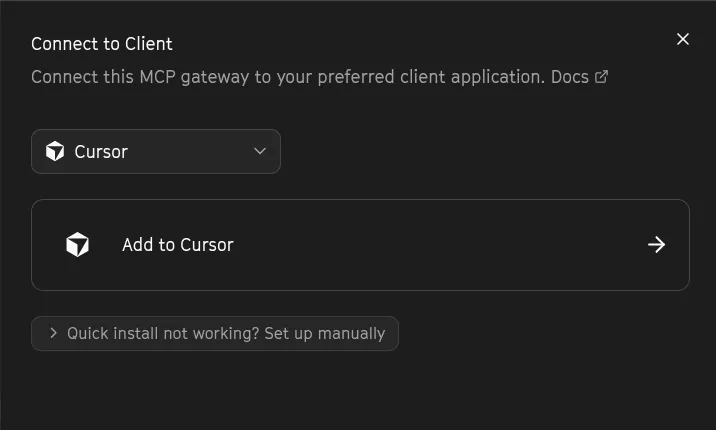
Otherwise, configure Cursor manually through the Customize MCP UI or by editing your MCP configuration file.
File path: ~/.cursor/mcp.json
{
  "mcpServers": {
    "arcade-runtime": {
      "url": "https://api.arcade.dev/mcp/<YOUR_GATEWAY_SLUG>"
    }
  }
}
Authenticate: Adding the Gateway to mcp.json gives you an option to authenticate directly from the MCP sidebar in Cursor. Selecting it redirects you to your browser and walks you through the standard OAuth consent flow, authorizing Arcade for the tools in your Gateway. A green dot next to the arcade-runtime server name confirms Cursor is connected.
Open Cursor Composer (Cmd+I) and run this prompt:
@mcp Use the Slack tool to read the last 3 messages in the #dev-alerts channel and summarize any database connection errors.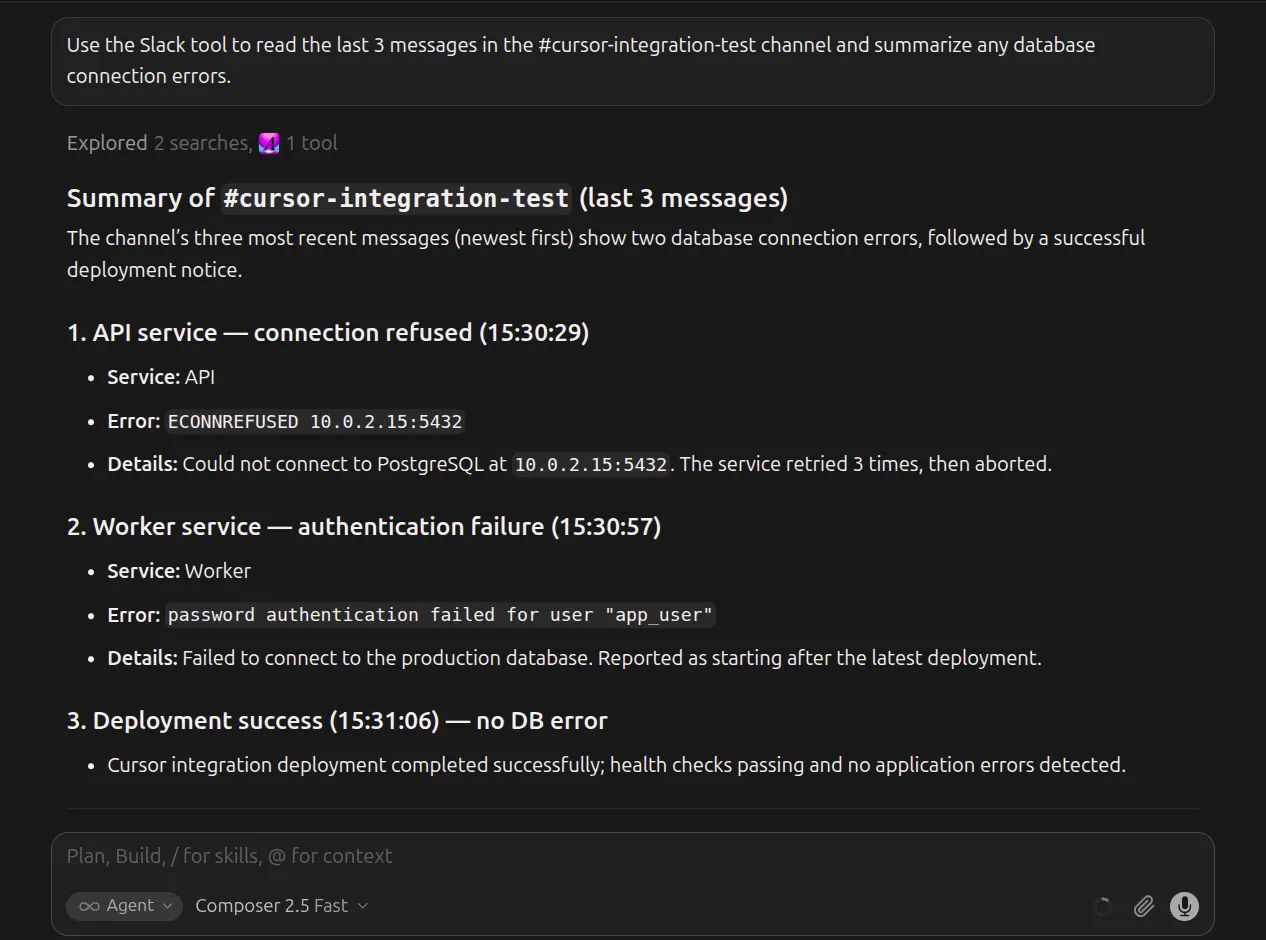
If a specific tool in the Gateway needs a scope you haven’t granted yet, Arcade pauses execution and reopens your browser to authorize it. Either way, your model never sees the credential.
Why connecting Cursor to MCP tools without Arcade puts your credentials at risk
Pasting a static API key directly into .env files or IDE settings works fine for a quick, one-off test. Relying on it as your everyday setup carries real risk.
If Cursor reads an untrusted pull request or Slack message containing hidden malicious instructions, a hardcoded key sitting in its context can be leaked and abused. Even a technically authorized tool call can be redirected into an undesired action this way.
A single static key also means every action maps to the same broad set of permissions. If that key leaks, whoever has it can act as you across everything it touches, since there’s no way to scope it down to just the one action being taken.
Thin API wrappers also lead LLMs to hallucinate parameters, since the model has to guess at precise pagination or a required channel ID instead of working from a schema built for the task.
How vaulted OAuth works in Arcade
Building a secure alternative yourself means taking on real engineering work:
- Engineering a per-user OAuth vault with PKCE
- Managing RFC-compliant refresh-token rotation
- Handling concurrent auth states
- Correctly implementing the MCP auth specification for client-to-server connections
That’s weeks of dedicated development before you’ve shipped a single workflow. Arcade gives you this layer natively, and also supports private cloud, VPC, air-gapped, and on-prem deployments if your infrastructure requirements call for it.
The following table compares native DIY Cursor architecture with the Arcade actions runtime:
| Architectural dimension | Native/DIY Cursor | Arcade Actions Runtime |
|---|---|---|
| Credential storage | Static API keys in .env or IDE settings |
Vaulted securely via OAuth, injected at runtime |
| Prompt injection risk | High (keys are accessible in the agent context) | Low, credentials never enter the LLM’s context, so a leaked prompt can’t extract them directly |
| Tool reliability | Low (direct API usage causes parameter hallucinations) | High (8,000+ agent-optimized tools designed for intent) |
| Authorization | None (LLM assumes full API key permissions) | Execution-time authorization enforces existing user identities and scoped agent permissions: Agent Permissions ∩ User Permissions = Effective Action Scope |
| Auditability | None (silent local executions) | Centralized dashboard logs every action taken, tied to the tool and account it touched |
How to configure Arcade for your Cursor setup
Cursor needs the Gateway URL configured correctly, since relying on defaults can mean a dropped connection behind certain networks, or a harder time troubleshooting later.
Arcade is an actions runtime that handles tool- and agent-level governance for you, so this configuration only needs to happen once.
Define your setup via JSON in the global path at ~/.cursor/mcp.json or locally at <PROJECT_ROOT>/.cursor/mcp.json.
Configuration:
{
  "mcpServers": {
    "arcade": {
      "url": "https://api.arcade.dev/mcp/<YOUR_GATEWAY_SLUG>"
    }
  }
}| Configuration parameter | Explanation |
|---|---|
<YOUR_GATEWAY_SLUG> |
The unique runtime URL endpoint provided in your control plane dashboard. |
Secret management and environment setup
Since Arcade is the centralized tool registry and secure vault for all provider credentials (Slack, Jira, GitHub), you don’t need to inject provider secrets into your local .env file at all.
Things to watch for
Monitor timeout settings closely. Large queries involving pagination across multiple SaaS tools can hit default network timeout limits. Also check that the context limit of your active Cursor model can handle the returned payload sizes from large calendar or ticket queries.
3 Cursor and Arcade.dev workflows you can try today
The actions runtime handles cross-provider session state automatically, which enables multi-app workflows with minimal additional setup.
Workflow 1: create a Linear issue from Slack alerts
Convert a Slack alert into a tracked work item without leaving your codebase. Arcade automatically handles the underlying Linear team UUID resolution and strict Slack schema execution to prevent hallucination.
Read the latest alert in the #pagerduty-alerts Slack channel. Extract the error stack trace, and create a new Linear issue titled "Investigate: [Error Name]" with the stack trace in the description.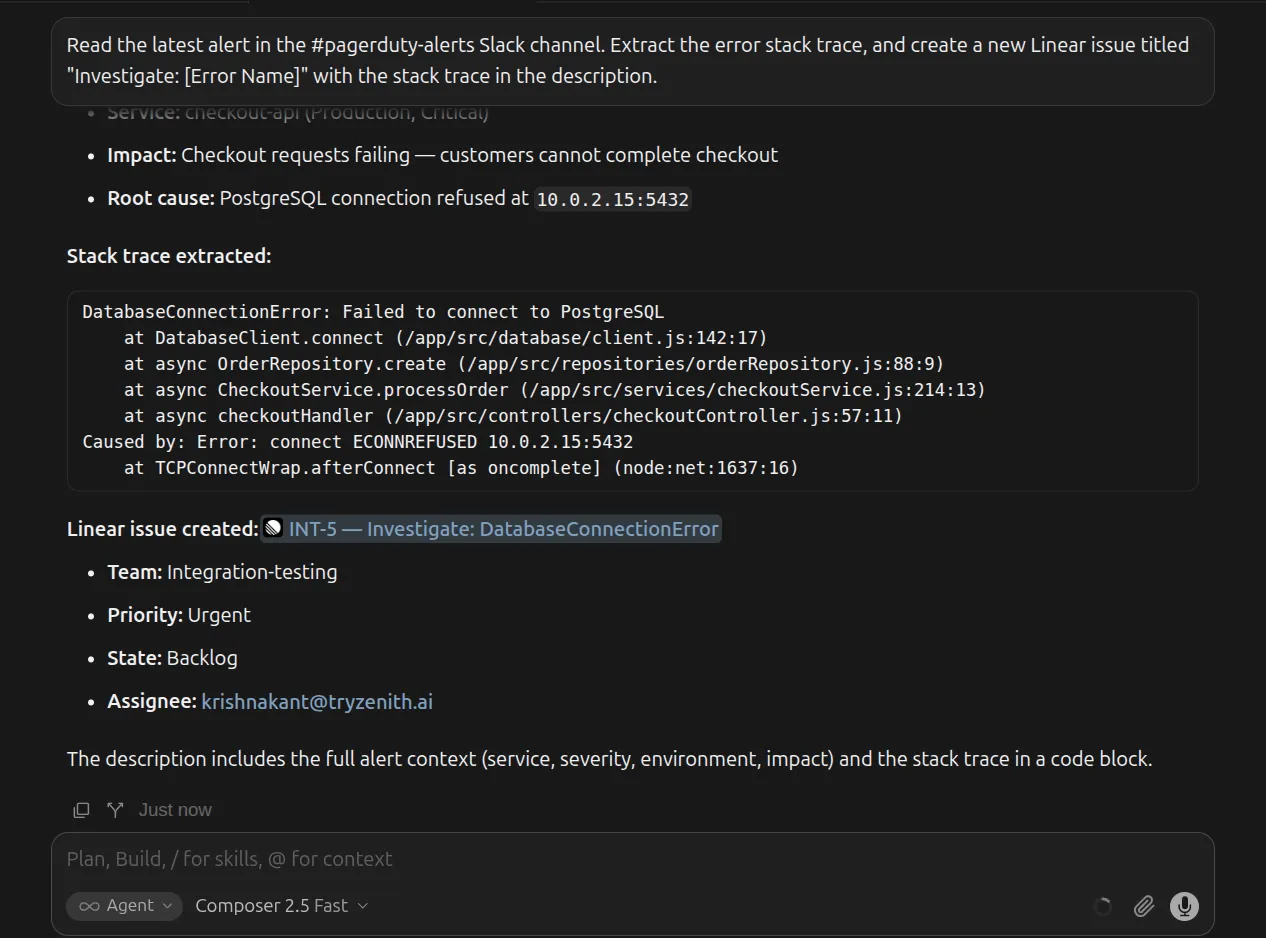
Workflow 2: generate a Word briefing from Gmail
Combine your communications and schedule into a tangible document before you start writing code. This workflow isolates least-privilege read scopes across Google services and executes a deterministic file-generation step.
Fetch my 5 most recent unread Gmail messages. Summarize them into a daily briefing, save it as a Microsoft Word document "Morning_Briefing.docx" on MS Word.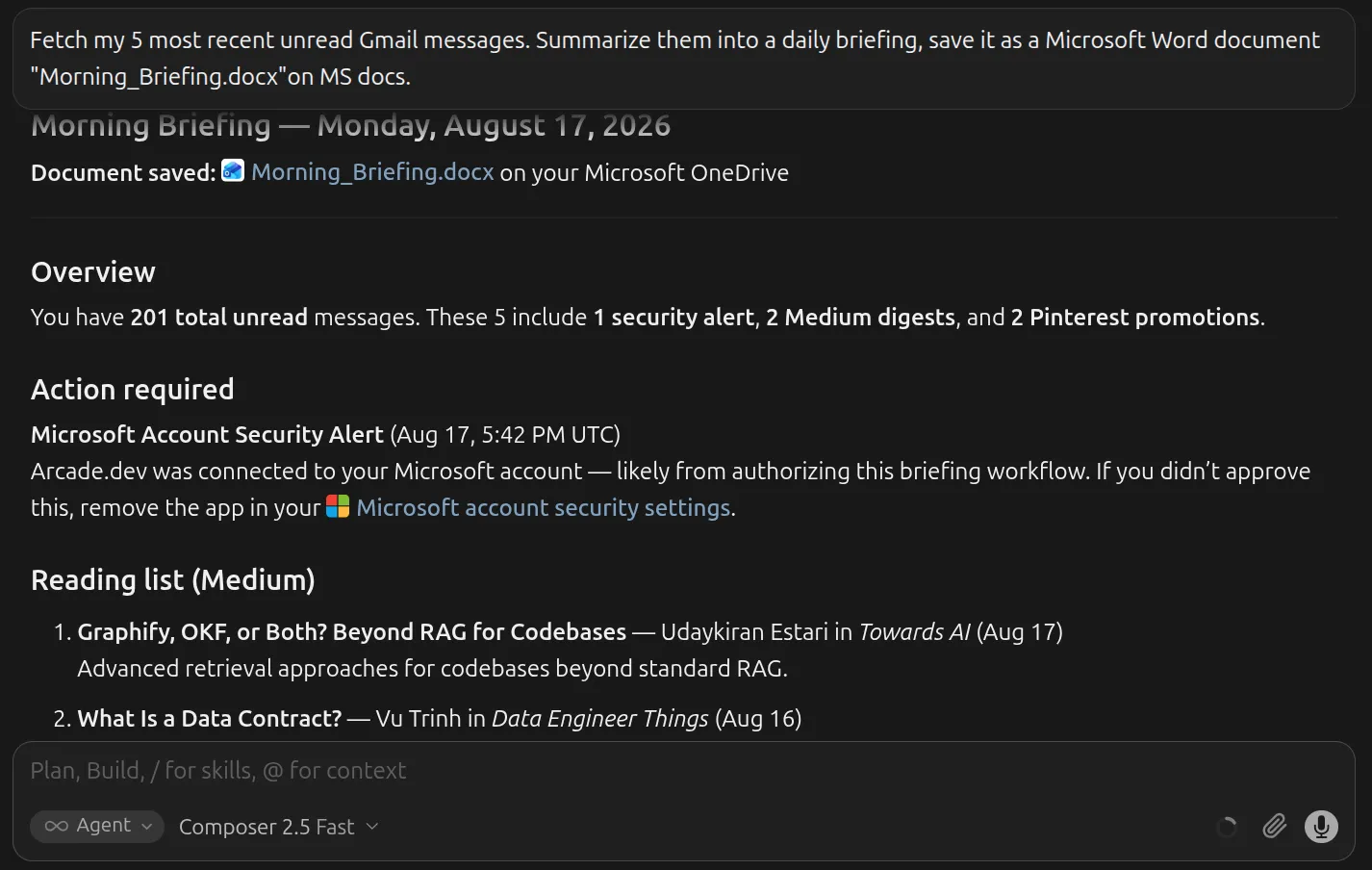
Workflow 3: draft a weekly status update from Jira
Automate your weekly standup prep by cross-referencing your assigned tickets with your shipped code.
Gather all Jira tickets currently assigned to me that are in the "Done" column. Draft a Markdown status update in this editor window.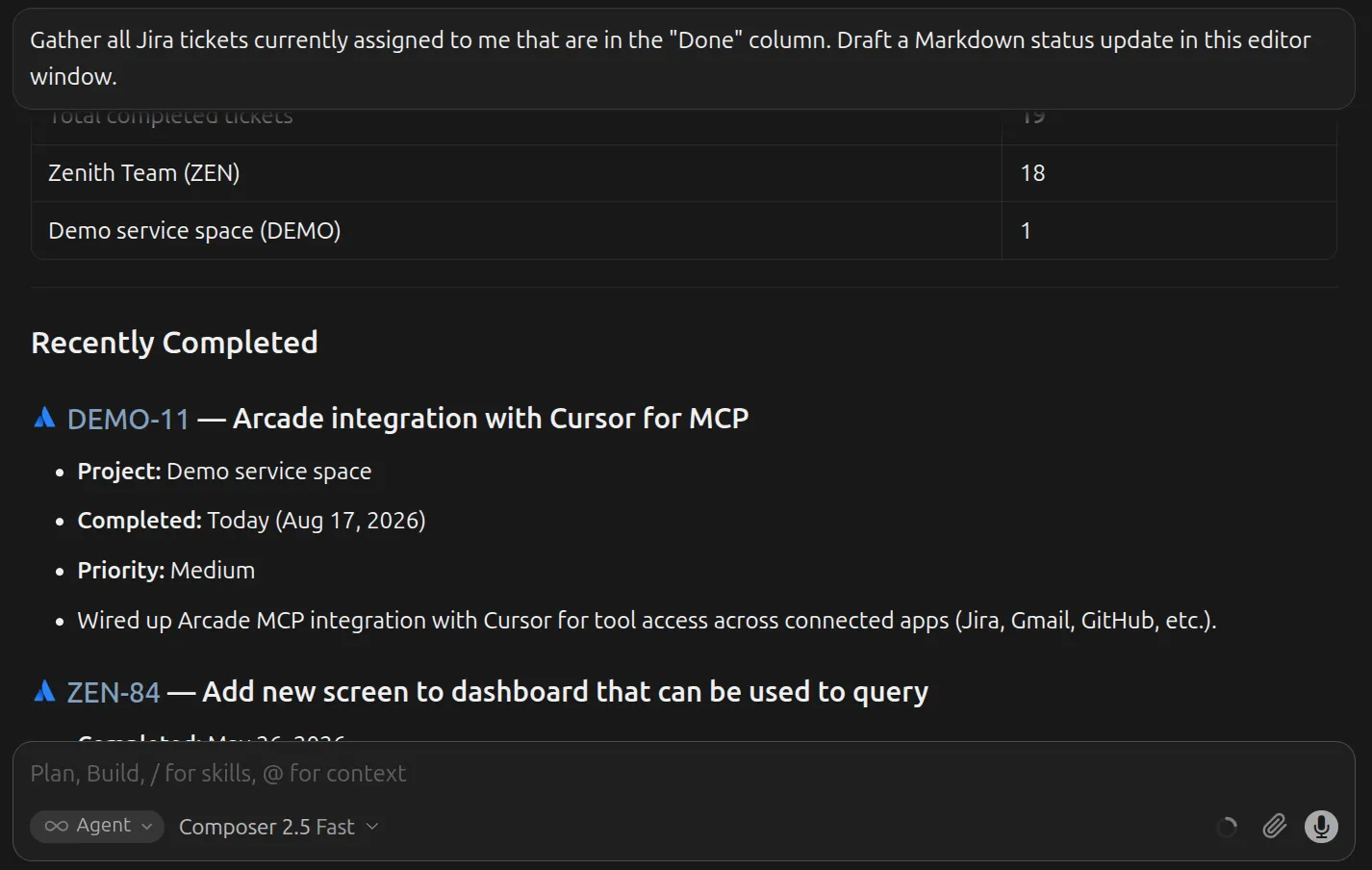
How to troubleshoot Cursor MCP server connections
The following table provides troubleshooting steps for common Cursor connection issues:
| Symptom | Likely Cause | Concrete Fix |
|---|---|---|
| Cursor shows “Disconnected” for server | The Gateway URL is incorrect, or your network is blocking outbound HTTPS to api.arcade.dev. |
Double check <YOUR_GATEWAY_SLUG> in mcp.json matches your dashboard, and confirm your network allows outbound connections to api.arcade.dev. |
| Tool calls fail with 401 Unauthorized | Your session expired or was never completed. | Re-authenticate from the MCP sidebar in Cursor to restart the OAuth flow and refresh your session. |
| Tool calls fail with 403 Forbidden | The authenticated token lacks explicit OAuth scope for the action. | Review browser consent screens or trigger a re-auth to grant write scopes. |
| Silent tool failures | Execution-time authorization denied the action. | Check the control plane dashboard logs for per-tool permission enforcement blocks. |
| New or updated tools from the Gateway don’t show up in Cursor | Cursor doesn’t refresh a Gateway’s tool list automatically when you change it in the dashboard. | Manually refresh the connection from the MCP sidebar, or remove and re-add the server entry in mcp.json so Cursor re-fetches the current tool list. |
How to interpret auth failures and audit logs
The difference between a 401 and 403 error matters. A 401 typically means your underlying session expired. A 403 means your identity is valid, but execution-time authorization, which enforces the Intersection Rule (Agent Permissions ∩ User Permissions = Effective Action Scope), blocked the action because you lack a specific granted scope.
For definitive error information, check your Arcade control plane dashboard. It logs every tool call with the tool, account, and timestamp involved, so you can see exactly what ran and what was blocked.
Securing your Cursor MCP integration
Connecting Cursor to external tools is straightforward. Doing it securely, even for your own day-to-day workflows, requires moving away from static keys sitting in a local config file.
By integrating Arcade, you replace that config with an actions runtime that handles execution-time authorization, runs reliably through agent-optimized tools, and gives you one place to see everything you’ve connected.
Create your first Arcade integration and test it today.
Frequently Asked Questions (FAQ)
Can I use a basic local MCP server instead of Arcade?
Yes, but basic servers require you to manage and expose long-lived API keys locally. Arcade is necessary when you want to avoid hardcoded credentials and keep every tool call scoped to your own account.
Can I build my own OAuth handler for Cursor MCP instead of using Arcade?
You can, but building it yourself requires engineering a custom PKCE OAuth vault, managing RFC-compliant token rotation, and creating a scalable proxy. Arcade provides this actions runtime infrastructure out of the box.
Can I self-host the Arcade actions runtime?
Yes. For teams with strict egress and compliance constraints, Arcade supports private infrastructure deployments, including private cloud, VPC, air-gapped, and on-prem environments.
When should I choose Arcade over AWS AgentCore?
Choose Arcade when you need a focused, model-agnostic actions runtime with execution-time authorization and a centralized agent and tool registry, without adopting a broader platform. AWS AgentCore relies on AWS-native architectures and introduces high operational complexity, requiring you to assemble and maintain multiple separate services (IAM, STS, KMS, CloudWatch) yourself.
How do I configure Arcade in Cursor for MCP?
On the MCP Gateways tab, select Cursor from the client list to reveal an Add to Cursor button to add the server for you. You can also add it by hand: in Cursor’s Customize MCP UI, or by editing ~/.cursor/mcp.json and pointing the URL to https://api.arcade.dev/mcp/<YOUR_GATEWAY_SLUG>. Cursor gives you an option to authenticate from the MCP sidebar, which opens the standard OAuth consent flow in your browser.
Where do I find my Arcade gateway slug?
In the control plane dashboard, copy your Gateway’s URL slug from its settings page.
What does Arcade log when Cursor runs MCP tools?
Arcade records tool execution metadata and policy decisions. The control plane dashboard generates logs with the minimum required fields (agent, user, action/tool call, system, and timestamp), so you can see exactly what ran.
Why don’t new tools I added to my Gateway show up in Cursor?
Cursor caches the tool list from an MCP server when it connects and doesn’t automatically re-fetch it when you change the Gateway in the dashboard. Refresh the connection from the MCP sidebar, or remove and re-add the server entry in mcp.json, to force Cursor to pick up the current tool list.
How does Arcade pricing work for tool calls and auth events?
Arcade’s pricing is usage-based. The free tier includes a set number of auth events and tool calls per month at no platform fee. The paid tier adds a $25/month platform fee plus $0.10 per auth event and $0.01 per tool call.