

I texted “prep me for my 2pm” on WhatsApp. Thirty seconds later, my phone buzzed back with a structured briefing: who I was meeting, what we last discussed over email, what my team said about them in Slack, and three talking points. No browser tab. No laptop. Just a message on my commute.
That’s the promise of an always-on AI assistant. And until recently, it was almost impossible to build one that actually worked.
Open-source frameworks like OpenClaw made headless, two-way messaging agents popular. Anthropic’s Claude Code Channels confirmed the approach had legs. Channels is currently in research preview, but the direction is clear. Anthropic already uses this pattern for hand-offs between their desktop app, mobile app, and Claude Code. Expect this to GA in some form.
But getting from a weekend demo to a reliable assistant exposes gaps that no amount of prompt engineering fixes. Authorization. Tool reliability. Session management. The agent needs access to your calendar, email, and Slack, and you need to be sure it’s not a security liability.
I built a working version. This guide walks through the entire thing: a WhatsApp relay server, an MCP server, Claude Code as the brain, and Arcade.dev for secure tool access. Working code at every step.
We’ll start with the pitfalls you need to understand, then build it.
TL;DR
- OpenClaw-style headless frameworks give your agent god-mode access to every connected service, rely on brittle tool wrappers, bloat the context window with raw API responses, and produce zero audit trail. Buying a dedicated Mac Mini to run them doesn’t help. The machine isn’t the threat model, the credentials are.
- This guide builds a WhatsApp AI assistant using a relay server that handles Meta’s webhooks, an MCP server that bridges to Claude Code, Arcade for secure tool access and audit logging, and a meeting-prep skill that pulls from Google Calendar, Gmail, and Slack to deliver structured briefings directly in WhatsApp.
- Every layer includes working code you can run locally: webhook ingestion with HMAC signature validation, a cursor-based message queue, MCP tool definitions, Claude Code configuration, and a complete skill file that encodes a three-phase meeting-prep workflow.
From demo to production: The four pitfalls of always-on AI agents
The headless setup that OpenClaw popularized is the starting line. The moment you try to move from a weekend proof of concept to something you’d actually trust with your calendar and email, four architectural problems surface.
Pitfall 1: God-mode credentials and the agent security risk
Headless agent frameworks inherit the host machine’s full access profile. The agent gets the same permissions as the developer who launched it. Every OAuth token, every API key, every connected service, wide open.
A single prompt injection or compromised dependency cascades through everything. Your Google Drive, your CRM, your source code repos. One bad input and the agent becomes an insider threat.
This isn’t theoretical. CVE-2026-25253 exposed a one-click RCE in OpenClaw. The gateway lacked origin validation. An attacker could exfiltrate the auth token via a malicious link and achieve total system compromise.
We wrote about this pattern in detail in OpenClaw doesn’t need your tokens.
Pitfall 2: Fragile API wrappers and the tool reliability problem
Most agent tools are thin wrappers around REST APIs. They force the model to guess complex payload parameters and retry when natural language doesn’t map to rigid schemas.
Then shadow registries appear. Different teams build duplicate, unversioned wrappers for the same APIs. One unannounced API change breaks multiple agents in ways nobody predicted. Public tool registries have already become a supply-chain attack vector, with malicious tools that exfiltrate local state or establish backdoors.
For patterns that make MCP tools more resilient, see 54 Patterns for Building Better MCP Tools.
Pitfall 3: Context window bloat from raw API responses
Unoptimized tools dump the full API response into the context window. A Jira ticket history? Tens of thousands of tokens of irrelevant metadata. The agent’s reasoning goes erratic. Costs spike with every conversation turn.
Pitfall 4: No audit trail, no reliability, no compliance
Keeping a self-hosted agent alive with tmux or systemd creates an audit black hole. When the process crashes or misbehaves, there’s no structured log to trace what happened. Which action was taken? What parameters? Which user started the request?
You can’t answer “what did the agent do?” if you never logged it.
That’s an immediate fail for SOC2, ISO27001, and any serious compliance review.
Why buying a Mac Mini doesn’t fix any of this
There’s a growing trend: developers buying dedicated Mac Minis or spinning up VMs to run OpenClaw-style agents 24/7. The reasoning is, if the agent has its own machine, you’ve isolated it.
You haven’t. The machine isn’t the threat model. The credentials are.
That Mac Mini still needs OAuth tokens for Google Calendar, API keys for your CRM, access to your Slack workspace. A compromised dependency doesn’t care whether it’s running on your laptop or a dedicated server in a closet. The blast radius is identical. For a deeper comparison of isolation strategies that actually reduce blast radius, see AI Agent Sandboxing Guide.
Hardware isolation solves availability. It doesn’t touch authorization, tool reliability, context management, or audit logging.
You’ve built an expensive, always-on machine with unfettered access to your business systems. Every pitfall above still applies.
How Arcade, Claude Code, and Skills solve these problems
I needed three things: a secure way to connect to business tools, a battle-tested agent runtime, and a way to encode workflows without writing integration code.
Arcade solves the tool and auth layer. It sits between the agent and your business tools. When the agent wants to read your calendar, Arcade evaluates permissions, mints a just-in-time token scoped to that specific action, and executes the call. The LLM never sees long-lived credentials. Your Google Calendar token isn’t sitting in an .env file on a Mac Mini. It’s managed by Arcade’s runtime with per-action authorization.
Arcade also solves the brittle tools problem. Instead of writing fragile REST wrappers, you use pre-built, agent-optimized integrations that return summarized data, not raw JSON dumps. When Google changes their Calendar API, Arcade handles it. Your agent code stays untouched. And every tool call generates structured audit logs tied to the specific user and action.
Claude Code is the agent runtime. It’s more battle-tested than OpenClaw, has native MCP support, and handles tool orchestration without the brittle process management of tmux and systemd scripts.
Skills encode the actual workflows. This is the piece most people miss. Arcade gives the agent access to your tools with proper auth. Skills tell the agent how to use them well. For a deeper look at the distinction, see Skills vs Tools for AI Agents.
A skill is a markdown file that encodes domain expertise: which tools to call, in what order, what to look for in the results, how to format the output. Without a skill, you have an agent with calendar access but no idea how to prepare a meeting brief. With a skill, you have an assistant that pulls calendar events, cross-references email threads, checks Slack for internal context, and delivers a structured briefing, all from a single WhatsApp message.
Arcade gives access. Skills give expertise. Together, they turn an LLM into a useful assistant.
And because skills are just markdown files, anyone on the team can write and iterate on them. No code deployment. No engineering tickets.
Here’s what we’re building: a WhatsApp relay for messaging, Claude Code as the brain, Arcade for auth-managed tool access, and skills that encode your team’s workflows.
Step-by-step: building the WhatsApp AI assistant with MCP and Arcade
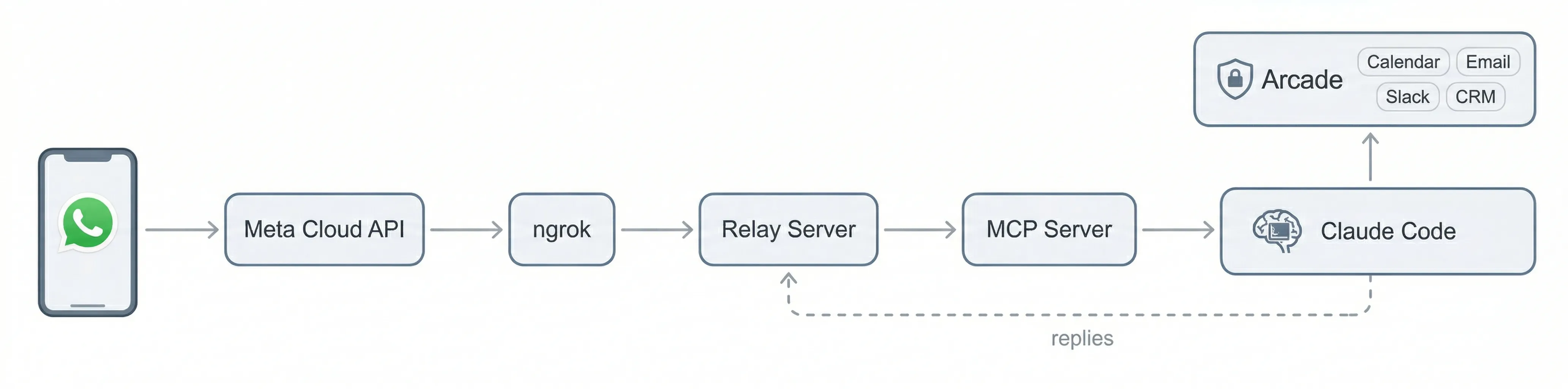
Enough architecture. Here’s what we’re making: WhatsApp messages flow through a relay server into an MCP server, which feeds them to Claude Code. Claude Code processes messages using skills, calls business tools through Arcade, and replies back through the same chain.
One wrinkle: WhatsApp’s Cloud API only supports webhooks. There’s no WebSocket or long-polling option. That means something has to sit on a public URL to receive Meta’s callbacks. Since we’re running everything locally, the relay server handles that role, and ngrok tunnels traffic from Meta’s servers to it on your machine.
Prerequisites: WhatsApp Business API, Claude Code, and Arcade
Before starting, make sure you have a Meta developer account with a WhatsApp Business App configured (Meta’s getting started guide), Node.js 20+ and npm, ngrok for tunneling webhooks to your local machine, Claude Code installed and configured, an Arcade account with API access, and a phone number registered with WhatsApp Business API.
Step 1: Project structure and environment setup
Here’s the folder layout:
whatsapp-assistant/
├── whatsapp.ts          # MCP server (bridge between relay and Claude Code)
├── package.json         # MCP server dependencies
├── .mcp.json            # Claude Code MCP server registration
├── whatsapp-relay/
│   ├── relay.ts         # Relay server (faces the internet via ngrok)
│   ├── package.json     # Relay server dependencies
│   └── .env             # WhatsApp API credentials (from .env.example)
└── skills/
    └── meeting-prep/
        └── SKILL.md     # Meeting preparation skill for Claude Code
Start by setting up both projects:
# Create the project
mkdir whatsapp-assistant && cd whatsapp-assistant

# Initialize the MCP server
npm init -y
npm install @modelcontextprotocol/sdk
npm install -D typescript @types/node tsx

# Initialize the relay server
mkdir whatsapp-relay && cd whatsapp-relay
npm init -y
npm install hono @hono/node-server
npm install -D typescript @types/node tsx
cd ..
Create your .env file inside whatsapp-relay/ with the following variables:
# Meta WhatsApp Cloud API
WHATSAPP_ACCESS_TOKEN=        # Bearer token from Meta App Dashboard
WHATSAPP_PHONE_NUMBER_ID=     # Bot's phone number ID
WHATSAPP_VERIFY_TOKEN=        # Any string, used for webhook verification handshake
WHATSAPP_APP_SECRET=          # App secret for validating webhook signatures

# Relay auth
RELAY_SECRET=                 # Shared secret, local MCP server sends this in X-Relay-Secret header
The RELAY_SECRET is a shared key between the relay and MCP server. Generate something random (openssl rand -hex 32). It prevents anything on your network from impersonating the MCP server.
Step 2: Build the WhatsApp webhook relay server
The relay is the only component that faces the internet. It has three jobs: validate incoming WhatsApp webhooks, queue messages for the MCP server, and proxy outbound messages to Meta’s API.
Webhook signature validation
Every webhook payload from Meta includes an HMAC-SHA256 signature. The relay verifies this before processing anything:
import { createHmac, timingSafeEqual } from "node:crypto";

const APP_SECRET = process.env.WHATSAPP_APP_SECRET!;

function verifySignature(rawBody: string, header: string | undefined): boolean {
  if (!header) return false;
  const sig = header.replace("sha256=", "");
  if (!sig) return false;
  const expected = createHmac("sha256", APP_SECRET)
    .update(rawBody)
    .digest("hex");
  if (sig.length !== expected.length) return false;
  return timingSafeEqual(Buffer.from(sig), Buffer.from(expected));
}
This uses timingSafeEqual to prevent timing attacks, a detail that matters when you’re validating signatures from a third party.
Webhook handler: always return 200
Meta uses at-least-once delivery. If your endpoint returns anything other than 200, Meta retries, potentially creating a storm of duplicate events. The relay acknowledges immediately and processes asynchronously:
app.post("/webhook", async (c) => {
  const rawBody = await c.req.text();

  if (!verifySignature(rawBody, c.req.header("x-hub-signature-256"))) {
    // Still return 200. Returning 4xx causes Meta to retry with the same bad signature.
    console.error("webhook: invalid signature");
    return c.text("ok", 200);
  }

  try {
    const payload = JSON.parse(rawBody) as WaWebhookPayload;
    parseMessages(payload);
  } catch (err) {
    console.error("webhook: parse error:", err);
  }

  return c.text("ok", 200);
});
Note the pattern: even on a bad signature, we return 200. Logging the rejection is enough. Returning 4xx just makes Meta retry with the same bad payload.
In-memory message queue with polling
The relay queues validated messages and exposes a polling endpoint for the MCP server. The MCP server passes a cursor (the last message ID it saw) to get only new messages:
let queue: InboundMessage[] = [];
let nextId = 1;
const MAX_QUEUE = 1000;

function enqueue(msg: Omit<InboundMessage, "id" | "timestamp">): void {
  queue.push({ ...msg, id: nextId++, timestamp: Date.now() });
  if (queue.length > MAX_QUEUE) {
    queue = queue.slice(queue.length - MAX_QUEUE);
  }
}

// Polling endpoint, protected by relay secret
app.get("/poll", (c) => {
  const since = Number(c.req.query("since") ?? "0") || 0;
  const messages = queue.filter((m) => m.id > since);
  const cursor = messages.length > 0 ? messages[messages.length - 1].id : since;
  return c.json({ messages, cursor });
});
The relay authenticates all local-facing routes with the shared secret via x-relay-secret header. The WhatsApp-facing webhook routes don’t use this. They’re validated by Meta’s HMAC signature instead.
Outbound message proxy
When Claude Code wants to reply, it goes through the MCP server, which calls the relay, which calls Meta’s API:
const WA_API = `https://graph.facebook.com/v21.0/${PHONE_NUMBER_ID}`;

async function waApi(
  path: string,
  body: Record<string, unknown>,
): Promise<{ ok: boolean; status: number; data: unknown }> {
  const res = await fetch(`${WA_API}${path}`, {
    method: "POST",
    headers: {
      "Content-Type": "application/json",
      Authorization: `Bearer ${ACCESS_TOKEN}`,
    },
    body: JSON.stringify(body),
  });
  const data = await res.json();
  return { ok: res.ok, status: res.status, data };
}
The relay is built with Hono, a lightweight framework that keeps the code minimal. The full relay is roughly 200 lines and handles text messages, images, documents, audio, video, stickers, reactions, and location shares.
Step 3: Build the MCP server for Claude Code
The MCP server is the bridge between the relay and Claude Code. It polls the relay for incoming WhatsApp messages and exposes tools that Claude Code can call to respond.
Tool definitions
The server registers four tools with Claude Code via the Model Context Protocol:
const mcp = new Server(
  { name: "whatsapp", version: "1.0.0" },
  {
    capabilities: { tools: {}, experimental: { "claude/channel": {} } },
    instructions: [
      "The sender reads WhatsApp, not this session.",
      "Anything you want them to see must go through the reply tool.",
      'Messages arrive as <channel source="whatsapp" chat_id="..." wamid="..." user="..." ts="...">.',
      "Reply with the reply tool. Pass chat_id (phone number) back.",
      "WhatsApp has a 24-hour session window: you can only send free-form messages",
      "within 24 hours of the user's last message.",
    ].join("\n"),
  },
);
The instructions field tells Claude Code how to interpret incoming messages and that it must use the reply tool to send anything back. Without this, the model might try to respond in its own transcript, which the WhatsApp user would never see.
The four tools are reply (send text), react (emoji reactions), mark_read (read receipts), and send_media (images, documents, audio, video). Here’s the reply tool definition:
{
  name: 'reply',
  description: 'Reply on WhatsApp. Pass chat_id (phone number) from the inbound message.',
  inputSchema: {
    type: 'object',
    properties: {
      chat_id: { type: 'string', description: 'Phone number to send to' },
      text: { type: 'string', description: 'Message text' },
      reply_to: { type: 'string', description: 'wamid to quote-reply to (optional)' },
    },
    required: ['chat_id', 'text'],
  },
}
Polling loop with cursor persistence
The MCP server polls the relay every 2 seconds and forwards new messages to Claude Code as channel notifications:
const CURSOR_FILE = join(process.env.HOME || "/tmp", ".whatsapp-relay-cursor");
let cursor = loadCursor();

async function poll(): Promise<void> {
  try {
    const result = await relay(`/poll?since=${cursor}`);
    if (!result.ok) return;

    const { messages, cursor: newCursor } = result.data as {
      messages: InboundMessage[];
      cursor: number;
    };

    for (const msg of messages) {
      const meta = {
        chat_id: msg.from,
        wamid: msg.wamid,
        user: msg.pushName || msg.from,
        ts: new Date(msg.timestamp).toISOString(),
        type: msg.type,
      };

      mcp.notification({
        method: "notifications/claude/channel",
        params: {
          content: msg.text ?? `(${msg.type})`,
          meta,
        },
      });
    }

    if (newCursor > cursor) {
      cursor = newCursor;
      saveCursor(cursor);
    }
  } catch (err) {
    process.stderr.write(`whatsapp channel: poll error: ${err}\n`);
  }
}
The cursor persists to disk (~/.whatsapp-relay-cursor), so restarting the MCP server doesn’t re-process old messages. Each message becomes a channel notification that Claude Code sees as a new input, including the sender’s phone number, display name, timestamp, and message type as metadata.
Step 4: Register the MCP server with Claude Code
Create a .mcp.json file in your project root:
{
  "mcpServers": {
    "whatsapp": {
      "command": "node",
      "args": ["--import", "tsx", "whatsapp.ts"]
    }
  }
}
That’s it. When Claude Code starts in this directory, it discovers the MCP server, launches it as a child process via stdio, and the WhatsApp channel becomes available. Claude Code now receives WhatsApp messages as channel notifications and can call the reply, react, mark_read, and send_media tools.
Step 5: Configure the Arcade gateway and connect it to Claude Code
Before the assistant can access business tools, you need to create an Arcade gateway that defines which tools the agent can use and with what permissions.
Log into the Arcade dashboard, create a new gateway, and add the MCP servers for the services your assistant needs: Google Calendar, Gmail, Slack, and any others relevant to your workflows. For each server, select only the specific tools you want the agent to access. This is where you scope permissions. If the meeting-prep skill only needs to list calendar events and search email, there’s no reason to expose tools that delete events or send email on your behalf.
Once the gateway is created, register it with Claude Code from the command line:
claude mcp add 'arcade-gateway' \
  --transport http 'https://api.arcade.dev/mcp/<your-gateway-slug>' \
  --header "Authorization: Bearer <your-arcade-api-key>" \
  --header 'Arcade-User-ID: <your-email>'
This writes the gateway configuration to ~/.claude.json. Claude Code now has two MCP servers: the local WhatsApp channel server (from .mcp.json in the project) and the remote Arcade gateway (from ~/.claude.json). The WhatsApp server handles messaging. The Arcade gateway handles business tool access with per-action authorization.
The Arcade-User-ID header tells Arcade which user’s credentials to use when executing tool calls. In the single-user setup, this is your email. In the multi-user architecture described later, the orchestrator passes a different user ID per session.
Step 6: Create a meeting-prep skill with Arcade tools
With the channel wired up, the assistant needs capabilities. This is where tools and skills work together. Arcade provides secure access to business tools (Google Calendar, Gmail, Slack), and skills tell the agent how to use those tools to accomplish a specific workflow.
Skills in Claude Code are markdown files. No code, no deployment, just a structured prompt that encodes domain expertise. Here’s the structure:
skills/
└── meeting-prep/
    └── SKILL.md
The skill file has two parts: frontmatter that tells Claude Code when to activate it, and a body that defines the workflow. Here’s the meeting-prep skill:
---
name: meeting-prep
description: "Prepare briefings for upcoming customer meetings by reading
  your Google Calendar, identifying external/customer meetings (based on
  attendee email domains), then pulling relevant context from Gmail threads
  and Slack conversations."
---

# Meeting Prep

You are a meeting preparation assistant. Your job is to create concise,
actionable briefings for upcoming external meetings.

## Customer Directory
Read the centralized client registry at `$AGENT_DATA_DIR/clients.md`.
Use it to match calendar attendee domains to known customers, find the
correct Slack channel, and locate customer-specific data files.

## Phase 1: Discover (Find the Meeting)

- Search Google Calendar using `list_events` for the relevant time window
- Identify external meetings by checking attendee email domains
- Any attendee whose domain is NOT your organization signals an external meeting

## Phase 2: Gather (Pull Context from Email and Slack)

### Email Context (Gmail)
1. Search for recent threads involving external attendees (last 30 days)
2. Read the 3-5 most relevant threads, looking for decisions, action items, tone
3. Check the calendar event itself for agenda or documents

### Slack Context
1. If there's a dedicated customer channel, read recent messages there
2. Otherwise search by company name or contact names (last 2 weeks)
3. Look for internal context not in email: concerns, feature requests, deal status

## Phase 3: Brief (Deliver the Prep)

### Meeting Briefing: [Title]
**When:** [Date & Time]
**With:** [Attendees + roles/company]
**Meeting type:** [Quarterly review, Demo, Follow-up, Intro call]

**Quick Context:** 2-3 sentences on where things stand
**Recent History:** Chronological recap of last interactions
**Key Things to Know:** Open items, concerns, opportunities
**Suggested Talking Points:** 3-5 practical conversation starters
**People Notes:** Brief note on new stakeholders or unfamiliar attendees
The skill tells the agent exactly which Arcade-powered tools to use (list_events, search_messages, read_thread), in what order, what signals to look for in the results, and how to format the output. The customer directory lookup means the agent doesn’t waste tokens fuzzy-matching company names. It goes straight to the right email domain and Slack channel.
When a user texts “prep me for my 2pm” on WhatsApp, Claude Code receives the message via the channel, activates this skill, runs the three-phase workflow through Arcade’s tools, and sends the briefing back via the WhatsApp reply tool. The whole flow, from WhatsApp message to structured briefing, happens without the user leaving the chat.
Step 7: Run and test the WhatsApp assistant locally
Start everything in order:
# Terminal 1: Start the relay server
cd whatsapp-relay
node --import tsx relay.ts
# → "whatsapp relay listening on :3000"

# Terminal 2: Expose the relay via ngrok
ngrok http 3000
# → Copy the https:// forwarding URL

# Terminal 3: Start Claude Code from the project root
cd whatsapp-assistant
claude --dangerously-load-development-channels server:whatsapp
# Claude Code discovers .mcp.json and launches the MCP server
# → "whatsapp channel: connected, polling http://localhost:3000 every 2000ms"
Register your webhook with Meta by going to your app in the Meta Developer Dashboard, then navigating to WhatsApp, Configuration, Webhook. Set the Callback URL to your ngrok URL plus /webhook (e.g., https://abc123.ngrok.io/webhook), set the Verify Token to the value in your .env file, and subscribe to the messages webhook field.
Now send a message from your phone to the WhatsApp Business number. You should see it flow through the relay, into the MCP server, and appear in Claude Code. Claude Code processes it and sends a reply back through the same chain.
Try texting “prep me for my next meeting.” The first time Claude Code calls an Arcade-powered tool (like reading your calendar), Arcade prints an authorization URL in the terminal. Open it in your browser and authenticate with the relevant account (Google, Slack, etc.). This is a one-time step per service. After that, Arcade manages token refresh automatically.
If you have the meeting-prep skill configured and Google Calendar / Gmail connected through Arcade, you’ll get back a structured briefing right in WhatsApp.
Scaling from single-user to multi-user: What changes in the architecture
Everything above runs as a single user. One Claude Code instance, one set of Arcade credentials, one identity context. Here’s what breaks when a second user messages the bot, and what you need to change.
Why a single Claude Code instance doesn’t work for multiple users
The single-user setup has an implicit assumption: every WhatsApp message belongs to you. When Claude Code calls an Arcade tool like list_events, Arcade uses the credentials you authenticated during setup. There’s no user identifier in the call.
If User 2 messages the same bot, Claude Code still calls Arcade with your credentials. User 2 gets your calendar. Worse, Claude Code runs in a single conversation context. User 1’s meeting briefing (deal terms, internal Slack messages, revenue numbers) is sitting in the context window when User 2’s message arrives. A prompt injection from User 2 could surface User 1’s data. Arcade secured the credentials correctly, but the shared context window breaks tenant isolation.
You need two things: separate agent instances so context never crosses between users, and per-user credential routing so Arcade knows whose calendar to read.
The multi-user architecture
The relay server, MCP tool schemas (reply, react, send_media), and skills stay identical. What changes is the orchestration layer.
The single-user version uses Claude Code CLI with its built-in channels feature. For multi-user, you build a custom orchestrator using the Claude Agent SDK. The SDK doesn’t have native channel support, but it gives you sessions, hooks, tool permissions, and MCP connections, the building blocks to replicate what channels do for a single user across many users.
The relay server becomes a router. When a message arrives from +1111, the orchestrator looks up which agent session owns that phone number and routes the message there. When +2222 messages, it routes to a different session. Each session has its own context window, its own MCP server instance, and its own Arcade user context. No data crosses between them.
Credential routing works through Arcade’s user_id parameter on tool calls. Each user goes through the Arcade browser auth flow once (the same authorization URL step from the single-user setup). After that, when the orchestrator calls an Arcade tool on behalf of User 2, it passes User 2’s identity. Arcade resolves the correct OAuth grants, mints a scoped token for that specific action, and executes the call. User 2’s calendar request returns User 2’s calendar. For a full walkthrough of how this authorization model works across frameworks, see SSO for AI Agents: Authentication and Authorization Guide.
The identity pairing itself is straightforward. Map each WhatsApp sender ID to a corporate identity using a one-time verification flow: send a code via a WhatsApp Authentication Template, have the user confirm it in a web portal, and store the mapping.
Arcade handles the rest of the multi-user complexity: per-user OAuth token exchange and just-in-time grants for credential delegation, scoped tool execution that prevents cross-tenant data access, a versioned tool registry that doesn’t break when upstream APIs change, and structured audit logs tied to the specific user and action. These are the same four pitfalls from earlier. They all get harder at multi-user scale, and Arcade handles them natively.
Production readiness checklist for AI agents
Before you move beyond local use, gut-check these five things:
- Credential isolation. Can the LLM see your auth tokens? If yes, stop. The architecture needs just-in-time, per-action authorization where the model never touches long-lived credentials. Standing service account privileges are a non-starter.
- Tool reliability. Are your tools agent-optimized or naive REST wrappers? If the model has to guess complex payload parameters and brute-force retries, you’ll hit failures that are invisible until production.
- Versioning and rollbacks. Can you update a tool without breaking the running assistant? If one upstream API change takes down your agent, you need a versioned registry with safe deprecation periods.
- Auditability. Can you trace every action back to the specific human who requested it? If not, you fail SOC2 and ISO27001. You need immutable logs with user IDs, tool names, and sanitized parameters.
- Developer time allocation. Are your engineers building OAuth plumbing and webhook retry logic, or building skills and workflows? If it’s the former, the architecture is too low-level.
Next steps
You now have a working WhatsApp assistant. A relay handling Meta’s webhooks. An MCP server bridging to Claude Code. A meeting-prep skill that turns “prep me for my 2pm” into a structured briefing pulled from your calendar, email, and Slack.
The interesting part is what comes next. The relay and MCP server are infrastructure you write once. The skills are where the ongoing value lives, and anyone on the team can write them. Meeting prep was the first one I built. Expense report summaries, daily standups, customer check-in reminders: same pattern, different markdown file.
For multi-user deployments, the Claude Agent SDK gives you the building blocks to orchestrate per-user agent sessions, with the relay routing messages and Arcade handling per-user credential delegation, tenant isolation, and audit logging. You focus on skills, not infrastructure.
The code from this guide is on GitHub. Fork it and build something useful.
FAQ
What is an always-on AI executive assistant?
An always-on assistant runs continuously and interacts through messaging channels like WhatsApp or Slack. It maintains state across conversations and takes actions in connected business tools asynchronously, without needing a browser tab open.
What are the risks of using OpenClaw for an AI agent?
They commonly rely on shared machine credentials, fragile scripts, and ungoverned tool wrappers. This creates high risk of token leakage, unreliable tool calls, context bloat, and missing audit trails required for compliance.
How do you prevent an agent from having god-mode access to company systems?
Use runtime, per-action authorization with just-in-time, short-lived grants (e.g., OAuth token exchange). The agent never holds broad or long-lived credentials, and every action is evaluated against the requesting user’s permissions.
What is Arcade and how does it secure AI agent tool access?
Arcade is a runtime that sits between an AI agent and your business tools. Instead of giving the agent stored credentials, Arcade evaluates each tool call against the requesting user’s permissions, mints a just-in-time token scoped to that action, executes the call, and logs the result. It also provides agent-optimized integrations that return summarized data instead of raw API responses. For a full overview, see How Arcade works.
Is it safe to give an AI agent access to my Google Calendar and email?
Not if the agent holds long-lived OAuth tokens or API keys directly. A prompt injection or compromised dependency can exfiltrate those credentials and access everything the agent can reach. The safe approach is per-action authorization: a runtime like Arcade mints a short-lived, scoped token for each specific action and revokes it immediately after, limiting the blast radius to a single call.
How does the relay server handle duplicate WhatsApp webhooks?
WhatsApp delivers events with at-least-once semantics. The relay returns 200 OK immediately (even on bad signatures) to prevent retry storms, and processes messages asynchronously. For production use, add a deduplication store like Redis keyed by message ID.
What is WhatsApp’s 24-hour messaging window?
Free-form replies are allowed within 24 hours of the user’s last message. Proactive messages outside that window must use pre-approved WhatsApp message templates (HSM templates). For an 8 AM morning brief, you’d need an approved template.
Can I use this architecture with models other than Claude?
Yes. The relay server and MCP protocol are model-agnostic. The relay handles WhatsApp I/O, and the MCP server defines tools via a standard protocol. You could swap Claude Code for any MCP-compatible runtime.
How do I add new skills or workflows to a Claude Code agent?
Create a new directory under skills/ with a SKILL.md file. The skill’s frontmatter description tells Claude Code when to activate it. Skills are just structured prompts, no code deployment required.