


GitHub Copilot helps developers write code, but real developer work extends into Slack, Jira, Google Workspace, linear, github etc. Connecting Copilot to these tools locally is trivial. Doing it securely, without leaving raw tokens sitting in a config file, is not.
When moving from a local Model Context Protocol (MCP) setup to something you actually trust with your accounts, you can hit authentication limits, missing audit trails, and brittle integrations. Arcade.dev is the remote action runtime that fixes this. This guide shows how to connect GitHub Copilot to external tools without exposing API tokens, so your automation handles actual user workflows.
To connect Copilot with Arcade, add your Arcade Gateway URL to your local mcp.json file. Instead of storing unencrypted tokens locally, Arcade injects credentials just-in-time. It handles authorization at execution time and keeps downstream secrets out of the model context. This lets you automate Jira and Slack safely.
Key Takeaways: connect Copilot to Arcade MCP in minutes
- Create an Arcade MCP Gateway component in the Arcade dashboard.
- Add an HTTP MCP server in VS Code (Command Palette →
MCP: Add Server), which writes to~/.config/Code/User/mcp.jsonon Linux (or the equivalent path on macOS/Windows). - Point the server
typetohttpfor the remote connection. - Set the
urltohttps://api.arcade.dev/mcp/<GATEWAY_SLUG>. - Trigger a tool call in Copilot to initiate the secure browser-based OAuth flow for managed authentication and authorization.
- Execute natural language prompts to take action on your connected tools.
Quickstart: connect GitHub Copilot to Arcade MCP
Native MCP setups require you to paste raw tokens. To connect GitHub Copilot to MCP tools via Arcade, configure your IDE.
First, create an Arcade MCP Gateway component in the Arcade dashboard to generate your gateway URL.
Add the Arcade Gateway to VS Code:
- Open the Command Palette (
Cmd/Ctrl+Shift+P). - Run
MCP: Add Server. - Choose
HTTPas the server type. - Paste your Arcade Gateway URL:
https://api.arcade.dev/mcp/<GATEWAY_SLUG>. - Name the server (for example,
arcade-server).
VS Code writes this straight to your user-level MCP config: ~/.config/Code/User/mcp.json on Linux, ~/Library/Application Support/Code/User/mcp.json on macOS, or %APPDATA%\Code\User\mcp.json on Windows. The generated entry looks like this:
{
  "servers": {
    "arcade-server": {
      "url": "https://api.arcade.dev/mcp/<GATEWAY_SLUG>",
      "type": "http"
    }
  },
  "inputs": []
}
You can also skip the Command Palette and edit this file by hand. Once saved, verify the connection. GitHub Copilot will recognize the server and prompt you to authenticate via a browser OAuth flow instead of requiring local configuration tokens.
Verification Step:
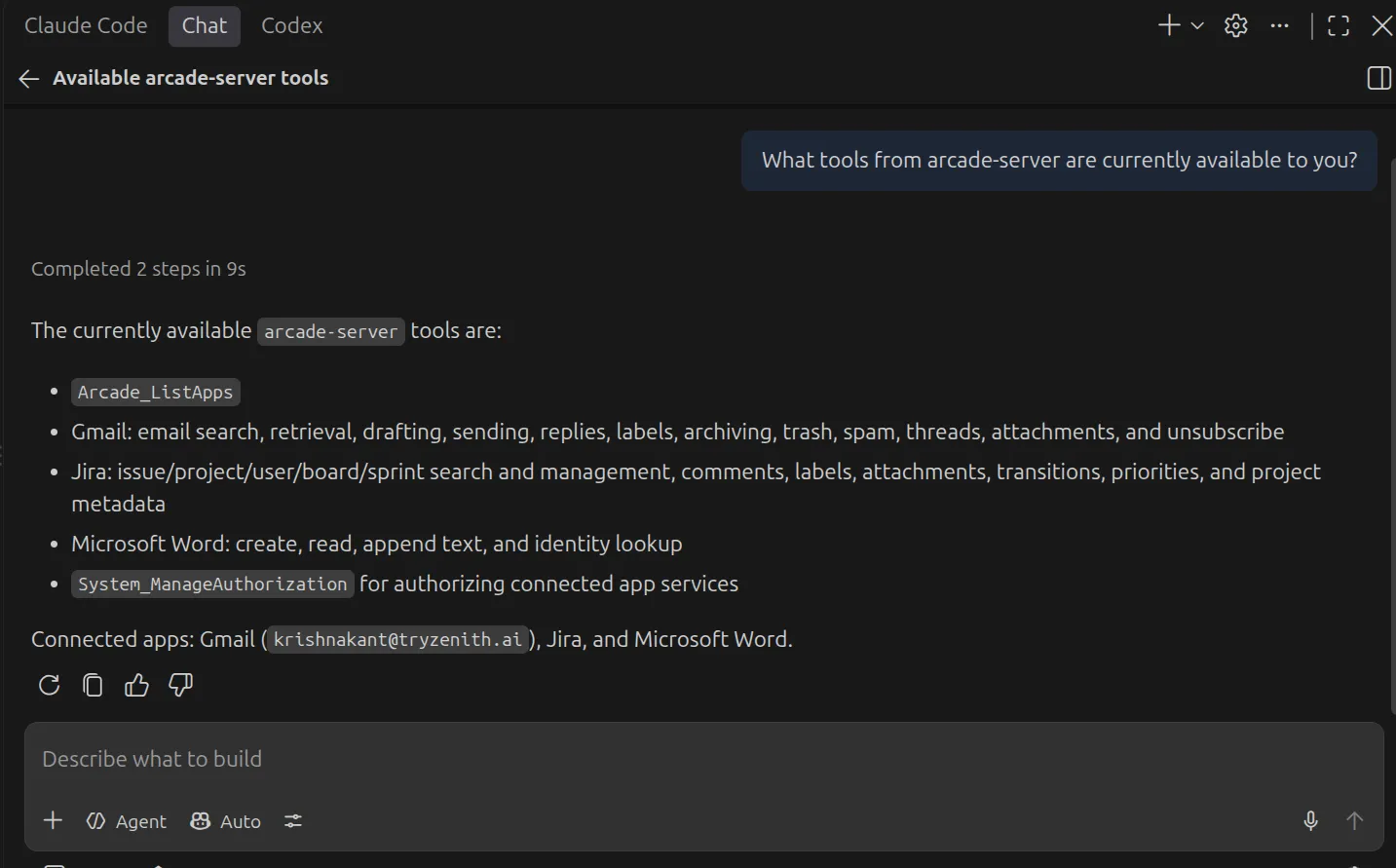
List the available tools from the arcade-server server.The agent will list the tools (e.g., Slack, Jira, Linear) you enabled in your gateway. You can also check server status directly: run MCP: List Servers in the Command Palette and select arcade-server to see its state, view logs, or restart it.
Why a local GitHub Copilot MCP setup puts your credentials at risk
Running native MCP servers locally introduces real risk once you’re connecting real accounts, not just experimenting:
- Context pollution: Accidentally exposing long-lived credentials to the LLM
- Overprivileged local tokens: One broadly-scoped API key sitting in a plain-text file can reach everything it touches
- Missing audit trail: No record of what the agent actually did
Writing custom API wrappers means mapping LLM text to strict JSON payloads. Arcade provides +8,000 tools built for agents to use.
Side-by-Side Mechanism Comparison:
Native GitHub Copilot Approach:
// Tokens exposed directly on the local machine
{
  "env": { "SLACK_API_TOKEN": "xoxb-exposed-token" }
}
Arcade Action Runtime Approach:
// Tokens vaulted, dynamically injected by the runtime at execution
{
  "url": "https://api.arcade.dev/mcp/<GATEWAY_SLUG>"
}
Arcade removes credentials from the local machine. It pauses for user consent in the browser, limiting access to what that specific user can do.
| Technical/architectural dimension | Native GitHub Copilot MCP approach | Arcade action runtime approach |
|---|---|---|
| Delegated user auth and credential vaulting | Static PATs stored in unencrypted .env files |
OAuth tokens vaulted remotely by Arcade, never stored in your config or env |
Intersection enforcement (Agent Permissions ∩ User Permissions = Effective Action Scope) |
One over-privileged local token that can reach everything it touches | Execution-time authorization and per-tool permission enforcement |
| Intent-translating tools for reasoning and actions | Brittle raw API wrappers | +8,000 agent-optimized tools for LLM reasoning, planning, generation, and actions |
| Persistent memory and action logs | Invisible execution; missing audit trail | A log of every action taken, so you can see exactly what happened |
How to configure Arcade MCP for your own Copilot setup
Setting up GitHub Copilot with Arcade on your machine benefits from a configuration that handles network conditions gracefully.
VS Code MCP Configuration
{
  "servers": {
    "arcade-server": {
      "type": "http",
      "url": "https://api.arcade.dev/mcp/<GATEWAY_SLUG>",
      "timeout": <TIMEOUT_SECONDS>
    }
  },
  "inputs": []
}
Configuration Parameters:
arcade-server: The designated identifier for the server inside Copilot. You can name this anything.type: Must be set tohttpfor Arcade’s remote MCP Gateway.<GATEWAY_SLUG>: Your personal Arcade Gateway identifier.<TIMEOUT_SECONDS>: The integer (e.g.,60) allowing sufficient time for browser consent flows.
Secret Management: Unlike standard setups, there are no environment variables containing raw Slack or Jira secrets to inject into your IDE. Arcade vaults all downstream secrets.
The gateway acts as a secure boundary. You don’t manage local secrets yourself. Arcade connects to your existing accounts (Google, GitHub, Slack, and so on) to handle authentication.
Integration-Specific Gotchas: Configure a generous <TIMEOUT_SECONDS> parameter. Because Arcade intercepts requests and pauses execution to resolve JIT consent via browser OAuth, a short timeout causes the Copilot client to drop the request before the user completes the flow.
Context limits still apply. Avoid asking Copilot to ingest thousands of Jira issues at once. Instead, instruct the agent to filter by specific dates or assignees.
Actionable use cases for Copilot + Arcade MCP
These workflows combine GitHub Copilot with Arcade to handle developer tasks.
Triage Slack alerts into Linear issues
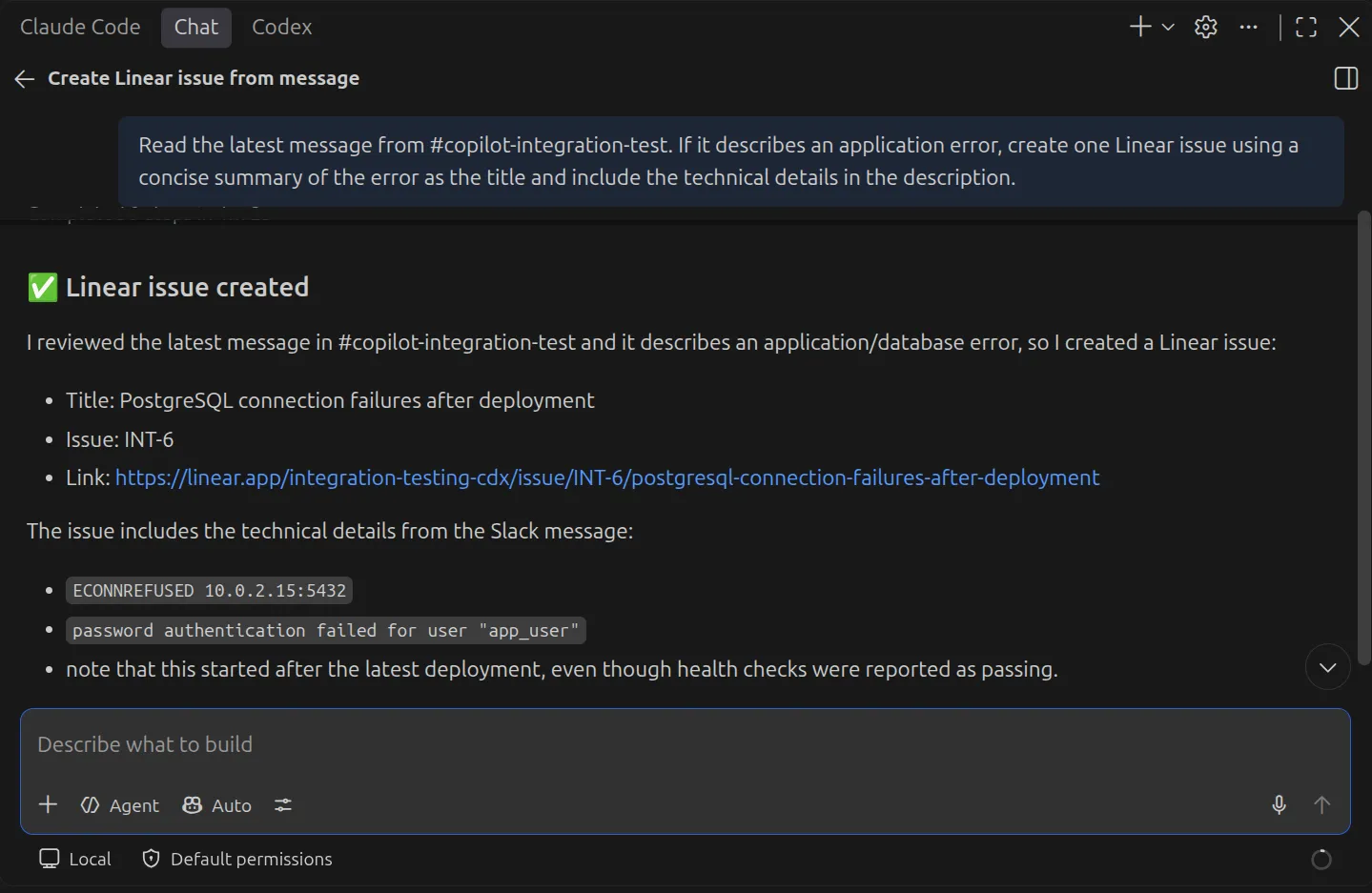
Copilot reads an error from a Slack channel, extracts the technical context, and creates a Linear issue.
Prompt:
Read the latest message from #copilot-integration-test. If it describes an application error, create one Linear issue using a concise summary of the error as the title and include the technical details in the description.Expected Output: Copilot accesses the Slack message, generates a relevant title and description, and creates the Linear issue, returning a confirmation to the developer in the chat.
Arcade provides tools with specific endpoints. Copilot translates the prompt into structured issue creation without hallucinating parameters.
Post Jira-based engineering updates to Slack
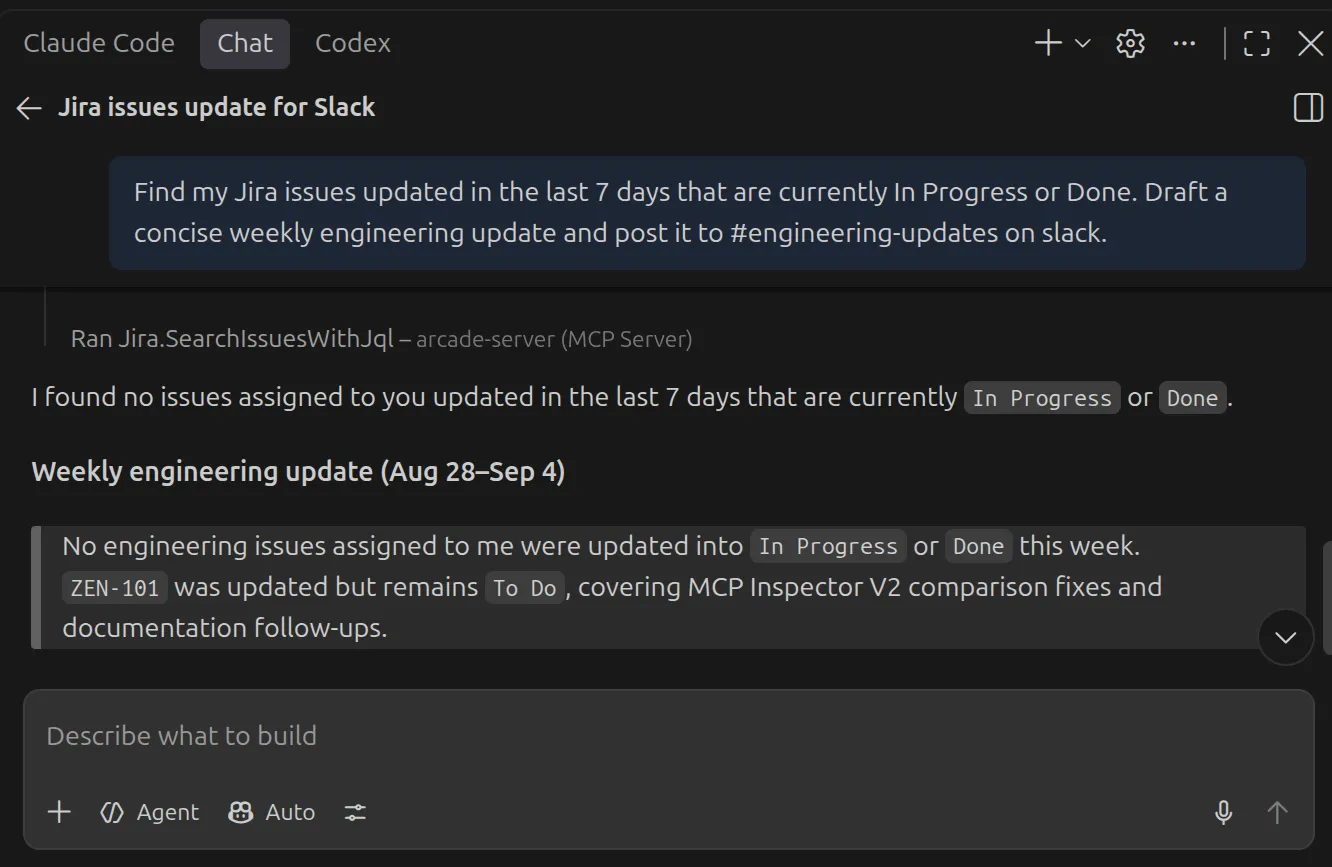
Copilot pulls recently updated Jira tickets and drafts a summary in a Slack channel.
Prompt:
Find my Jira issues updated in the last 7 days that are currently In Progress or Done. Draft a concise weekly engineering update and post it to #engineering-updates.Expected Output: Copilot queries Jira for your active issues, formats a readable summary, and triggers VS Code’s native tool approval dialog before writing the message to Slack.
Create a daily plan in Microsoft Word from Google Calendar
Copilot can read your meeting schedule and output a formatted Microsoft Word document outlining your day directly to your OneDrive.
Prompt:
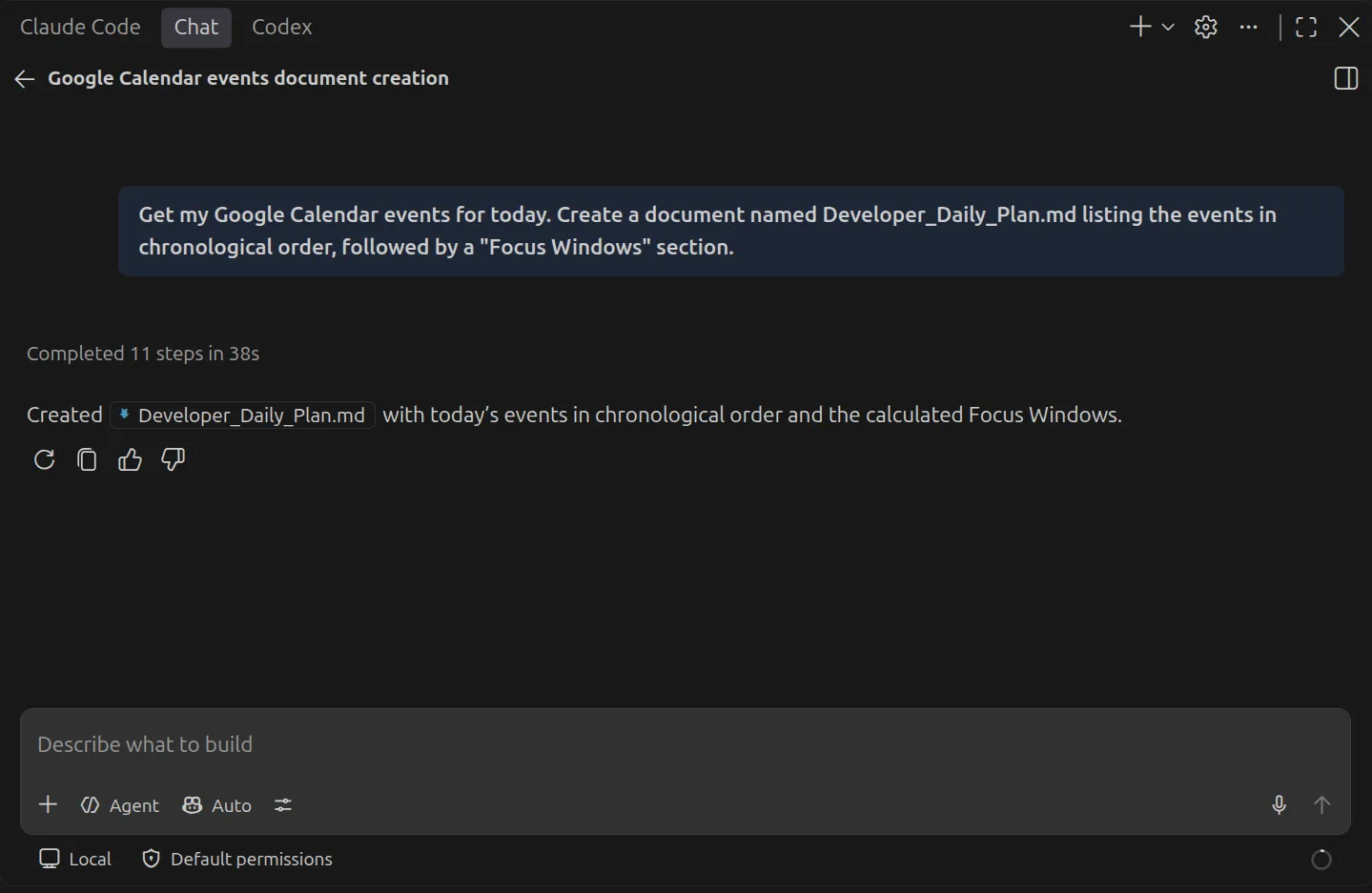
Get my Google Calendar events for today. Create a document named Developer_Daily_Plan.md listing the events in chronological order, followed by a "Focus Windows" section.Expected Output: Copilot retrieves calendar data and securely generates a .md file your daily agenda and calculated free periods.
Troubleshooting Copilot MCP connections (Arcade)
When connecting Copilot to external systems, errors usually come from local settings or OAuth scopes, not network failures.
| Symptom | Likely Cause | Concrete Fix |
|---|---|---|
| MCP tools do not appear in Copilot | MCP support disabled in Copilot settings | Ensure the MCP servers in Copilot setting is enabled in your GitHub Copilot settings. |
| Tool returns “Unauthorized” or 401 | Downstream OAuth missing | Click the Arcade auth link in the Copilot chat to grant specific provider scopes. |
| Browser authentication hangs/fails | Client state mismatch | Run the IDE command palette action to restart Copilot and re-trigger consent. |
| Copilot hallucinates parameters | Missing Gateway tools | Add the required tool (e.g., Slack) to your <GATEWAY_SLUG> via the Arcade dashboard. |
| Newly added tools don’t show up after a dashboard change | Copilot cached the old tool catalog | Run MCP: List Servers in the Command Palette, select your Arcade server, and choose Restart Server to refresh the tool list. |
If tools are missing, check whether MCP support is enabled in your Copilot settings. Even with a correct mcp.json, the IDE silently ignores the remote server if that setting is off.
The Arcade dashboard shows definitive errors. The audit logs show if a tool call reached Arcade and whether it failed from a missing OAuth token, insufficient permissions, or a malformed LLM payload.
Conclusion: secure Copilot MCP integrations with Arcade
Connecting GitHub Copilot to MCP Servers locally is straightforward. Doing it securely, once you’re connecting real accounts, means shifting from unencrypted token files to dynamic credential injection.
Arcade.dev is the action runtime that bridges this gap, connecting to your existing accounts rather than replacing them.
Arcade.dev provides execution-time authorization, +8,000 tools, and audit logs. This protects your data while you automate your own workflows.
Create your first Arcade.dev integration and test it today
FAQ
Can I use native MCP servers instead of Arcade.dev?
Yes, you can use native MCP servers for local testing, but they require storing unencrypted tokens locally.
Does GitHub Copilot support remote MCP over HTTP with OAuth?
Yes, the local VS Code Copilot client supports remote MCP over HTTP and handles browser-based OAuth flows correctly.
How can I see what actions Arcade has taken on my behalf?
The Arcade dashboard keeps a log of every tool call, including whether it succeeded, failed, or was blocked by a missing scope, so you always know what your agent actually did.
What URL should I use in mcp.json for the Arcade MCP gateway?
Specify https://api.arcade.dev/mcp/<GATEWAY_SLUG> under the servers block in your configuration.
Do I need to run a local MCP server when using Arcade?
No, Arcade operates as a remote HTTP server, eliminating the need to manage and monitor background processes on developer machines.
Can GitHub Copilot or the LLM see my OAuth tokens when using Arcade?
No, Arcade structurally eliminates prompt injection risks through a zero-trust context window. It vaults all tokens securely and injects them only at execution time so they never enter the LLM’s context.