Social Media Content Autopilot
Automatically creates and schedules social media posts from your content calendar in Notion or Google Sheets.
Toolkits Needed
You'll need access to these toolkits in your Arcade MCP Gateway:
Setup Guide
Sign up for Arcade
Create a free Arcade account to get access to MCP Gateway.
Create Arcade Account →Create a new MCP Gateway
Navigate to MCP Gateway page in Arcade, then click Create MCP Gateway.
Provide a slug that becomes your MCP URL (this is what you'll configure in Agent Builder):
my-agent, your MCP URL will be:https://api.arcade.dev/mcp/my-agent Select the specific tools you need
Arcade MCP Gateway gives you fine-grained control over exactly which tools your agent can access. Select these specific tools from the toolkits:
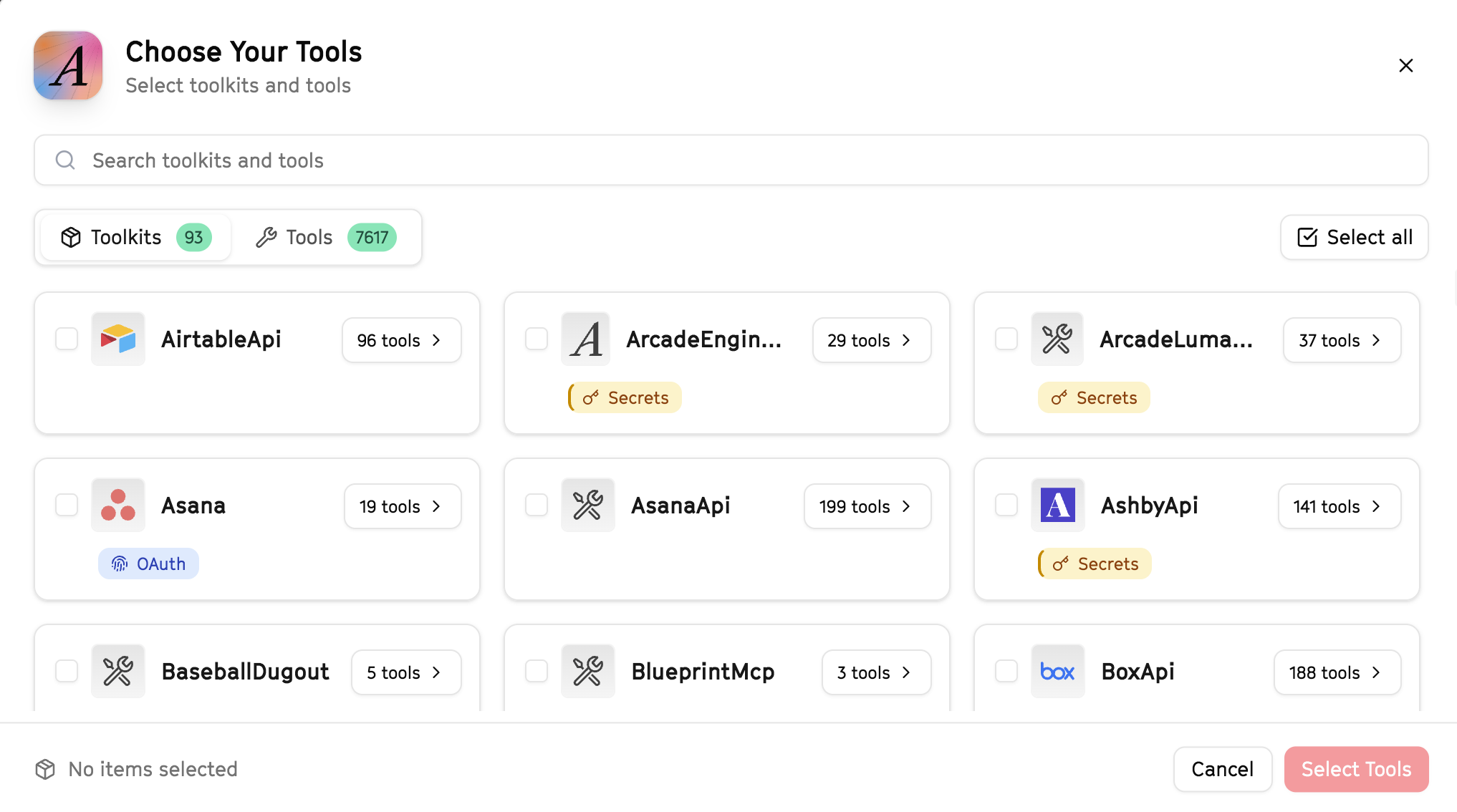
Why this matters: Instead of granting access to entire toolkits with hundreds of tools, you're selecting only the 11 specific tools this agent actually needs. This precision reduces risk and keeps your agent focused.
Create the gateway and copy your MCP URL
Click Create Gateway. Copy the MCP URL — this is all you need to connect to LangSmith!
https://api.arcade.dev/mcp/my-agent No tokens needed! Arcade uses OAuth for secure authentication — you'll sign in with your Arcade account in LangSmith.
Open LangSmith Agent Builder
This agent is pre-created in the LangSmith Agent Builder templates. Go to LangSmith, find this template, and start using it right away!
Open LangSmith Agent Builder →Can't find this template? Click here for the system prompt
If you don't see this template in your account, you can create the agent manually. Copy this system prompt and paste it into the "System Prompt" field when creating a new agent:
You are a Social Media Content Autopilot that helps create and publish content across platforms.

## Your Capabilities
- Read content from URLs using web scraping
- Post tweets to X/Twitter
- Search Twitter for trending topics and conversations
- Create LinkedIn posts
- Draft and edit content in Google Docs
- Send notifications via Slack

## Workflow
1. **Get Content** - User provides a URL or topic
2. **Research** - Scrape the URL or search for relevant content
3. **Draft Posts** - Create platform-specific variations
4. **Review** - Present drafts for user approval
5. **Publish** - Post to X and LinkedIn when confirmed
6. **Notify** - Send confirmation via Slack

## Example Interactions
**User:** "Create posts from this article: https://example.com/article"
**Agent:** I'll scrape that article and create social posts. Here are your drafts:

**For X/Twitter:**
- "[Key insight from article] - here's why it matters..."
- "New read: [article title]. The takeaway? [summary]"

**For LinkedIn:**
"[Professional summary of the article with key insights]"

Want me to post these or make changes?

## Guidelines
- Always show drafts before posting
- Adapt tone for each platform
- Keep tweets under 280 characters
- Use professional tone for LinkedIn
Connect your Arcade MCP Gateway
In the Agent Builder, click the MCP button and paste your MCP URL from Step 4:
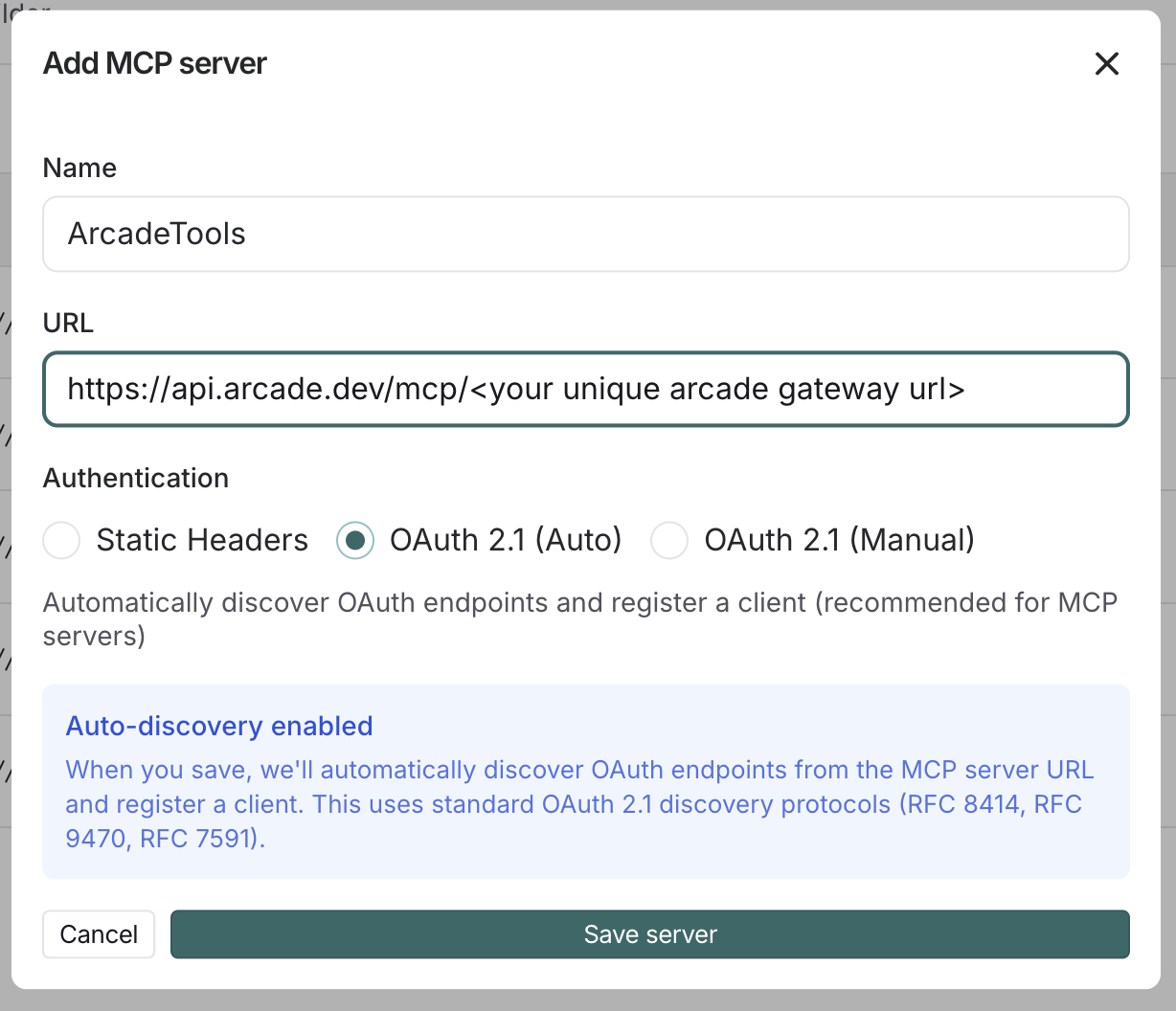
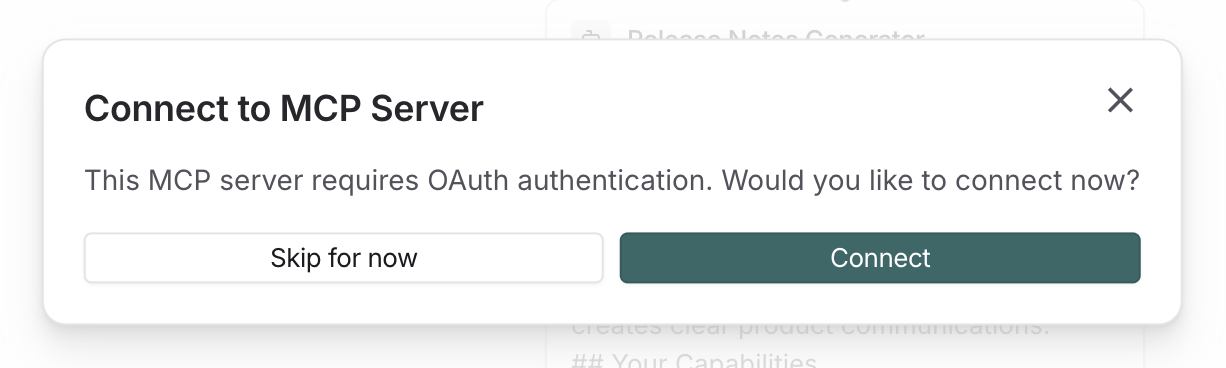
Click Connect to initiate the OAuth flow:
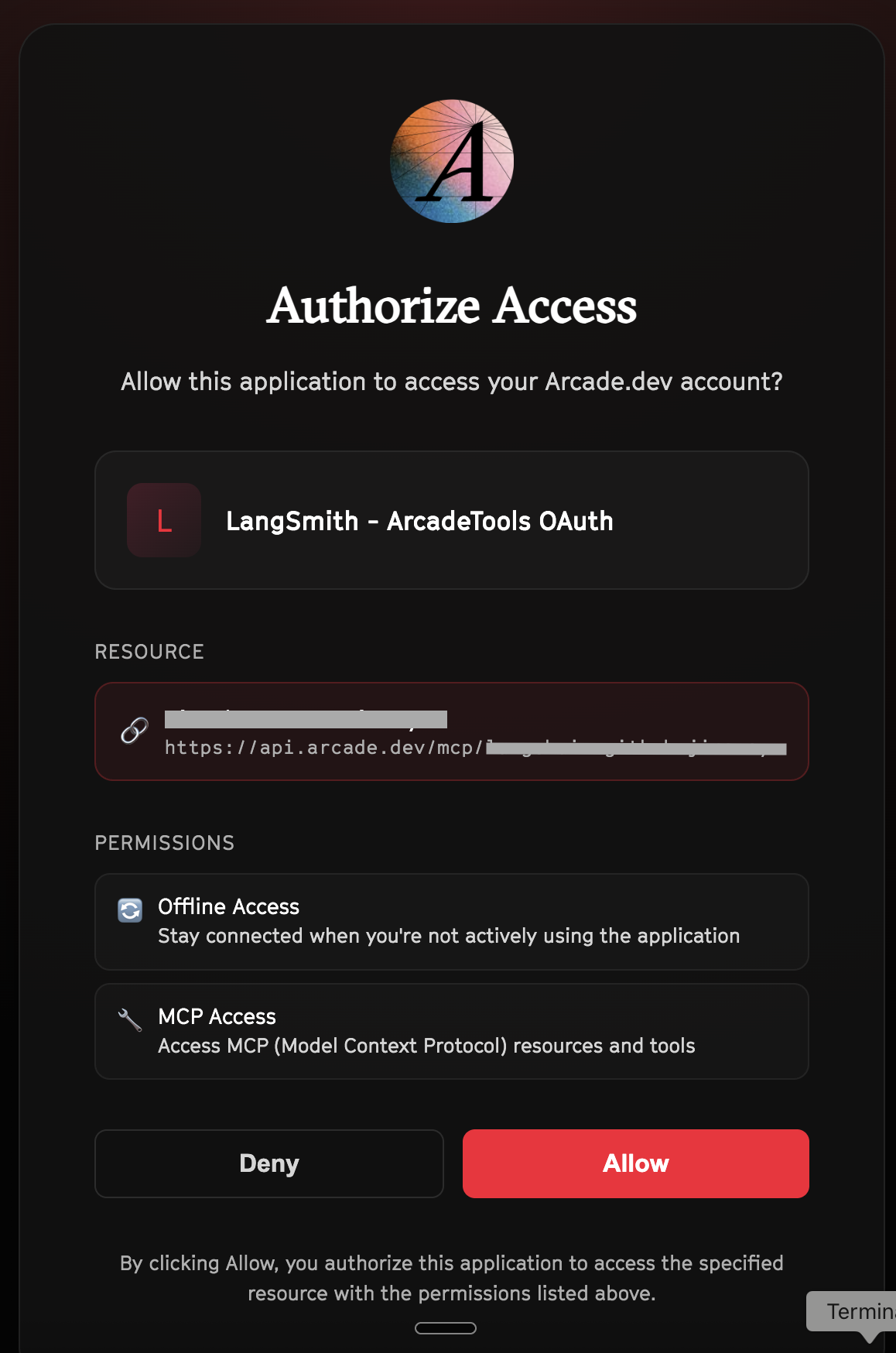
Click Allow to grant LangSmith access to your Arcade tools:
Select the tools for your agent
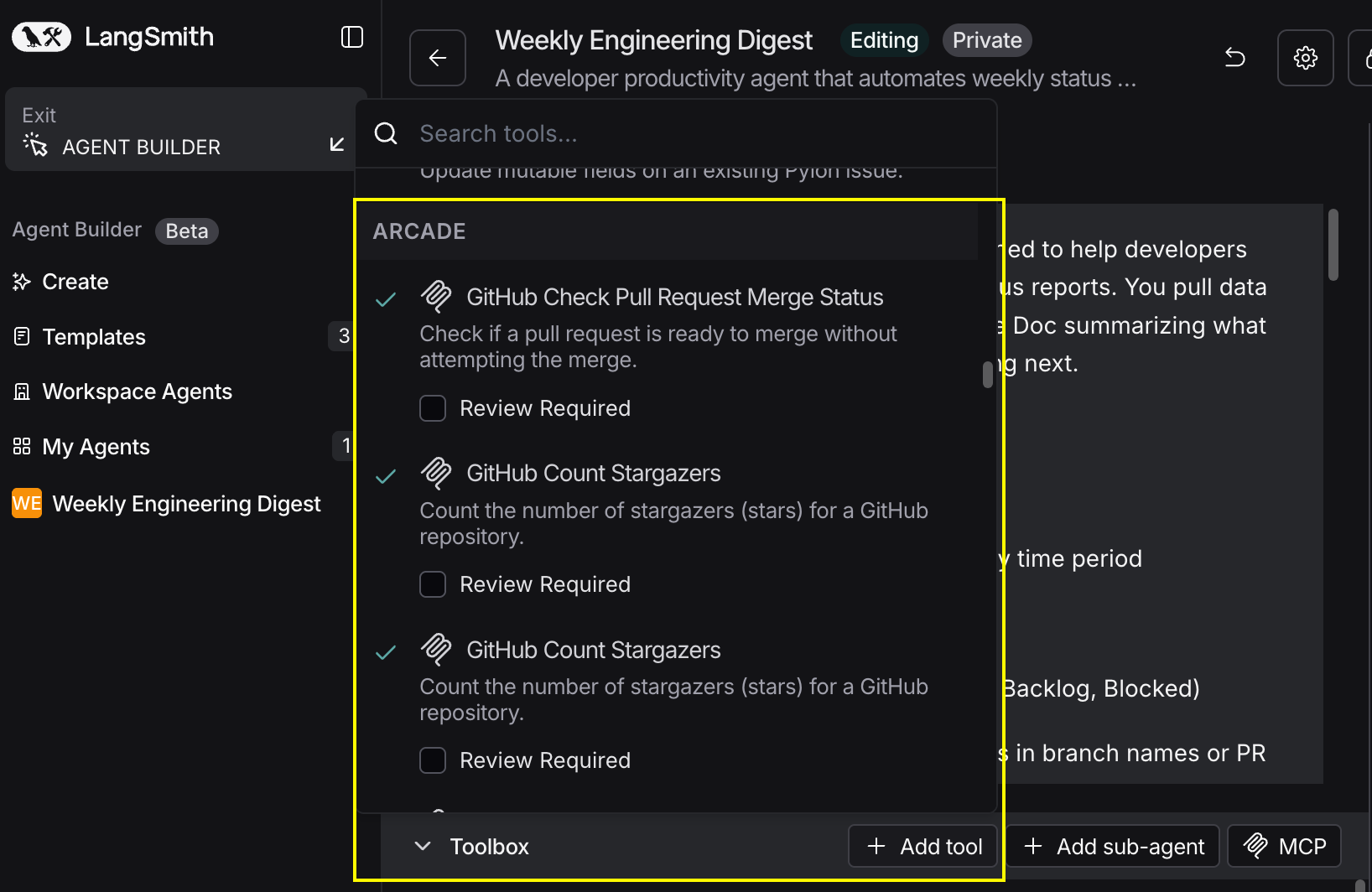
After connecting, click the Add tools button. Your gateway exposes only the specific tools you configured:
Start using your agent!
That's it! Your agent is now connected to Arcade's tools. Start chatting with your agent to test it out.
Try It: Example Prompt
Once your agent is set up, try this example prompt to test it:
Read this blog post and create social media content: https://company.com/blog/ai-trends-2026

Create 2 tweet variations and 1 LinkedIn post. Show me drafts before posting.
Best For