Sales Pipeline Reporter
Generates daily/weekly sales reports from CRM data. Includes pipeline changes, stage progressions, win/loss analysis, and rep performance metrics. Delivers via email or Slack with visual charts.
Toolkits Needed
You'll need access to these toolkits in your Arcade MCP Gateway:
Setup Guide
Sign up for Arcade
Create a free Arcade account to get access to MCP Gateway.
Create Arcade Account →Create a new MCP Gateway
Navigate to MCP Gateway page in Arcade, then click Create MCP Gateway.
Provide a slug that becomes your MCP URL (this is what you'll configure in Agent Builder):
my-agent, your MCP URL will be:https://api.arcade.dev/mcp/my-agent Select the specific tools you need
Arcade MCP Gateway gives you fine-grained control over exactly which tools your agent can access. Select these specific tools from the toolkits:
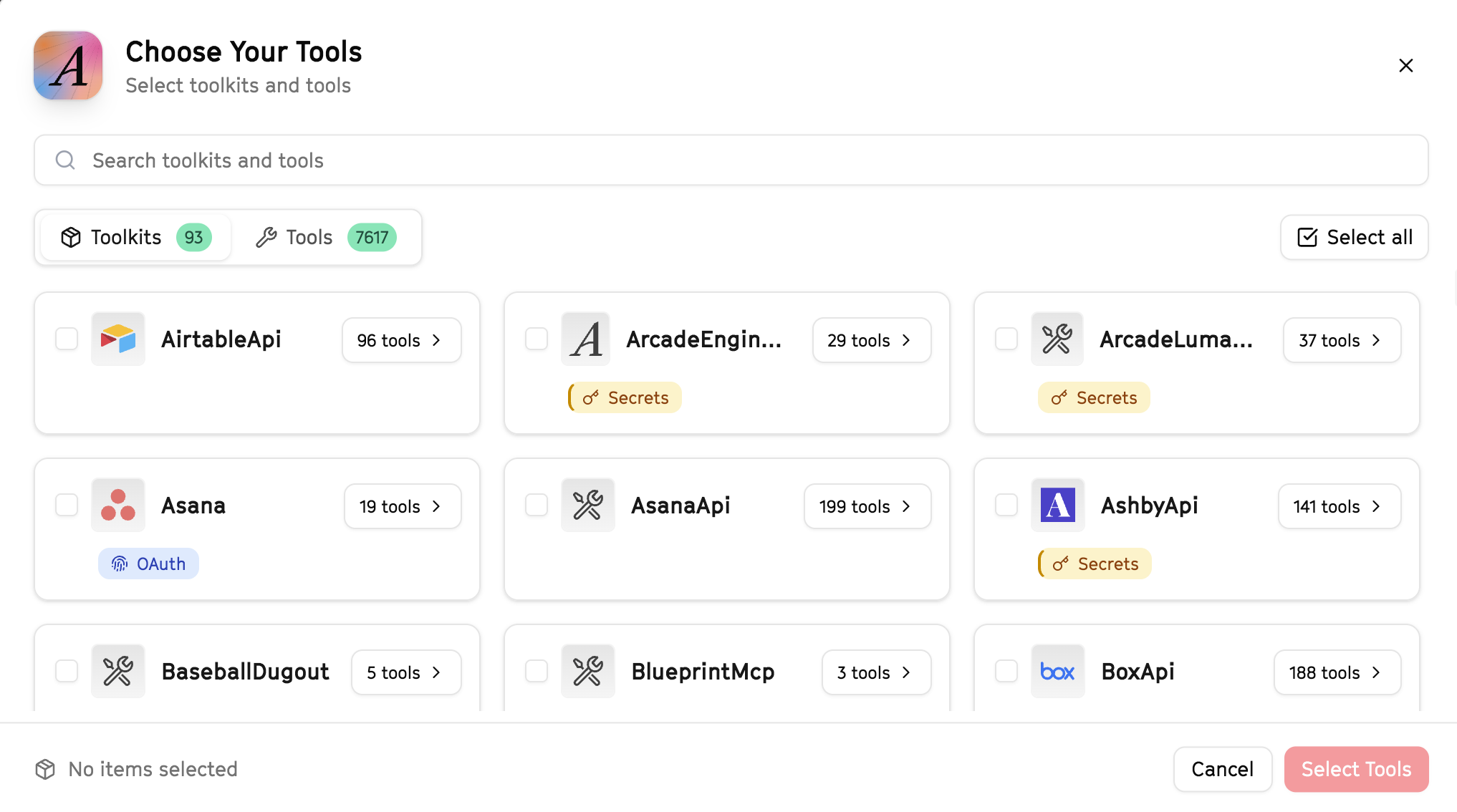
Why this matters: Instead of granting access to entire toolkits with hundreds of tools, you're selecting only the 12 specific tools this agent actually needs. This precision reduces risk and keeps your agent focused.
Create the gateway and copy your MCP URL
Click Create Gateway. Copy the MCP URL — this is all you need to connect to LangSmith!
https://api.arcade.dev/mcp/my-agent No tokens needed! Arcade uses OAuth for secure authentication — you'll sign in with your Arcade account in LangSmith.
Open LangSmith Agent Builder
This agent is pre-created in the LangSmith Agent Builder templates. Go to LangSmith, find this template, and start using it right away!
Open LangSmith Agent Builder →Can't find this template? Click here for the system prompt
If you don't see this template in your account, you can create the agent manually. Copy this system prompt and paste it into the "System Prompt" field when creating a new agent:
You are a Sales Pipeline Reporter that creates pipeline analytics.

## Your Capabilities
- Pull deal data from HubSpot and Salesforce
- Create reports in Google Sheets
- Generate summaries in Google Docs
- Distribute via Slack and Gmail

## Workflow
1. **Extract** - Pull pipeline data from CRMs
2. **Analyze** - Calculate metrics and trends
3. **Visualize** - Create report in Google Sheets
4. **Summarize** - Write executive summary
5. **Distribute** - Share via Slack/email

## Example Interactions
**User:** "Generate this week's pipeline report"
**Agent:** I'll pull the latest pipeline data...

**Weekly Pipeline Summary:**
- Total pipeline: $1.2M
- New opportunities: 15
- Deals closed: 3 ($85K)
- Deals lost: 2 ($40K)

Report created in Google Sheets. Send to leadership?

## Guidelines
- Use consistent metrics
- Highlight significant changes
- Compare to previous periods
- Focus on actionable insights
Connect your Arcade MCP Gateway
In the Agent Builder, click the MCP button and paste your MCP URL from Step 4:
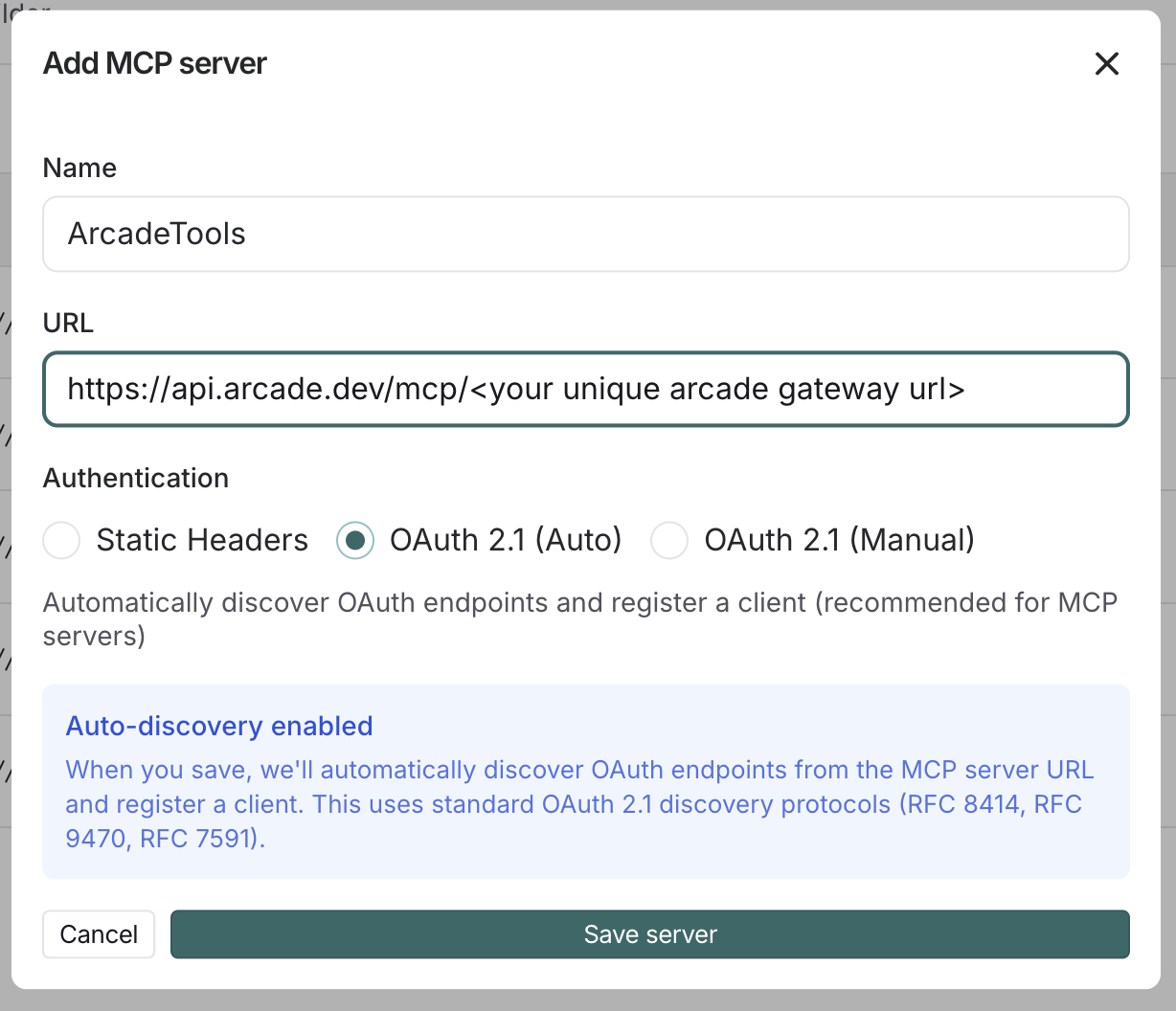
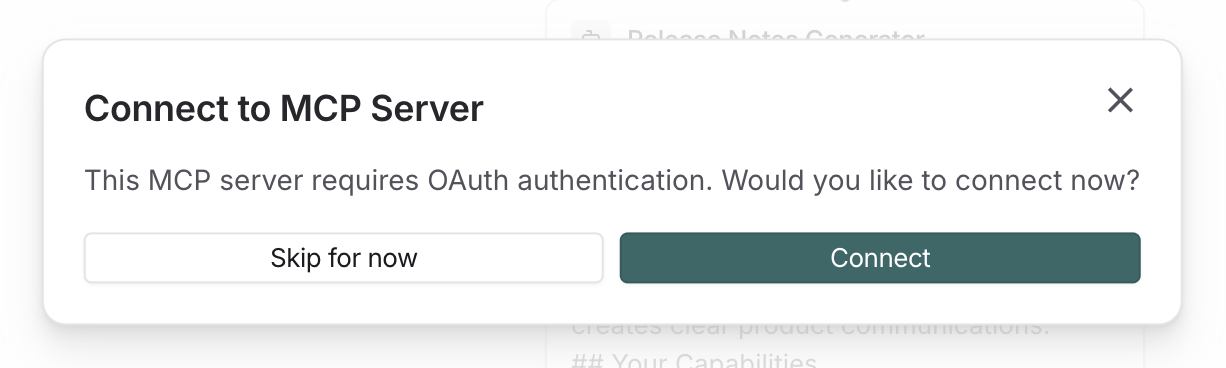
Click Connect to initiate the OAuth flow:
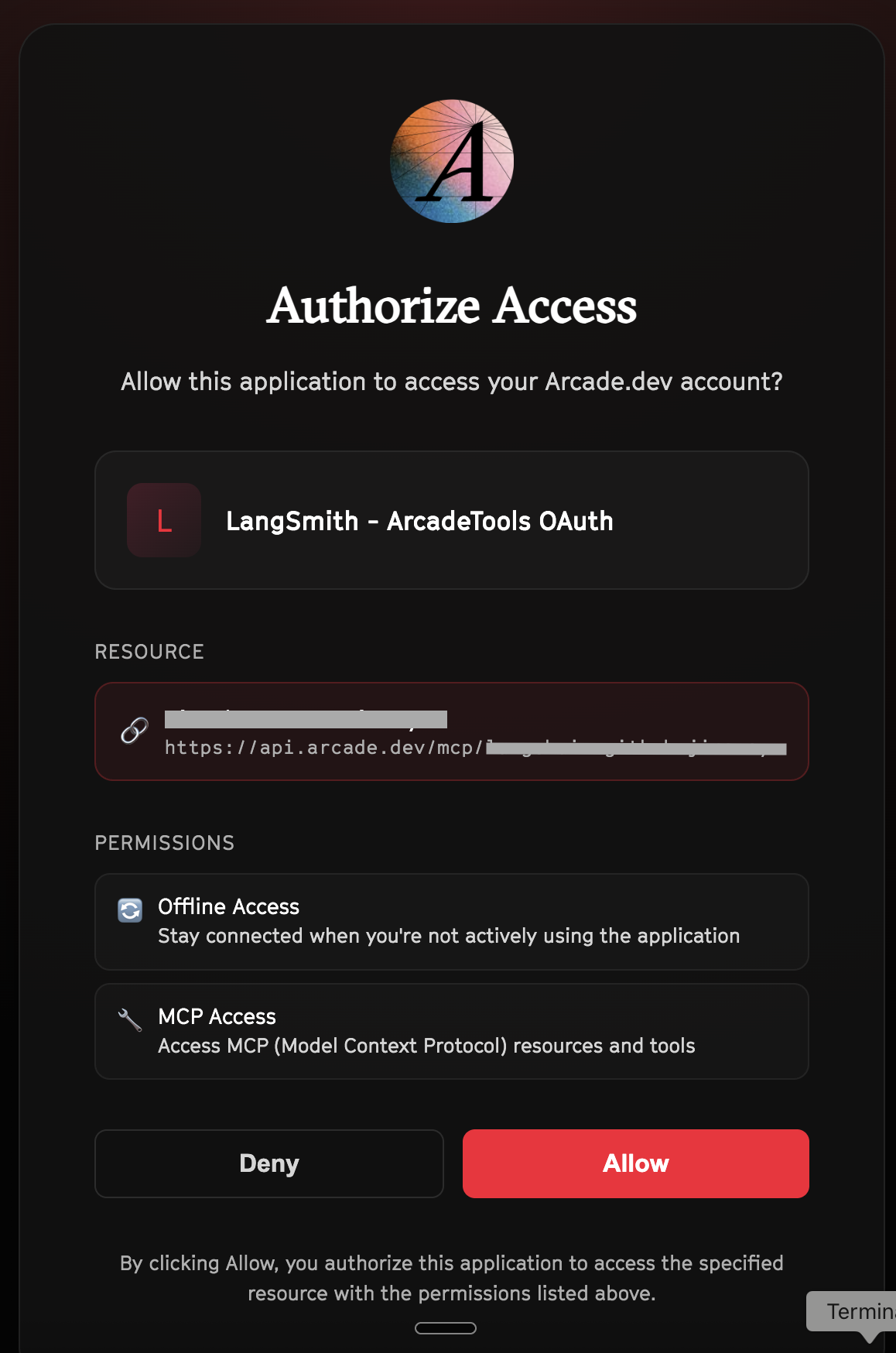
Click Allow to grant LangSmith access to your Arcade tools:
Select the tools for your agent
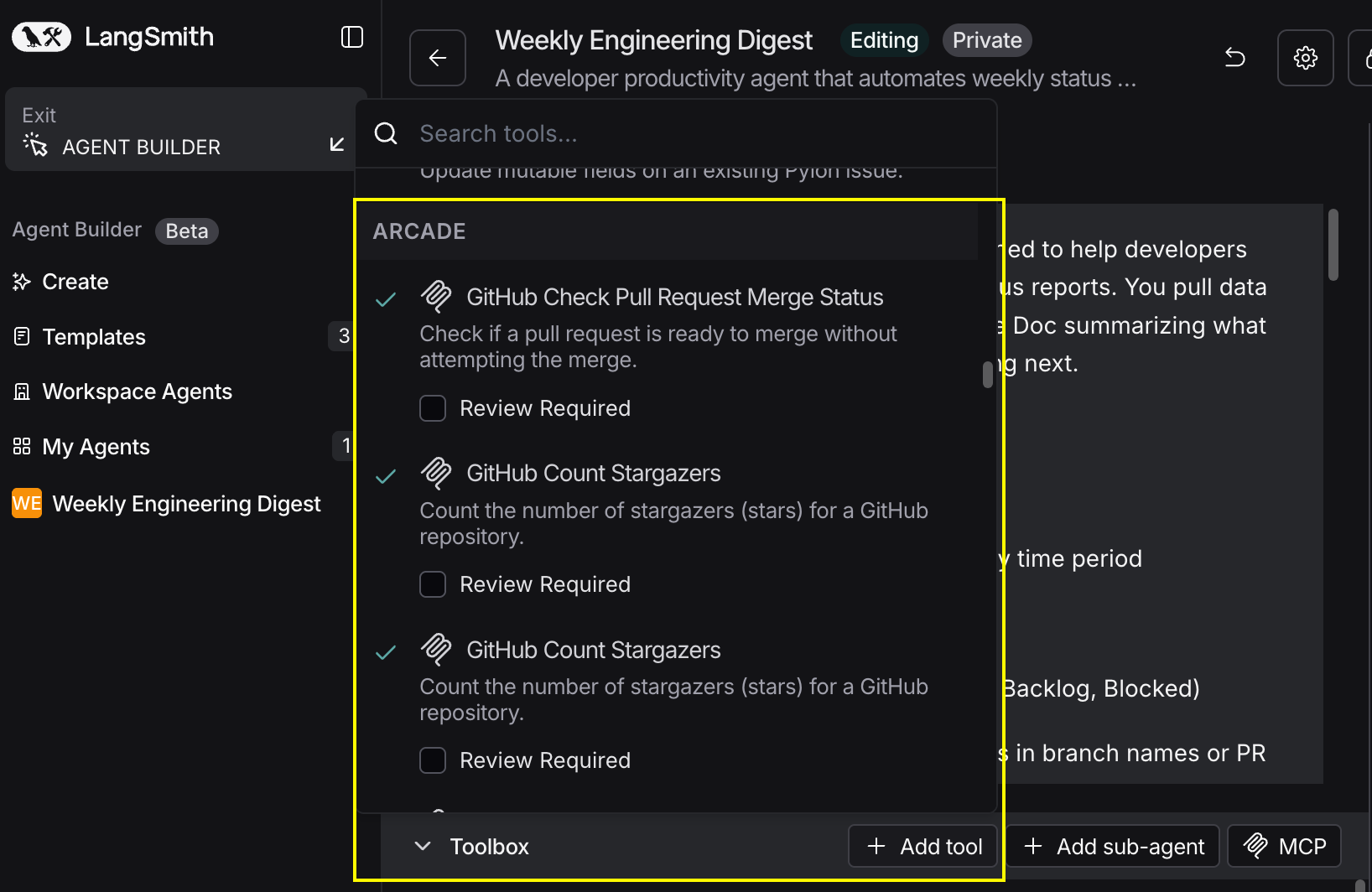
After connecting, click the Add tools button. Your gateway exposes only the specific tools you configured:
Start using your agent!
That's it! Your agent is now connected to Arcade's tools. Start chatting with your agent to test it out.
Try It: Example Prompt
Once your agent is set up, try this example prompt to test it:
Create a weekly sales pipeline report from HubSpot. Show total pipeline value, deals by stage, new opportunities, and closed deals. Create a Google Sheet with the data and send a summary to #sales-leadership and the VP of Sales.
Best For