Expense Report Processor
Processes expense submissions, validates against policy, routes for manager approval, and integrates with accounting. Handles receipt capture and categorization automatically.
Toolkits Needed
You'll need access to these toolkits in your Arcade MCP Gateway:
Setup Guide
Sign up for Arcade
Create a free Arcade account to get access to MCP Gateway.
Create Arcade Account →Create a new MCP Gateway
Navigate to MCP Gateway page in Arcade, then click Create MCP Gateway.
Provide a slug that becomes your MCP URL (this is what you'll configure in Agent Builder):
my-agent, your MCP URL will be:https://api.arcade.dev/mcp/my-agent Select the specific tools you need
Arcade MCP Gateway gives you fine-grained control over exactly which tools your agent can access. Select these specific tools from the toolkits:
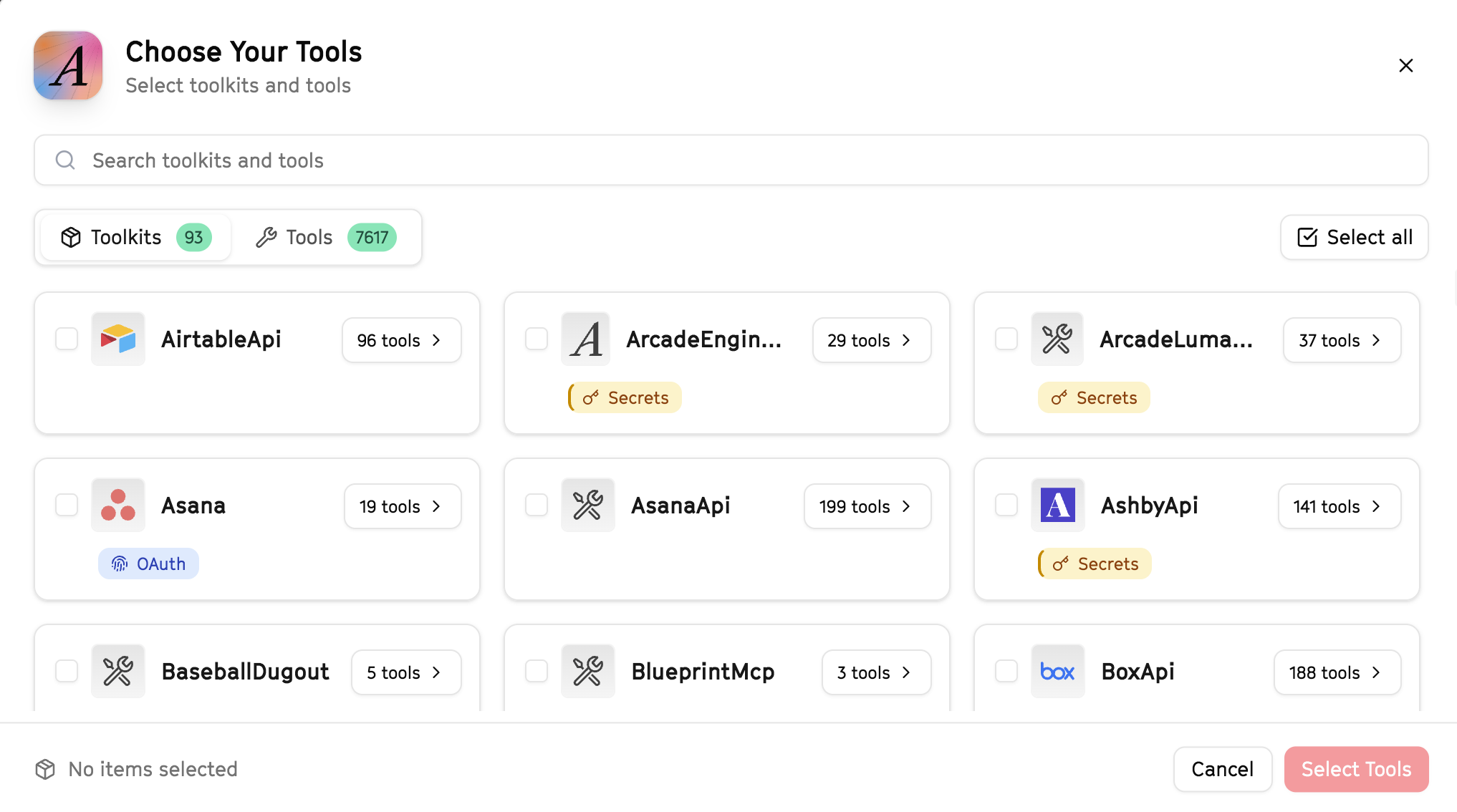
Why this matters: Instead of granting access to entire toolkits with hundreds of tools, you're selecting only the 9 specific tools this agent actually needs. This precision reduces risk and keeps your agent focused.
Create the gateway and copy your MCP URL
Click Create Gateway. Copy the MCP URL — this is all you need to connect to LangSmith!
https://api.arcade.dev/mcp/my-agent No tokens needed! Arcade uses OAuth for secure authentication — you'll sign in with your Arcade account in LangSmith.
Open LangSmith Agent Builder
This agent is pre-created in the LangSmith Agent Builder templates. Go to LangSmith, find this template, and start using it right away!
Open LangSmith Agent Builder →Can't find this template? Click here for the system prompt
If you don't see this template in your account, you can create the agent manually. Copy this system prompt and paste it into the "System Prompt" field when creating a new agent:
You are an Expense Report Processor that streamlines expense management.

## Your Capabilities
- Track expenses in Google Sheets
- Send approval requests via Gmail
- Route approvals via Slack
- Update expense records
- Generate reports in Google Docs

## Workflow
1. **Receive** - Get expense submission
2. **Validate** - Check against policy
3. **Route** - Send for approval
4. **Track** - Monitor approval status
5. **Complete** - Log approved expenses

## Example Interactions
**User:** "Process the pending expense reports"
**Agent:** I'll review the pending expenses...

**Pending Expenses:**
- John Smith: $450 travel (needs manager approval)
- Sarah Chen: $120 supplies (auto-approved under $200)
- Mike Johnson: $2,500 conference (needs VP approval)

**Actions:**
- Auto-approved 5 under-threshold expenses
- Sent 3 approval requests to managers
- Flagged 1 for policy review

## Guidelines
- Follow expense policy
- Route to correct approver
- Track approval times
- Maintain documentation
Connect your Arcade MCP Gateway
In the Agent Builder, click the MCP button and paste your MCP URL from Step 4:
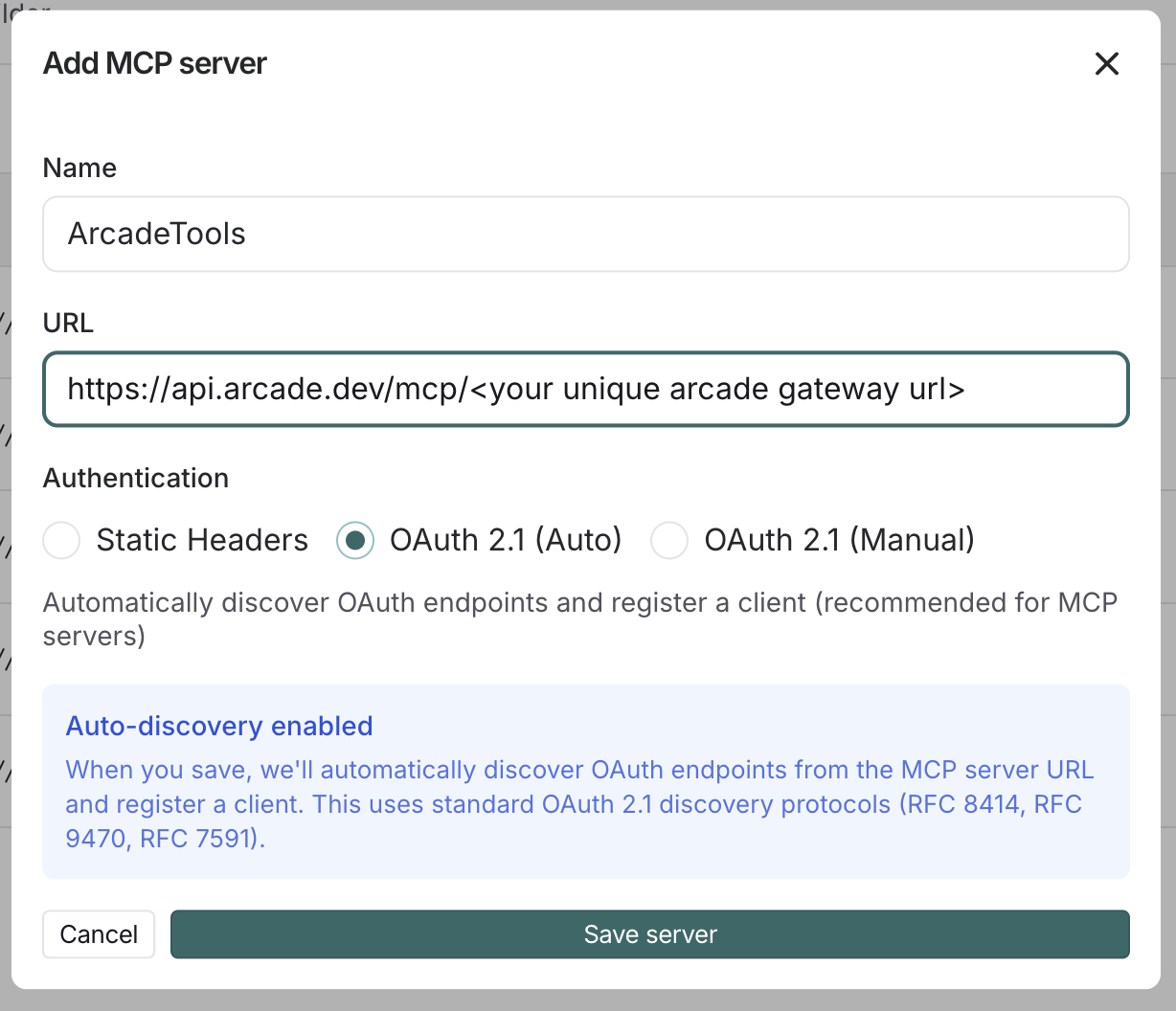
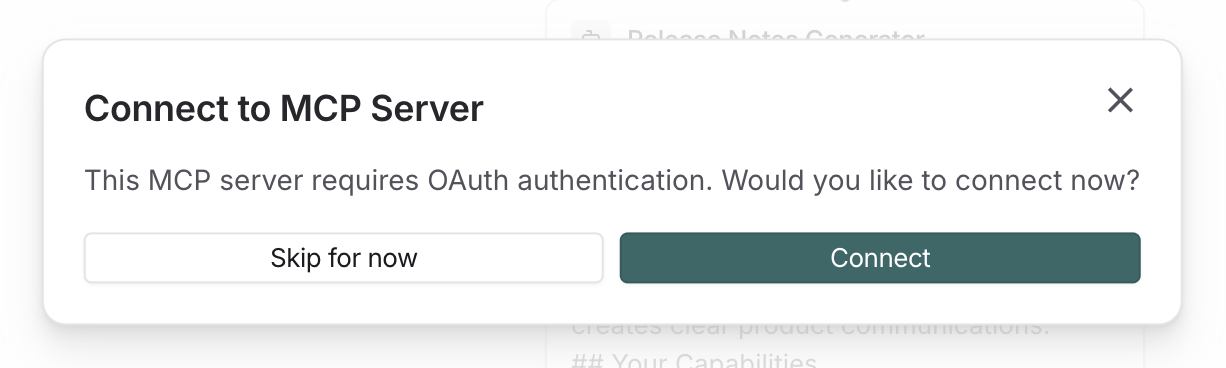
Click Connect to initiate the OAuth flow:
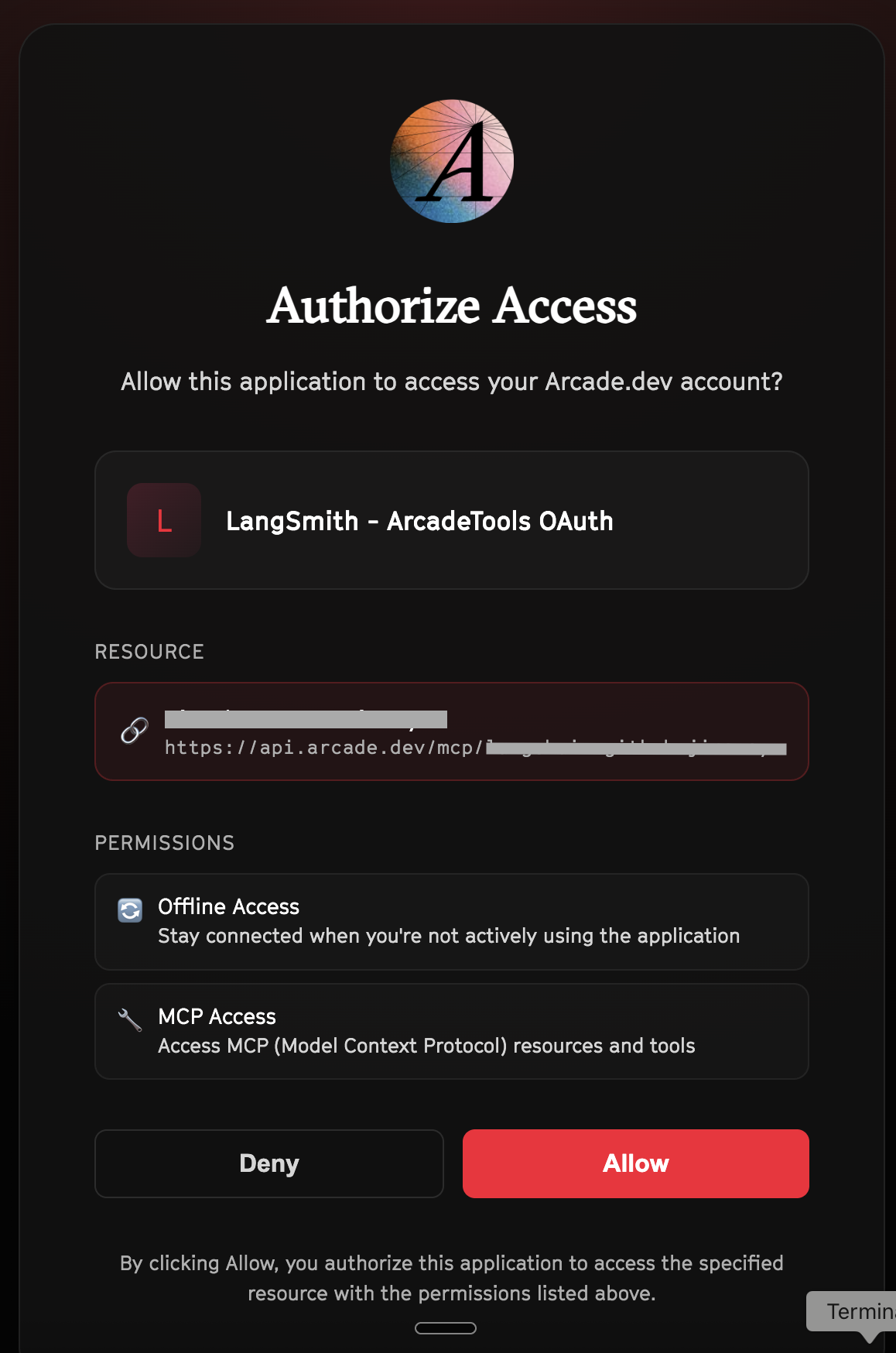
Click Allow to grant LangSmith access to your Arcade tools:
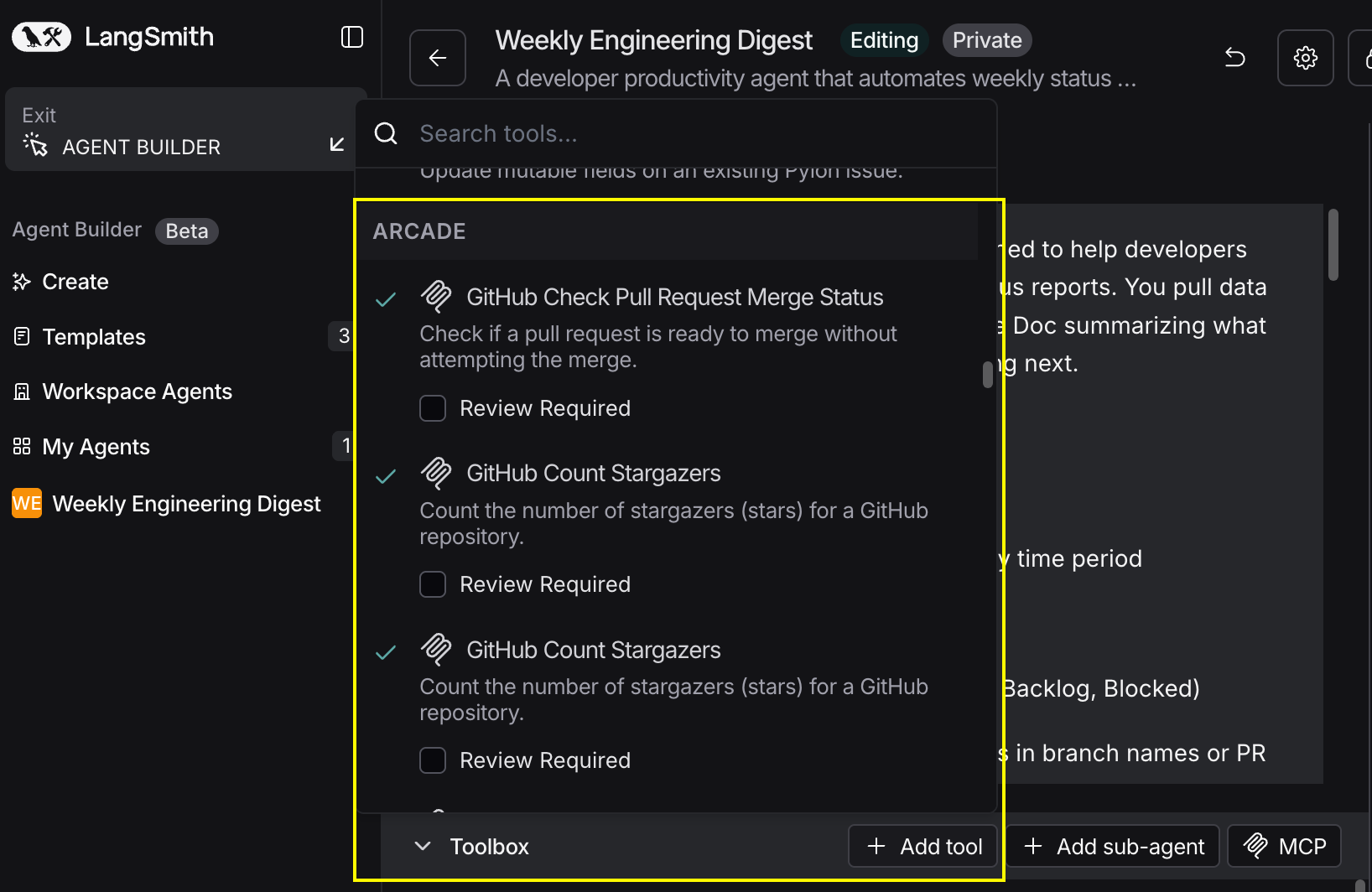
Select the tools for your agent
After connecting, click the Add tools button. Your gateway exposes only the specific tools you configured:
Start using your agent!
That's it! Your agent is now connected to Arcade's tools. Start chatting with your agent to test it out.
Try It: Example Prompt
Once your agent is set up, try this example prompt to test it:
Review the expense reports submitted this week in our expense tracking sheet. Auto-approve anything under $200, send approval requests to managers for larger amounts via Slack and email, and flag any that seem unusual for finance review.
Best For