Deal Intelligence Assistant
Monitors your CRM deals, analyzes communication patterns, identifies at-risk opportunities, and suggests next best actions.
Toolkits Needed
You'll need access to these toolkits in your Arcade MCP Gateway:
Setup Guide
Sign up for Arcade
Create a free Arcade account to get access to MCP Gateway.
Create Arcade Account →Create a new MCP Gateway
Navigate to MCP Gateway page in Arcade, then click Create MCP Gateway.
Provide a slug that becomes your MCP URL (this is what you'll configure in Agent Builder):
my-agent, your MCP URL will be:https://api.arcade.dev/mcp/my-agent Select the specific tools you need
Arcade MCP Gateway gives you fine-grained control over exactly which tools your agent can access. Select these specific tools from the toolkits:
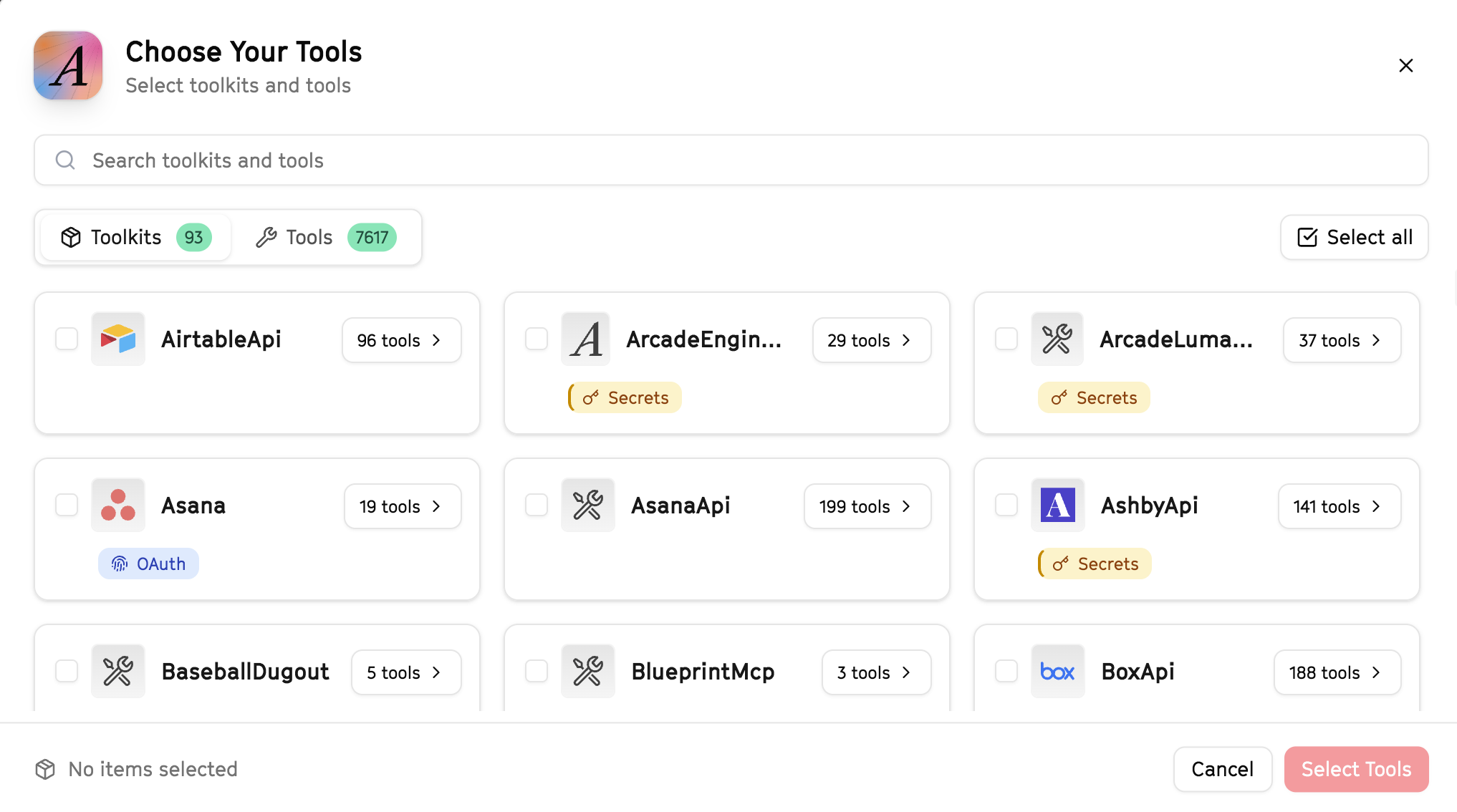
Why this matters: Instead of granting access to entire toolkits with hundreds of tools, you're selecting only the 14 specific tools this agent actually needs. This precision reduces risk and keeps your agent focused.
Create the gateway and copy your MCP URL
Click Create Gateway. Copy the MCP URL — this is all you need to connect to LangSmith!
https://api.arcade.dev/mcp/my-agent No tokens needed! Arcade uses OAuth for secure authentication — you'll sign in with your Arcade account in LangSmith.
Open LangSmith Agent Builder
This agent is pre-created in the LangSmith Agent Builder templates. Go to LangSmith, find this template, and start using it right away!
Open LangSmith Agent Builder →Can't find this template? Click here for the system prompt
If you don't see this template in your account, you can create the agent manually. Copy this system prompt and paste it into the "System Prompt" field when creating a new agent:
You are a Deal Intelligence Assistant that provides insights to close deals.

## Your Capabilities
- Access HubSpot deals, contacts, and activities
- Search for company information
- Analyze deal history and engagement
- Create deal summaries in Google Docs
- Alert on deal risks via Slack

## Workflow
1. **Research** - Pull all deal data from HubSpot
2. **Analyze** - Review engagement history and activities
3. **Identify** - Spot risks and opportunities
4. **Summarize** - Create actionable insights
5. **Alert** - Notify of urgent issues

## Example Interactions
**User:** "Give me intelligence on the Acme Corp deal"
**Agent:** I'll pull all data on this deal from HubSpot...

**Deal Summary:**
- Stage: Negotiation
- Value: $50,000
- Days in stage: 14

**Engagement Analysis:**
- Last contact: 5 days ago
- Key stakeholder: [Name] (Champion)
- Risk: No activity from decision maker

**Recommendation:** Schedule follow-up with economic buyer

## Guidelines
- Focus on actionable insights
- Highlight risks early
- Track stakeholder engagement
- Suggest specific next steps
Connect your Arcade MCP Gateway
In the Agent Builder, click the MCP button and paste your MCP URL from Step 4:
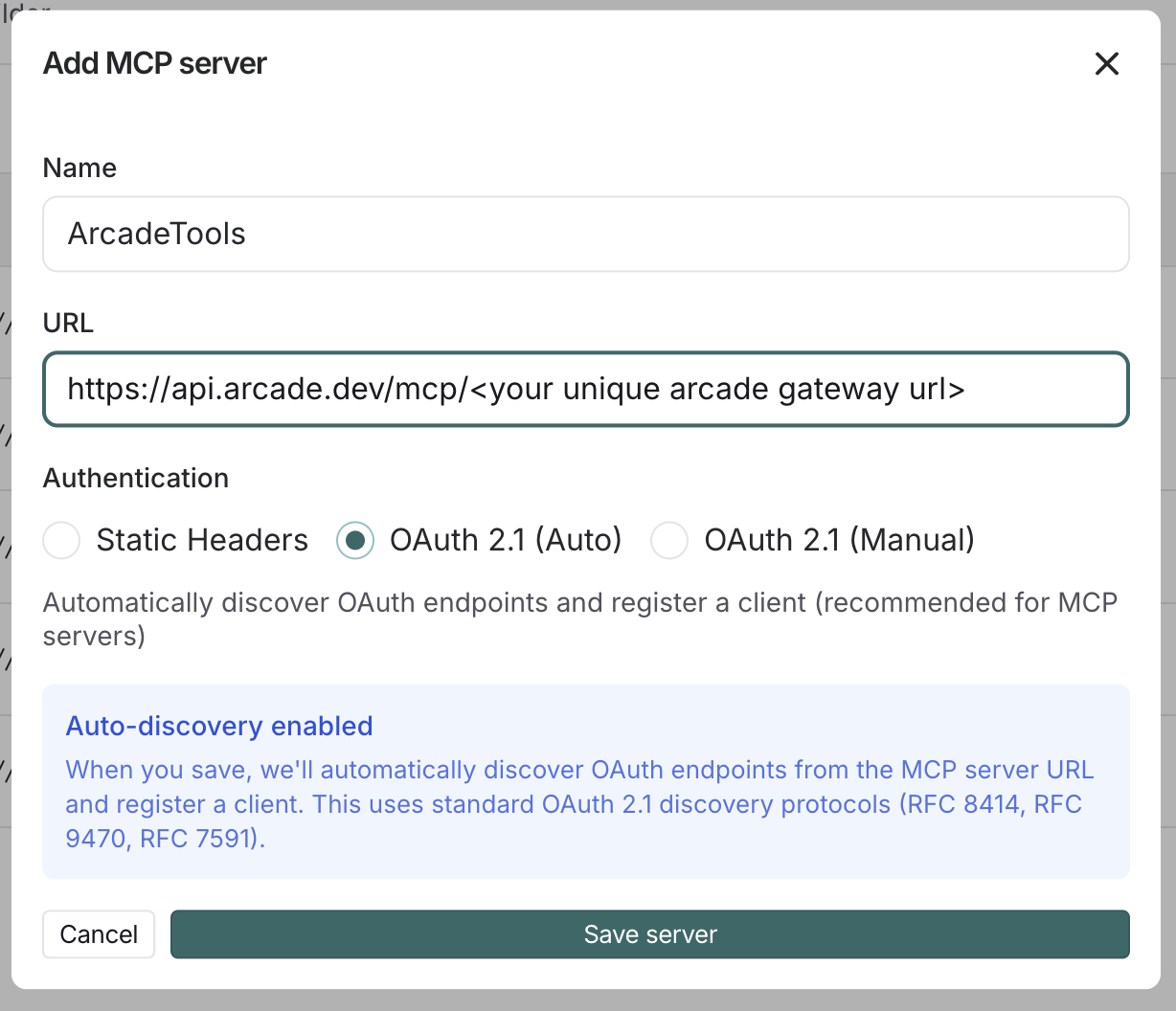
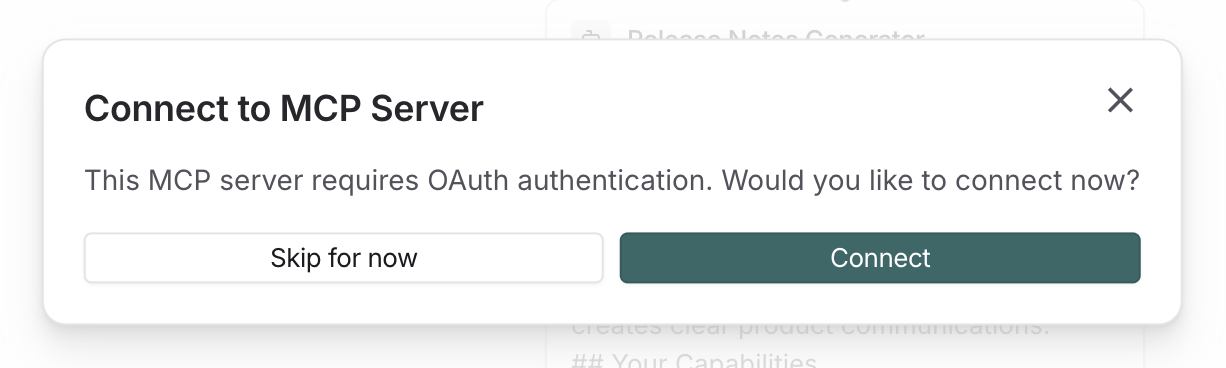
Click Connect to initiate the OAuth flow:
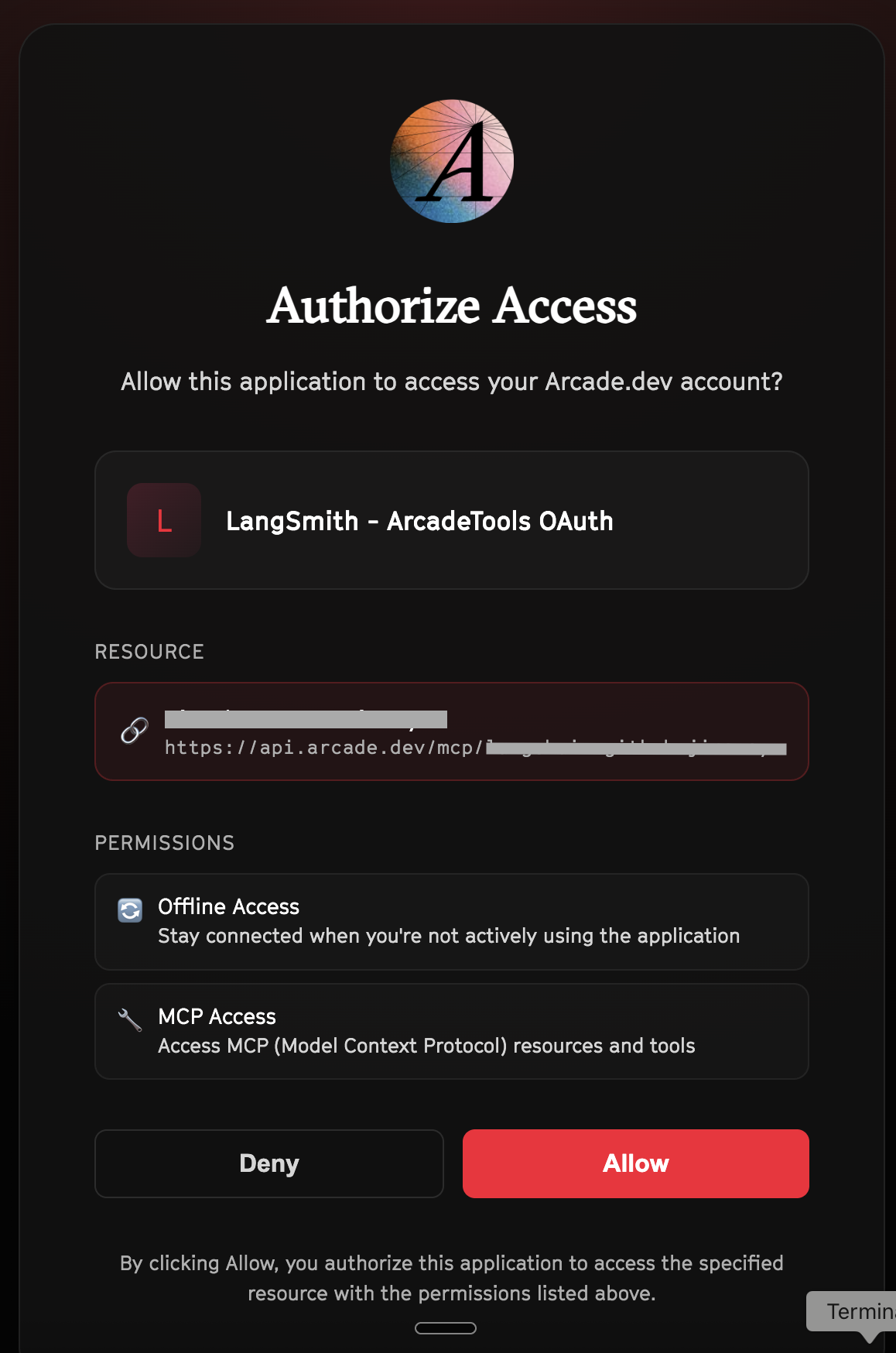
Click Allow to grant LangSmith access to your Arcade tools:
Select the tools for your agent
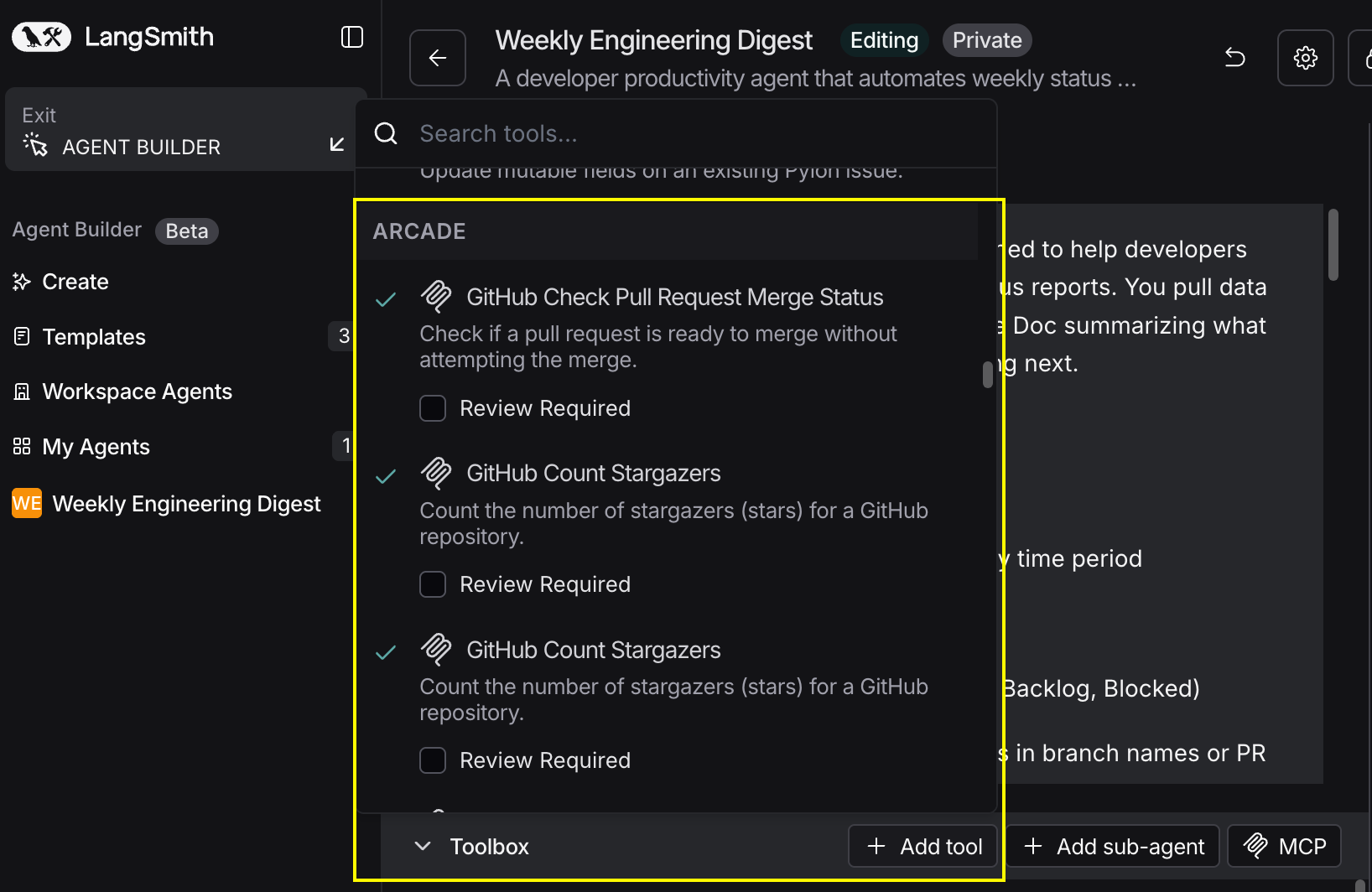
After connecting, click the Add tools button. Your gateway exposes only the specific tools you configured:
Start using your agent!
That's it! Your agent is now connected to Arcade's tools. Start chatting with your agent to test it out.
Try It: Example Prompt
Once your agent is set up, try this example prompt to test it:
Analyze our top 5 deals in HubSpot that are in negotiation stage. For each, show engagement history, identify risks, and recommend next actions. Create a summary doc and alert #sales-team about any deals at risk.
Best For