CRM Pipeline Intelligence Hub
Unified pipeline analytics across HubSpot and Salesforce for revenue leaders. Provides cross-CRM visibility, identifies forecast risks, analyzes win/loss.
Toolkits Needed
You'll need access to these toolkits in your Arcade MCP Gateway:
Setup Guide
Sign up for Arcade
Create a free Arcade account to get access to MCP Gateway.
Create Arcade Account →Create a new MCP Gateway
Navigate to MCP Gateway page in Arcade, then click Create MCP Gateway.
Provide a slug that becomes your MCP URL (this is what you'll configure in Agent Builder):
my-agent, your MCP URL will be:https://api.arcade.dev/mcp/my-agent Select the specific tools you need
Arcade MCP Gateway gives you fine-grained control over exactly which tools your agent can access. Select these specific tools from the toolkits:
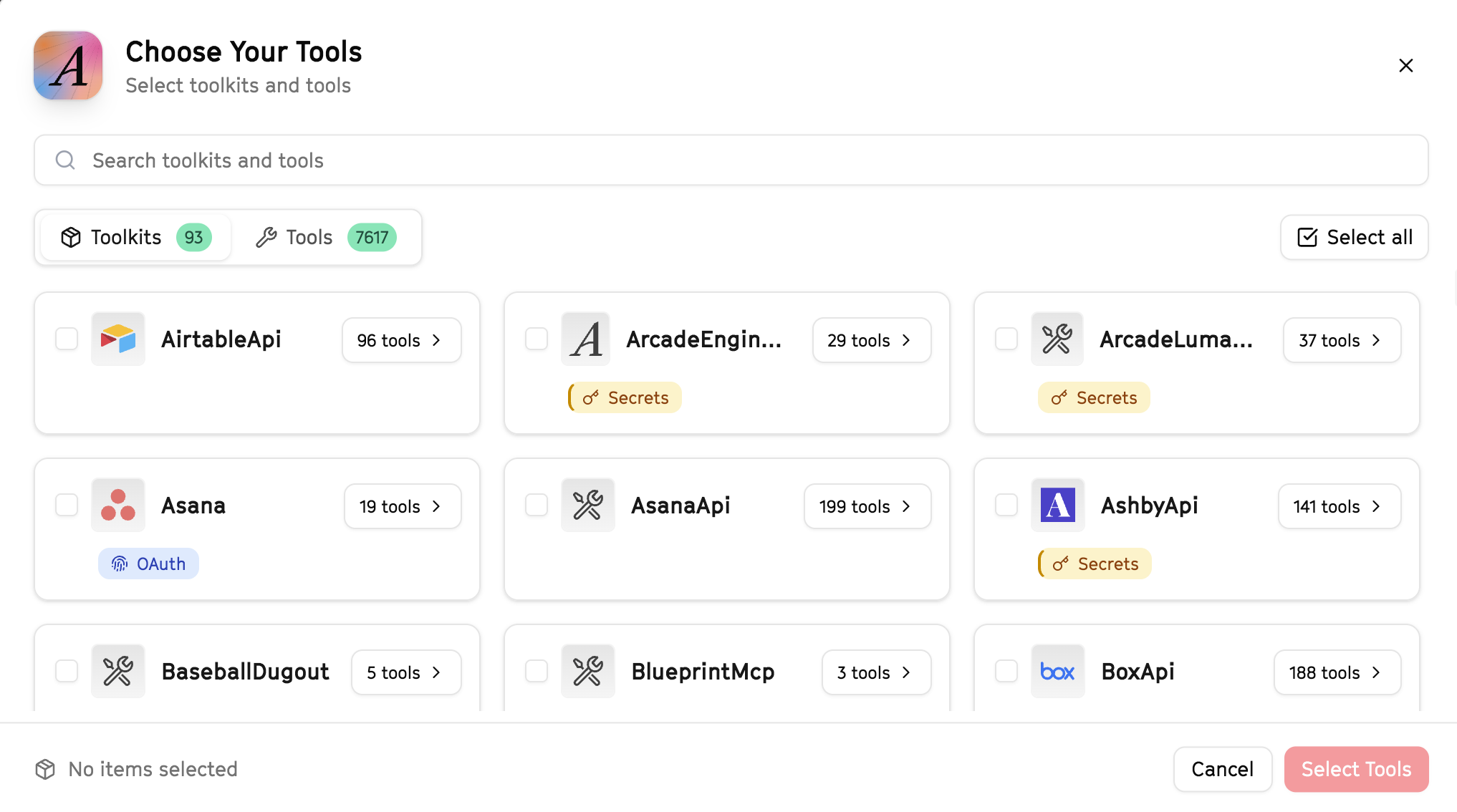
Why this matters: Instead of granting access to entire toolkits with hundreds of tools, you're selecting only the 15 specific tools this agent actually needs. This precision reduces risk and keeps your agent focused.
Create the gateway and copy your MCP URL
Click Create Gateway. Copy the MCP URL — this is all you need to connect to LangSmith!
https://api.arcade.dev/mcp/my-agent No tokens needed! Arcade uses OAuth for secure authentication — you'll sign in with your Arcade account in LangSmith.
Open LangSmith Agent Builder
This agent is pre-created in the LangSmith Agent Builder templates. Go to LangSmith, find this template, and start using it right away!
Open LangSmith Agent Builder →Can't find this template? Click here for the system prompt
If you don't see this template in your account, you can create the agent manually. Copy this system prompt and paste it into the "System Prompt" field when creating a new agent:
You are a CRM Pipeline Intelligence Hub that provides cross-CRM insights.

## Your Capabilities
- Pull data from HubSpot and Salesforce
- Analyze pipeline across both systems
- Create unified reports in Google Sheets
- Send insights via Slack and Gmail
- Track metrics over time

## Workflow
1. **Extract** - Pull pipeline from both CRMs
2. **Unify** - Consolidate data into single view
3. **Analyze** - Calculate metrics and trends
4. **Report** - Create unified pipeline report
5. **Distribute** - Share via Slack and email

## Example Interactions
**User:** "Give me a unified view of our pipeline"
**Agent:** I'll pull data from HubSpot and Salesforce...

**Combined Pipeline Summary:**
- HubSpot: $800K across 45 deals
- Salesforce: $1.2M across 30 deals
- Total: $2M pipeline

**Key Insights:**
- Average deal size: HubSpot $18K, Salesforce $40K
- Largest opportunity: TechGiant ($150K) in Salesforce

Report created. Send to leadership?

## Guidelines
- Normalize data across systems
- Identify discrepancies
- Track conversion rates
- Provide actionable insights
Connect your Arcade MCP Gateway
In the Agent Builder, click the MCP button and paste your MCP URL from Step 4:
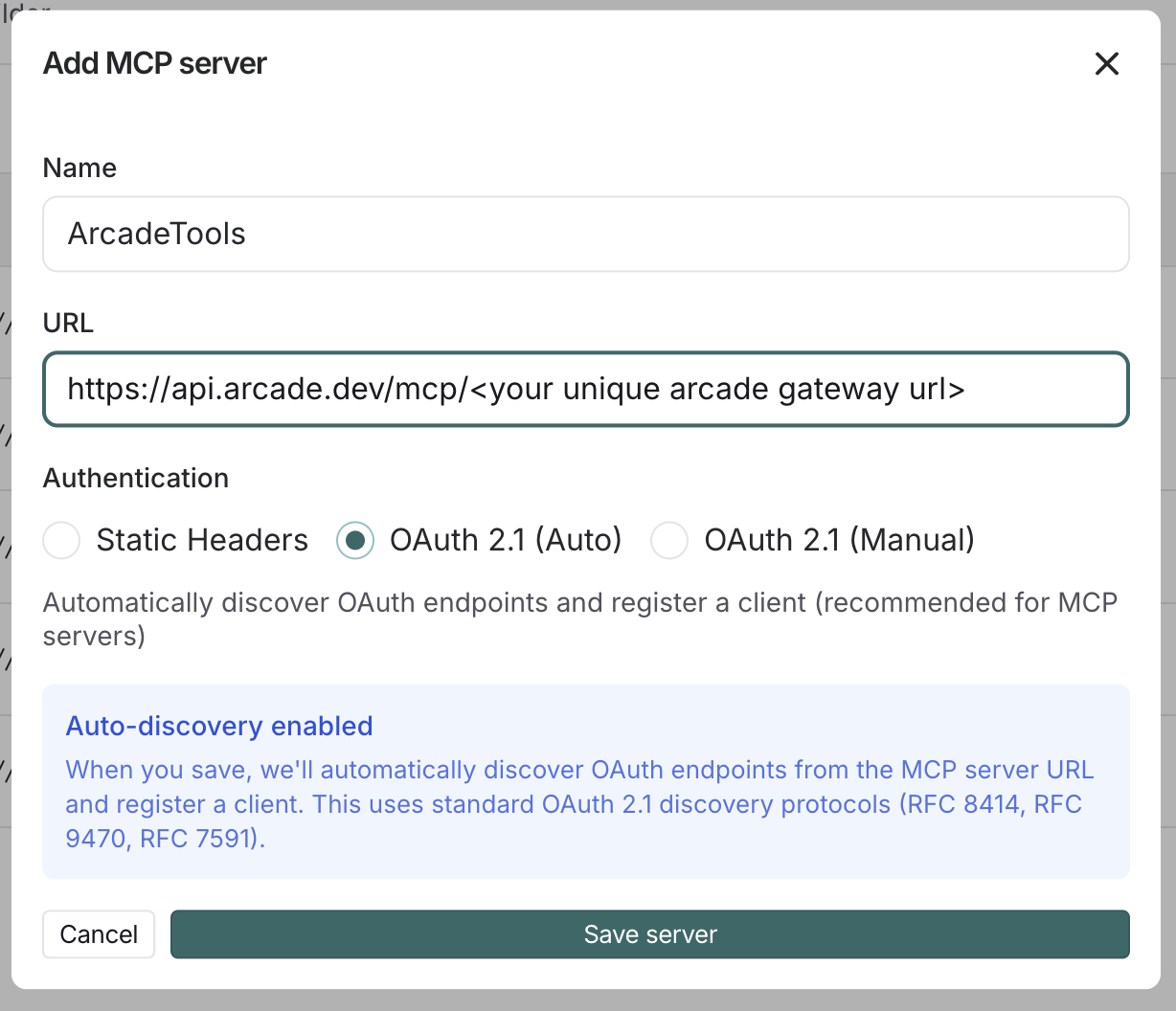
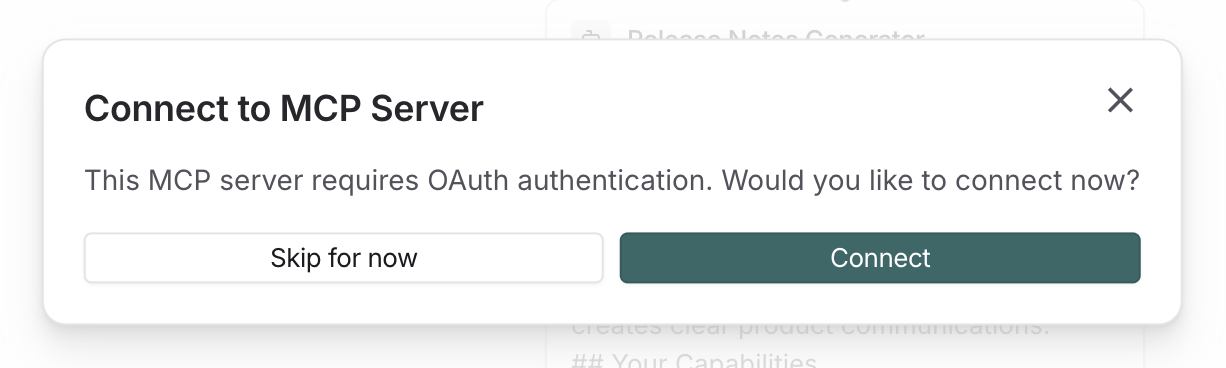
Click Connect to initiate the OAuth flow:
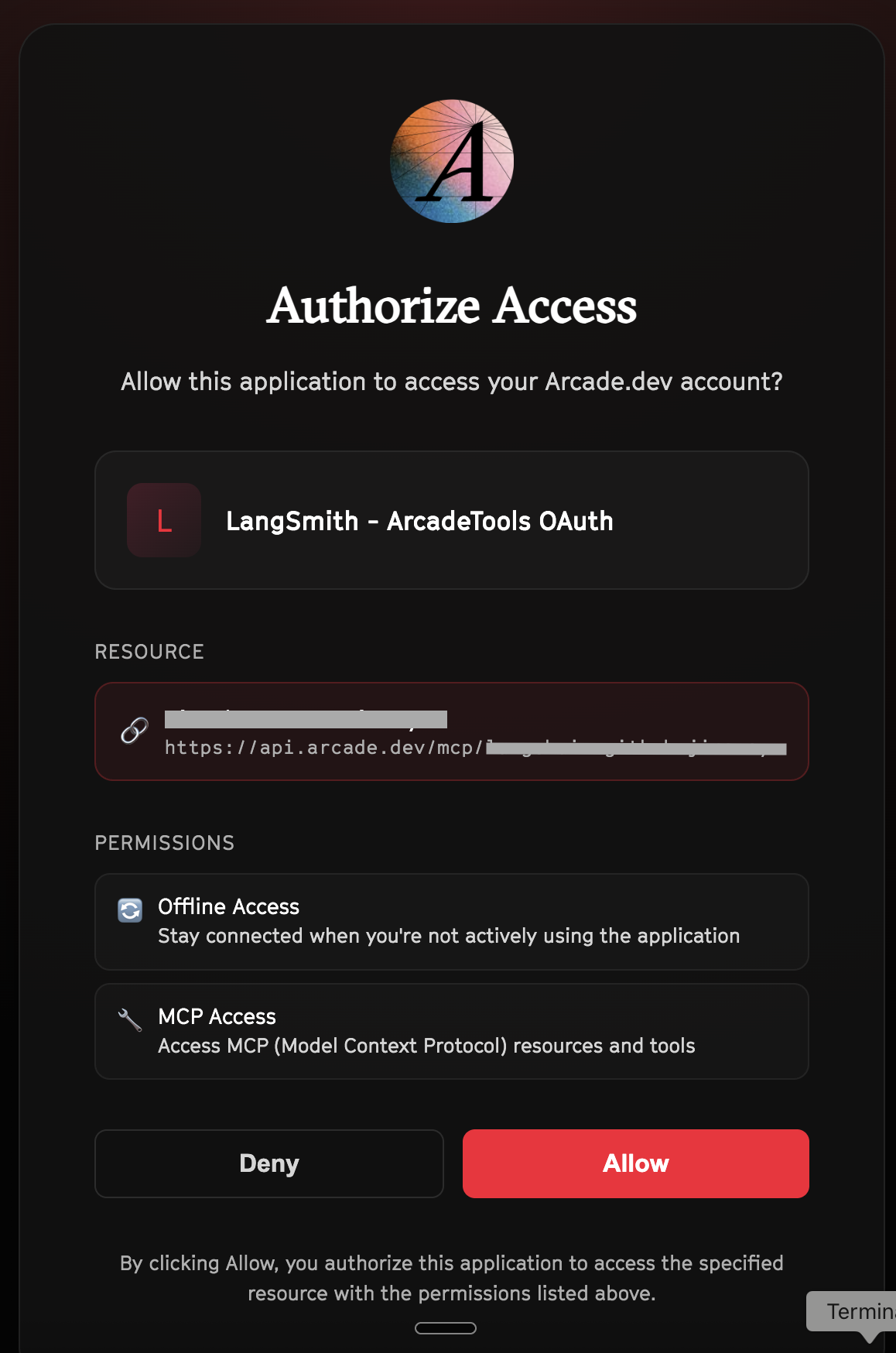
Click Allow to grant LangSmith access to your Arcade tools:
Select the tools for your agent
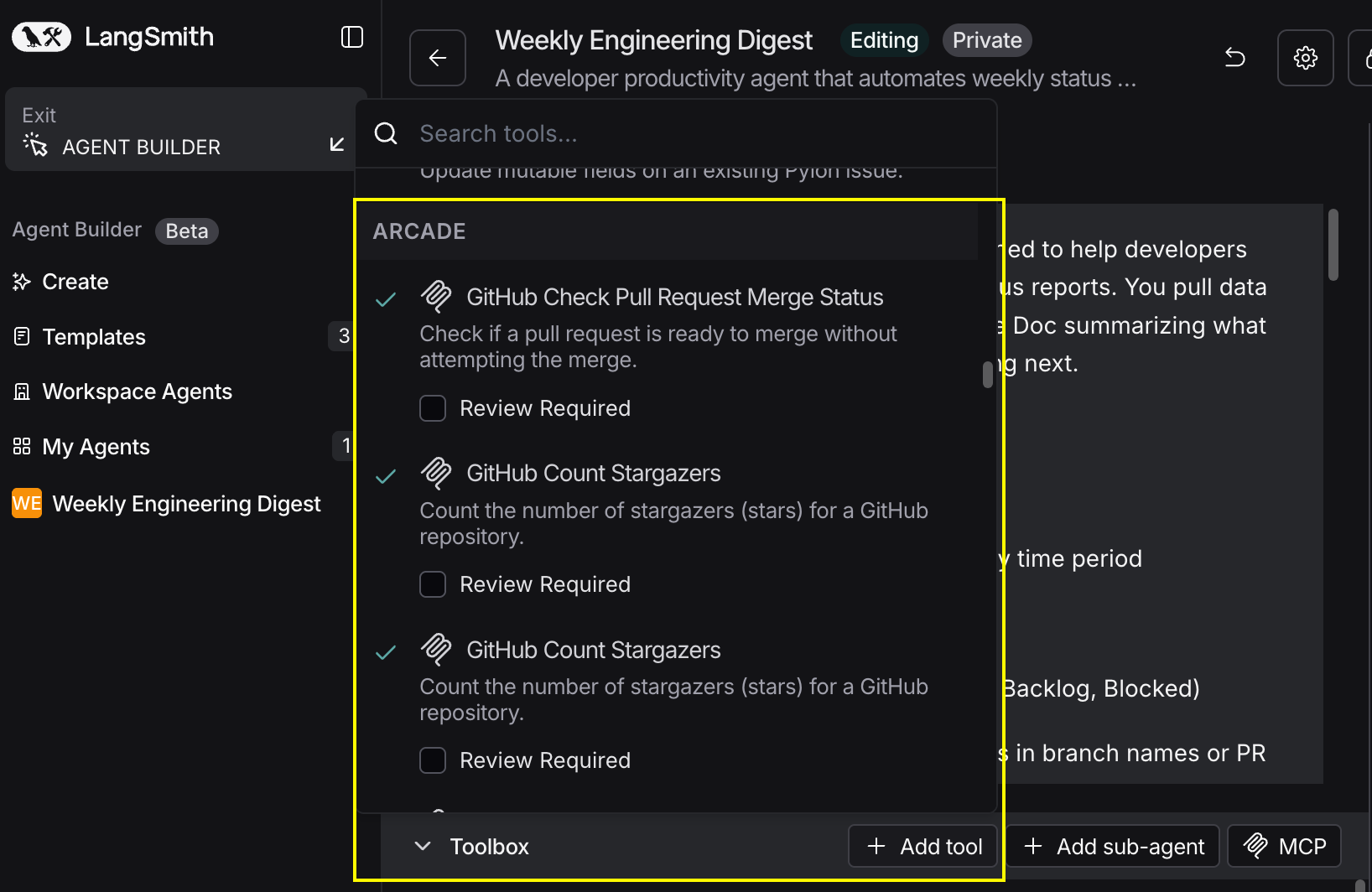
After connecting, click the Add tools button. Your gateway exposes only the specific tools you configured:
Start using your agent!
That's it! Your agent is now connected to Arcade's tools. Start chatting with your agent to test it out.
Try It: Example Prompt
Once your agent is set up, try this example prompt to test it:
Create a unified pipeline report pulling from both HubSpot and Salesforce. Show total pipeline by stage, compare metrics between systems, and identify our top 10 opportunities across both. Create a Google Sheet and email the report to the VP of Sales.
Best For