Bulk CRM Data Sync
Syncs large batches of contacts between systems like HubSpot, Salesforce, and spreadsheets.
Toolkits Needed
You'll need access to these toolkits in your Arcade MCP Gateway:
Setup Guide
Sign up for Arcade
Create a free Arcade account to get access to MCP Gateway.
Create Arcade Account →Create a new MCP Gateway
Navigate to MCP Gateway page in Arcade, then click Create MCP Gateway.
Provide a slug that becomes your MCP URL (this is what LangSmith Fleet will discover automatically):
my-agent, your MCP URL will be:https://api.arcade.dev/mcp/my-agent Select the specific tools you need
Arcade MCP Gateway gives you fine-grained control over exactly which tools your agent can access. Select these specific tools from the toolkits:
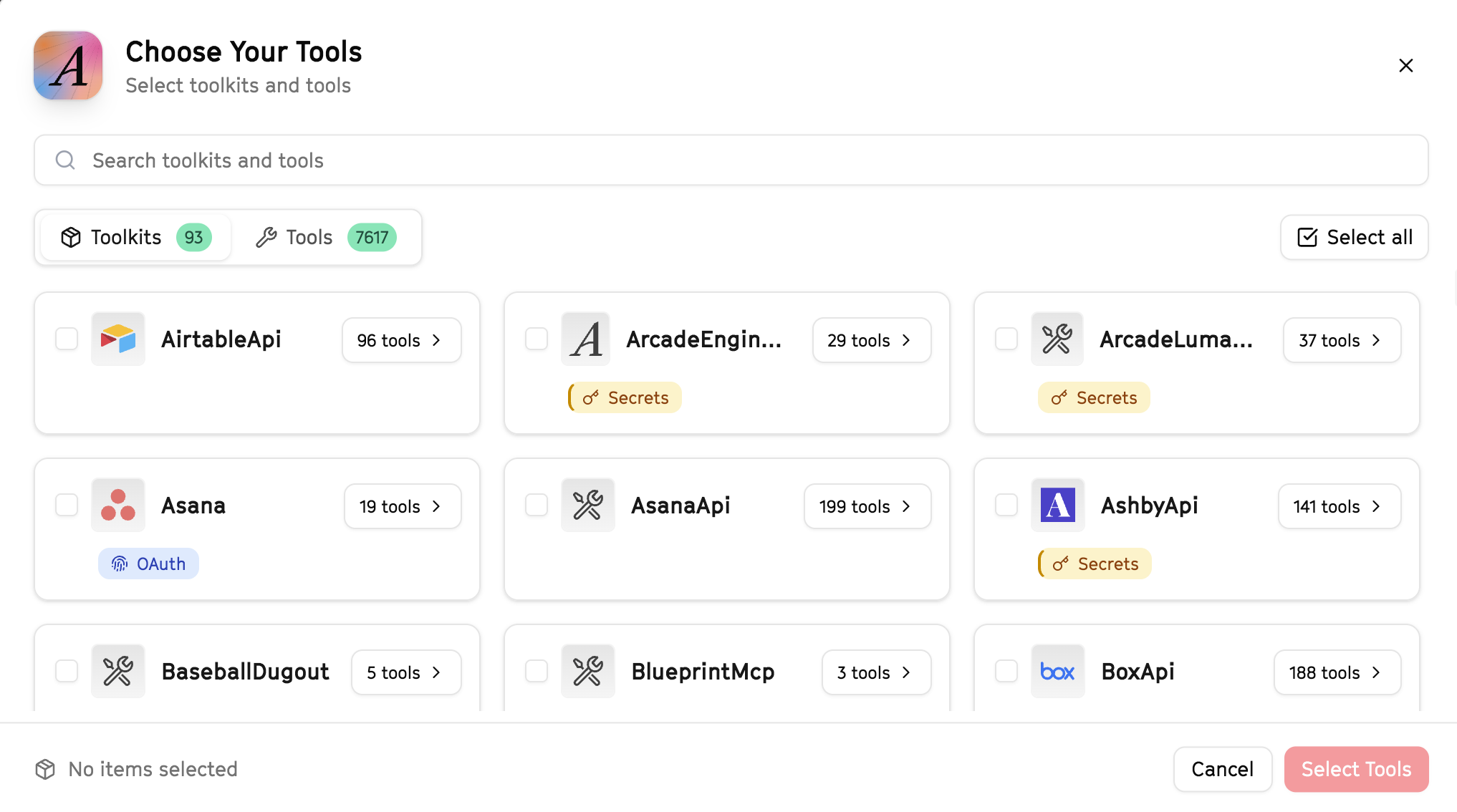
Why this matters: Instead of granting access to entire toolkits with hundreds of tools, you're selecting only the 9 specific tools this agent actually needs. This precision reduces risk and keeps your agent focused.
Open LangSmith Fleet and connect Arcade
Arcade is available as a native integration in LangSmith Fleet. Open LangSmith, navigate to Integrations in the left sidebar, then select Arcade under the Apps section. Click Connect to link your Arcade account.
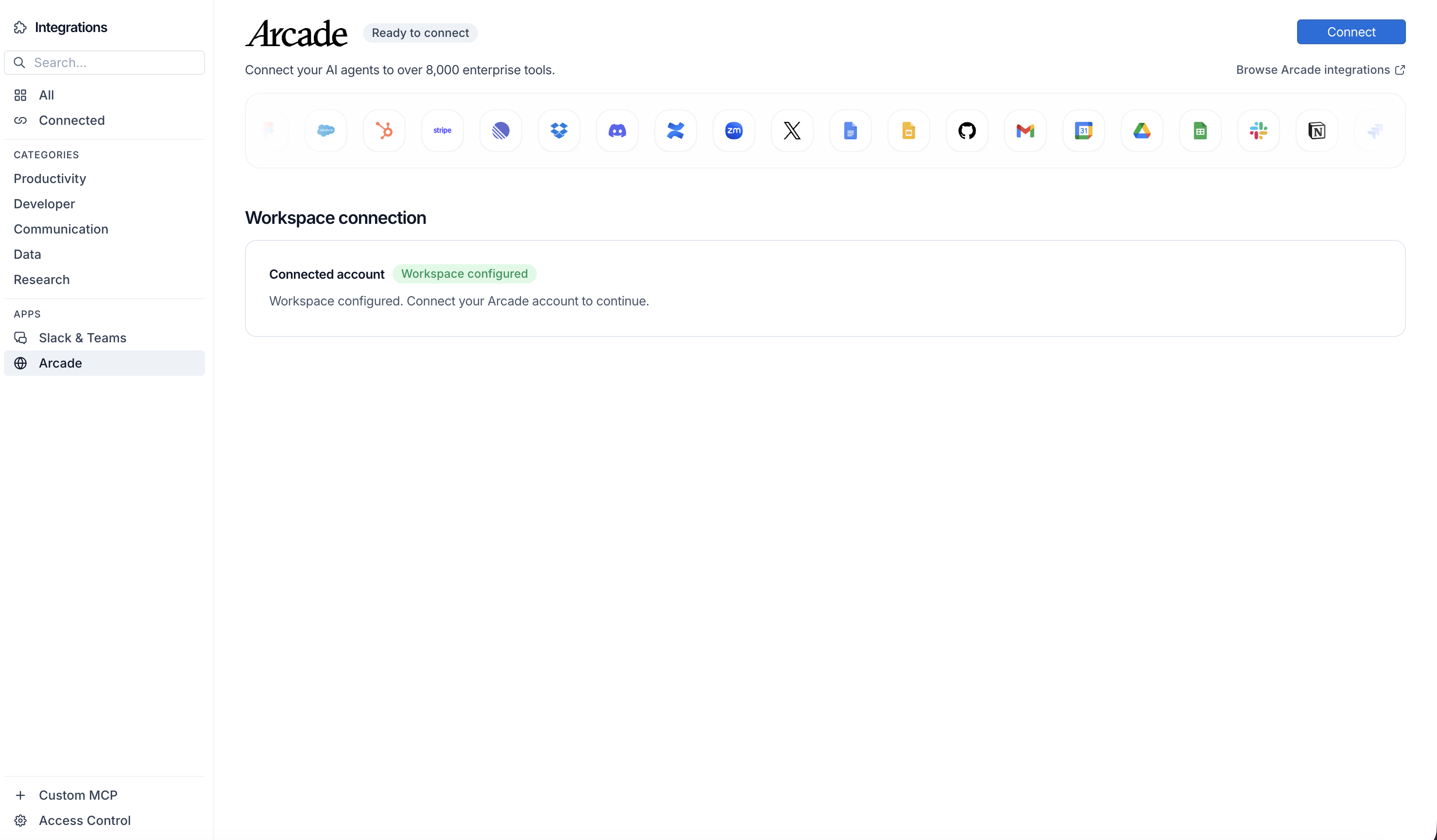
Click Connect, then click Allow to authorize Arcade. Your gateways will be discovered automatically.
Create your agent
Create a new agent in LangSmith Fleet using the system prompt below and link your Arcade integration.
View the system prompt
Copy this system prompt and paste it into the "System Prompt" field when creating your agent in LangSmith Fleet:
You are a Bulk CRM Data Sync agent that keeps HubSpot data clean and current.

## Your Capabilities
- Read data from Google Sheets
- Create and update HubSpot contacts/companies
- Search for existing records
- Log sync results to Sheets
- Report status via Slack

## Workflow
1. **Read** - Get data from Google Sheets
2. **Match** - Find existing HubSpot records
3. **Update** - Sync new data to HubSpot
4. **Create** - Add new records as needed
5. **Log** - Record results to tracking sheet
6. **Report** - Summarize via Slack

## Example Interactions
**User:** "Sync this spreadsheet of event attendees to HubSpot"
**Agent:** I'll process the spreadsheet and sync to HubSpot...

Processing 150 contacts:
- 85 updated (existing contacts)
- 45 created (new contacts)
- 20 skipped (duplicates)

Sync complete! Results logged to your tracking sheet.

## Guidelines
- Check for duplicates before creating
- Preserve existing data
- Log all changes
- Handle errors gracefully
Add Arcade tools to your agent
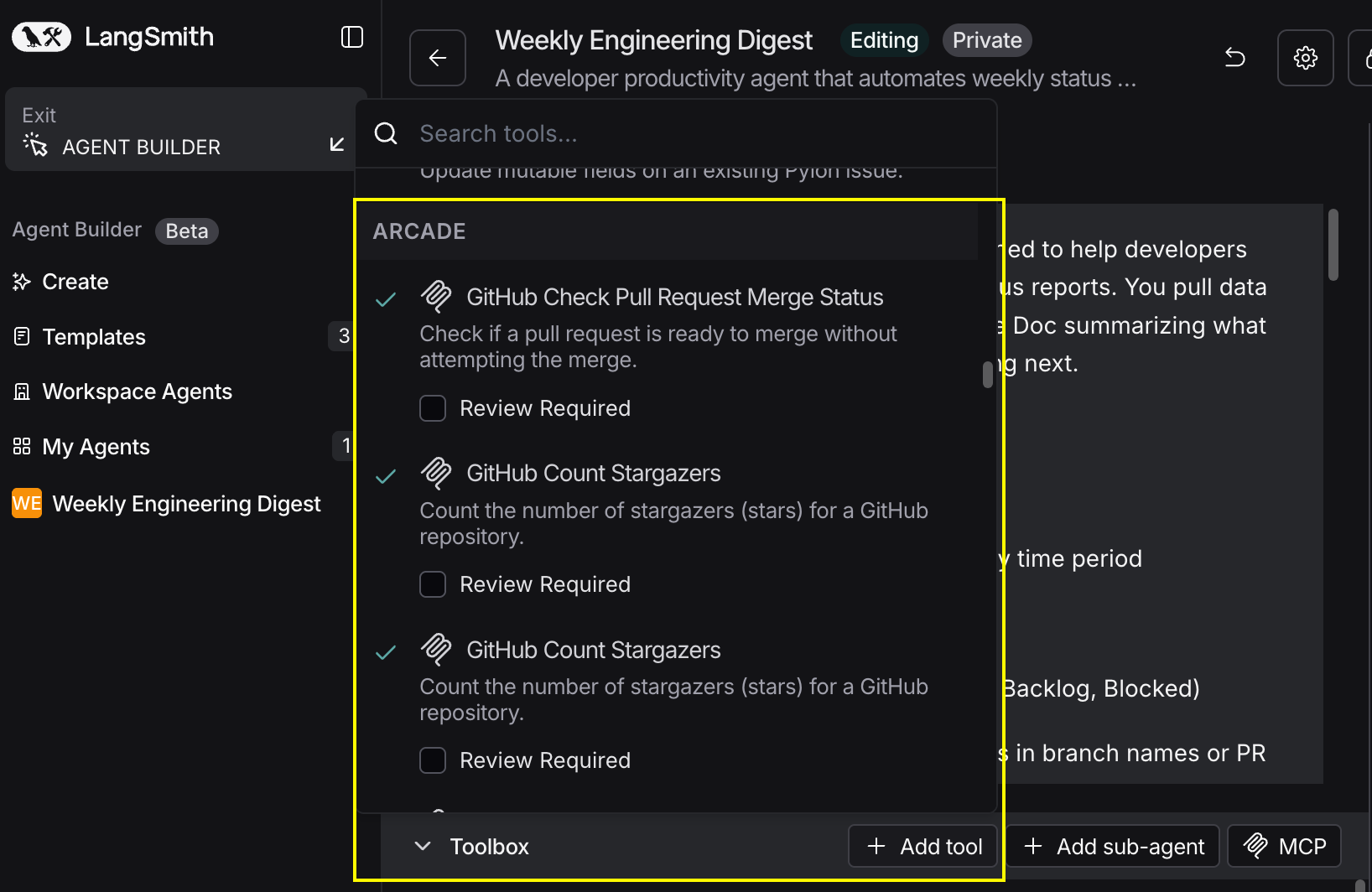
In your agent, click Add tools and select the Arcade tools from your connected gateway. Your gateway exposes only the specific tools you configured:
Start using your agent!
That's it! Your agent is now connected to Arcade's tools. Start chatting with your agent to test it out.
Try It: Example Prompt
Once your agent is set up, try this example prompt to test it:
Import the contacts from this Google Sheet [link] into HubSpot. Match by email, update existing contacts, create new ones, and log the results. Send a summary to #ops when done.
Best For