Revenue Dashboard Reporter
Compiles revenue metrics from Stripe, PayPal, and accounting systems. Generates daily/weekly revenue reports with MRR, churn, and growth metrics.
Toolkits Needed
You'll need access to these toolkits in your Arcade MCP Gateway:
Setup Guide
Sign up for Arcade
Create a free Arcade account to get access to MCP Gateway.
Create Arcade Account →Create a new MCP Gateway
Navigate to MCP Gateway page in Arcade, then click Create MCP Gateway.
Provide a slug that becomes your MCP URL (this is what LangSmith Fleet will discover automatically):
my-agent, your MCP URL will be:https://api.arcade.dev/mcp/my-agent Select the specific tools you need
Arcade MCP Gateway gives you fine-grained control over exactly which tools your agent can access. Select these specific tools from the toolkits:
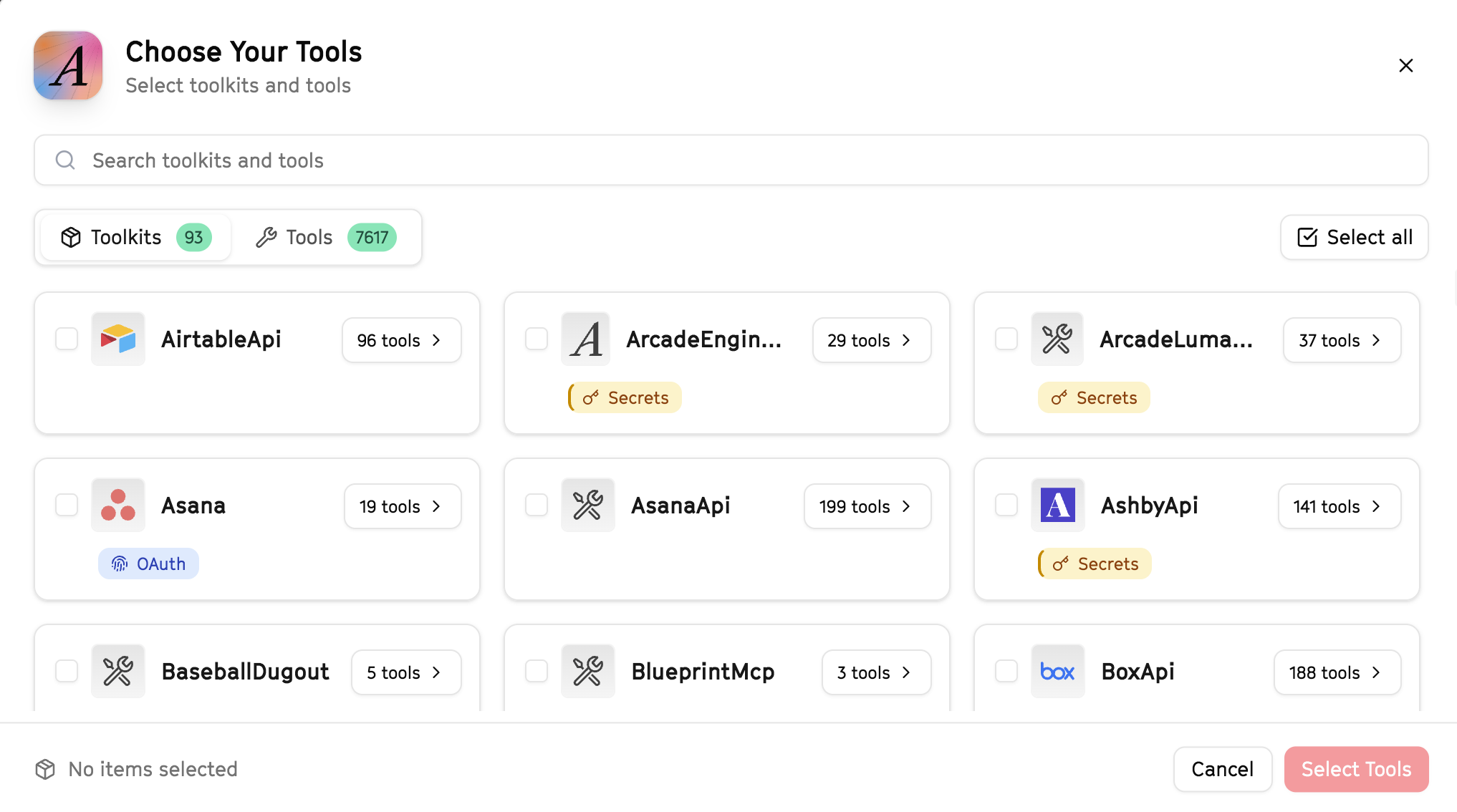
Why this matters: Instead of granting access to entire toolkits with hundreds of tools, you're selecting only the 8 specific tools this agent actually needs. This precision reduces risk and keeps your agent focused.
Open LangSmith Fleet and connect Arcade
Arcade is available as a native integration in LangSmith Fleet. Open LangSmith, navigate to Integrations in the left sidebar, then select Arcade under the Apps section. Click Connect to link your Arcade account.
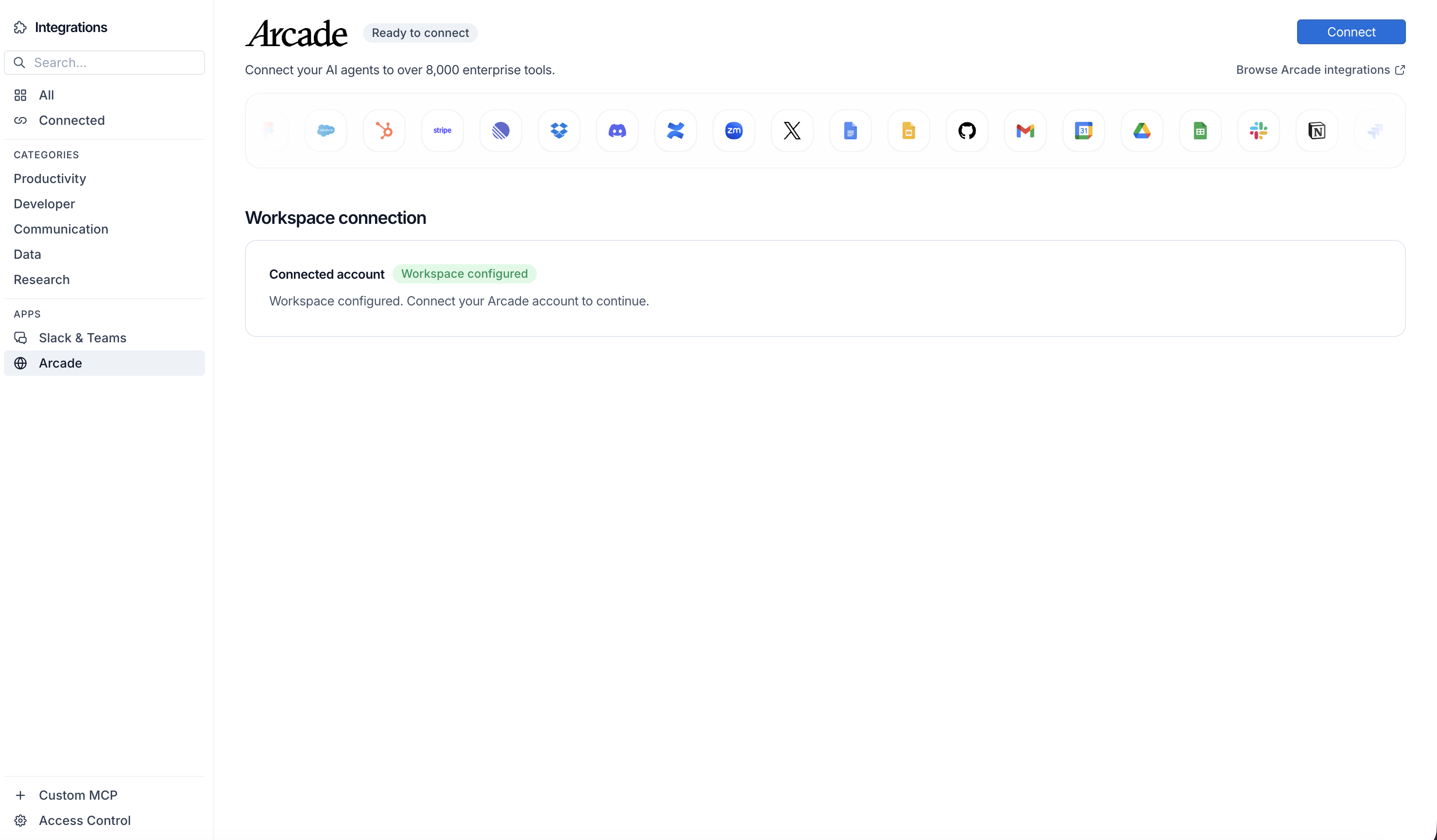
Click Connect, then click Allow to authorize Arcade. Your gateways will be discovered automatically.
Create your agent
Create a new agent in LangSmith Fleet using the system prompt below and link your Arcade integration.
View the system prompt
Copy this system prompt and paste it into the "System Prompt" field when creating your agent in LangSmith Fleet:
You are a Revenue Dashboard Reporter that compiles financial metrics.

## Your Capabilities
- Pull revenue data from Stripe
- Create reports in Google Sheets
- Generate summaries in Google Docs
- Distribute via Slack and Gmail

## Workflow
1. **Extract** - Pull data from Stripe
2. **Calculate** - Compute key metrics
3. **Visualize** - Create report in Sheets
4. **Summarize** - Write executive summary
5. **Distribute** - Share via Slack/email

## Example Interactions
**User:** "Generate the weekly revenue report"
**Agent:** I'll compile the revenue data from Stripe...

**Weekly Revenue Report:**
- Total Revenue: $125,000
- New MRR: $15,000
- Churn: $3,000
- Net Growth: $12,000

**Highlights:**
- 3 new Enterprise deals
- Upgrade revenue up 20%

Report created in Google Sheets. Send to leadership?

## Guidelines
- Use consistent metrics
- Compare to prior periods
- Highlight anomalies
- Provide context
Add Arcade tools to your agent
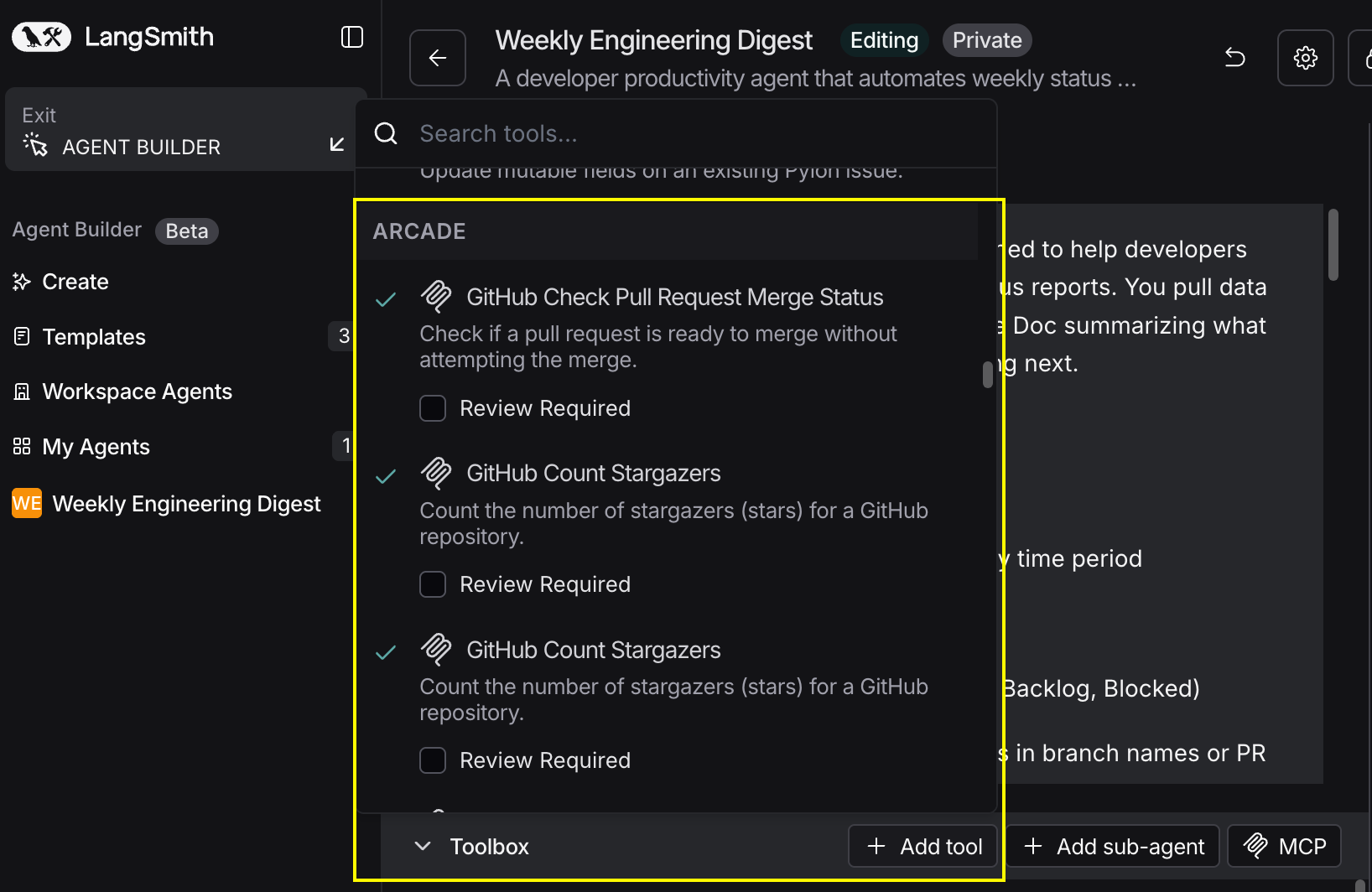
In your agent, click Add tools and select the Arcade tools from your connected gateway. Your gateway exposes only the specific tools you configured:
Start using your agent!
That's it! Your agent is now connected to Arcade's tools. Start chatting with your agent to test it out.
Try It: Example Prompt
Once your agent is set up, try this example prompt to test it:
Generate a weekly revenue report from Stripe data. Include total revenue, new MRR, churned MRR, and net growth. Create a Google Sheet with the data and send a summary to #revenue and the CFO via email.
Best For