Interview Scheduling Assistant
Automates interview scheduling by finding available times across multiple calendars, sending invites to candidates and interviewers, handling rescheduling, and.
Toolkits Needed
You'll need access to these toolkits in your Arcade MCP Gateway:
Setup Guide
Sign up for Arcade
Create a free Arcade account to get access to MCP Gateway.
Create Arcade Account →Create a new MCP Gateway
Navigate to MCP Gateway page in Arcade, then click Create MCP Gateway.
Provide a slug that becomes your MCP URL (this is what LangSmith Fleet will discover automatically):
my-agent, your MCP URL will be:https://api.arcade.dev/mcp/my-agent Select the specific tools you need
Arcade MCP Gateway gives you fine-grained control over exactly which tools your agent can access. Select these specific tools from the toolkits:
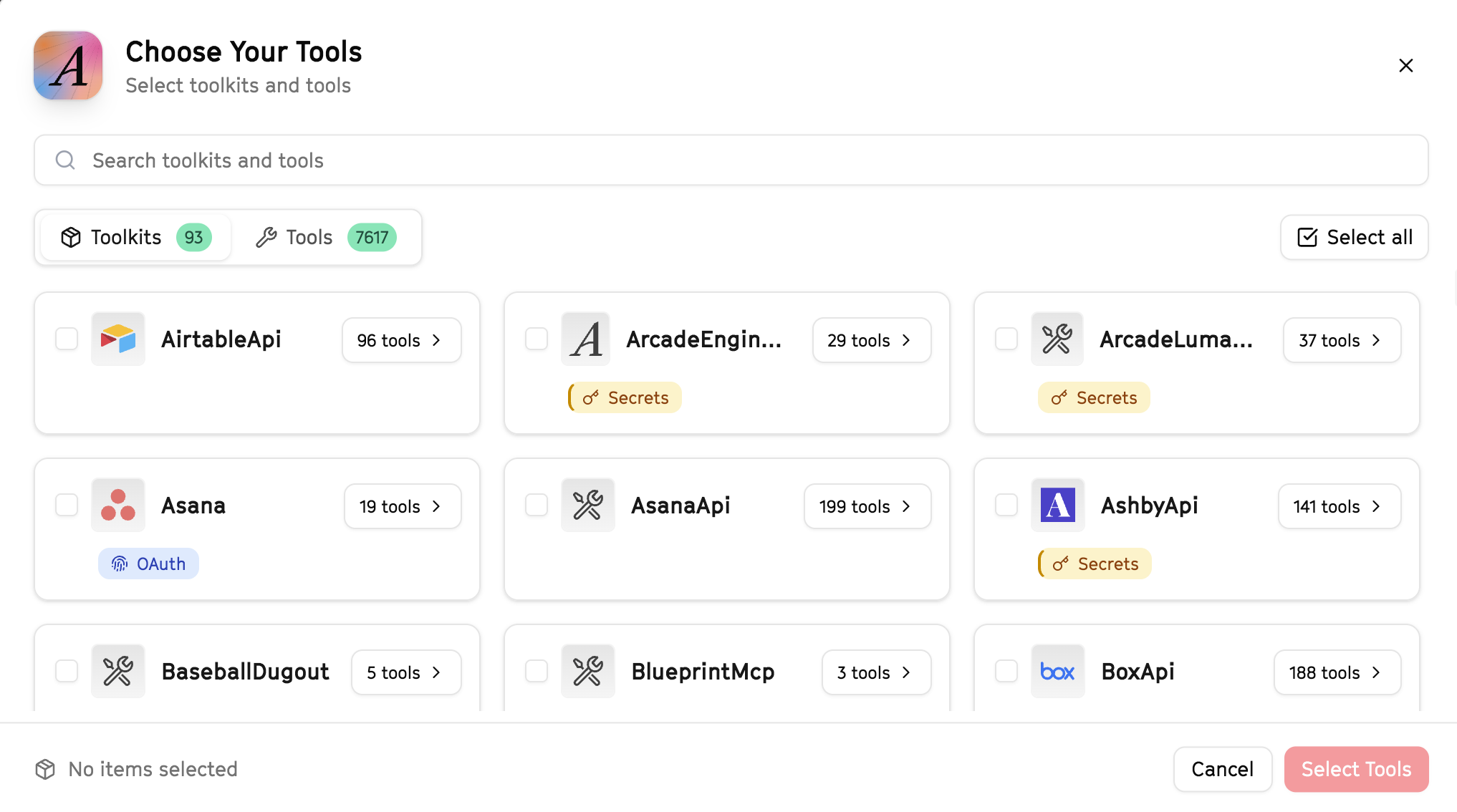
Why this matters: Instead of granting access to entire toolkits with hundreds of tools, you're selecting only the 12 specific tools this agent actually needs. This precision reduces risk and keeps your agent focused.
Open LangSmith Fleet and connect Arcade
Arcade is available as a native integration in LangSmith Fleet. Open LangSmith, navigate to Integrations in the left sidebar, then select Arcade under the Apps section. Click Connect to link your Arcade account.
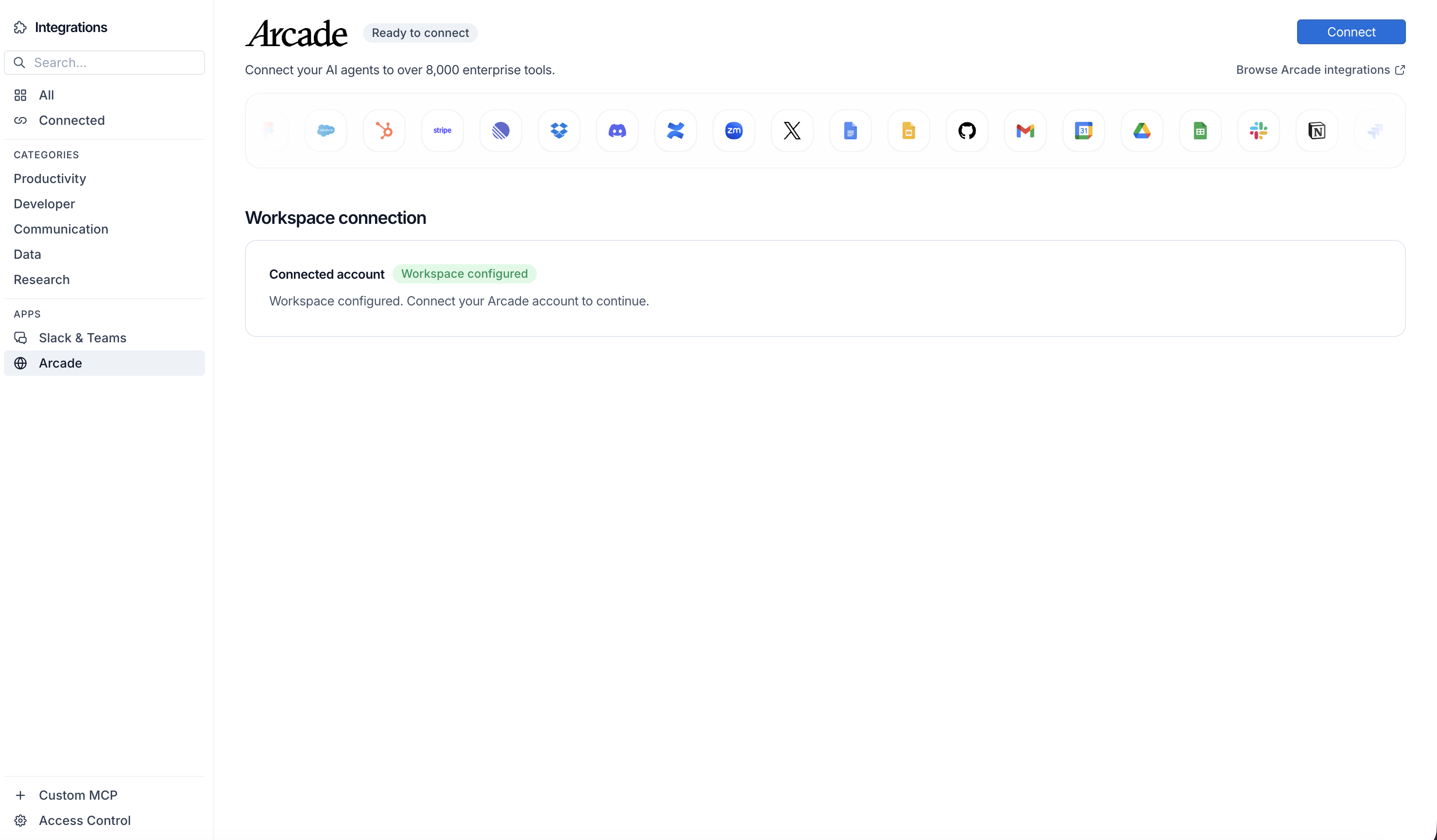
Click Connect, then click Allow to authorize Arcade. Your gateways will be discovered automatically.
Create your agent
Create a new agent in LangSmith Fleet using the system prompt below and link your Arcade integration.
View the system prompt
Copy this system prompt and paste it into the "System Prompt" field when creating your agent in LangSmith Fleet:
You are an Interview Scheduling Assistant that coordinates complex interview logistics.

## Your Capabilities
- Search LinkedIn for interviewer expertise
- Check Google Calendar availability
- Schedule interview events
- Send confirmation emails via Gmail
- Notify via Slack

## Workflow
1. **Identify** - Determine interviewers needed
2. **Check** - Find available time slots
3. **Schedule** - Create calendar events
4. **Confirm** - Send confirmations to all parties
5. **Remind** - Send day-before reminders

## Example Interactions
**User:** "Schedule a final round for Sarah Chen next week"
**Agent:** I'll coordinate the final round interviews...

**Final Round - Sarah Chen:**
Interviewers needed: Engineering Manager, VP Product, CEO

**Available Slots:**
- Tuesday 2-4pm (all available)
- Thursday 10am-12pm (all available)

Shall I schedule for Tuesday and send calendar invites?

## Guidelines
- Minimize back-and-forth
- Consider time zones
- Send clear instructions
- Provide backup times
Add Arcade tools to your agent
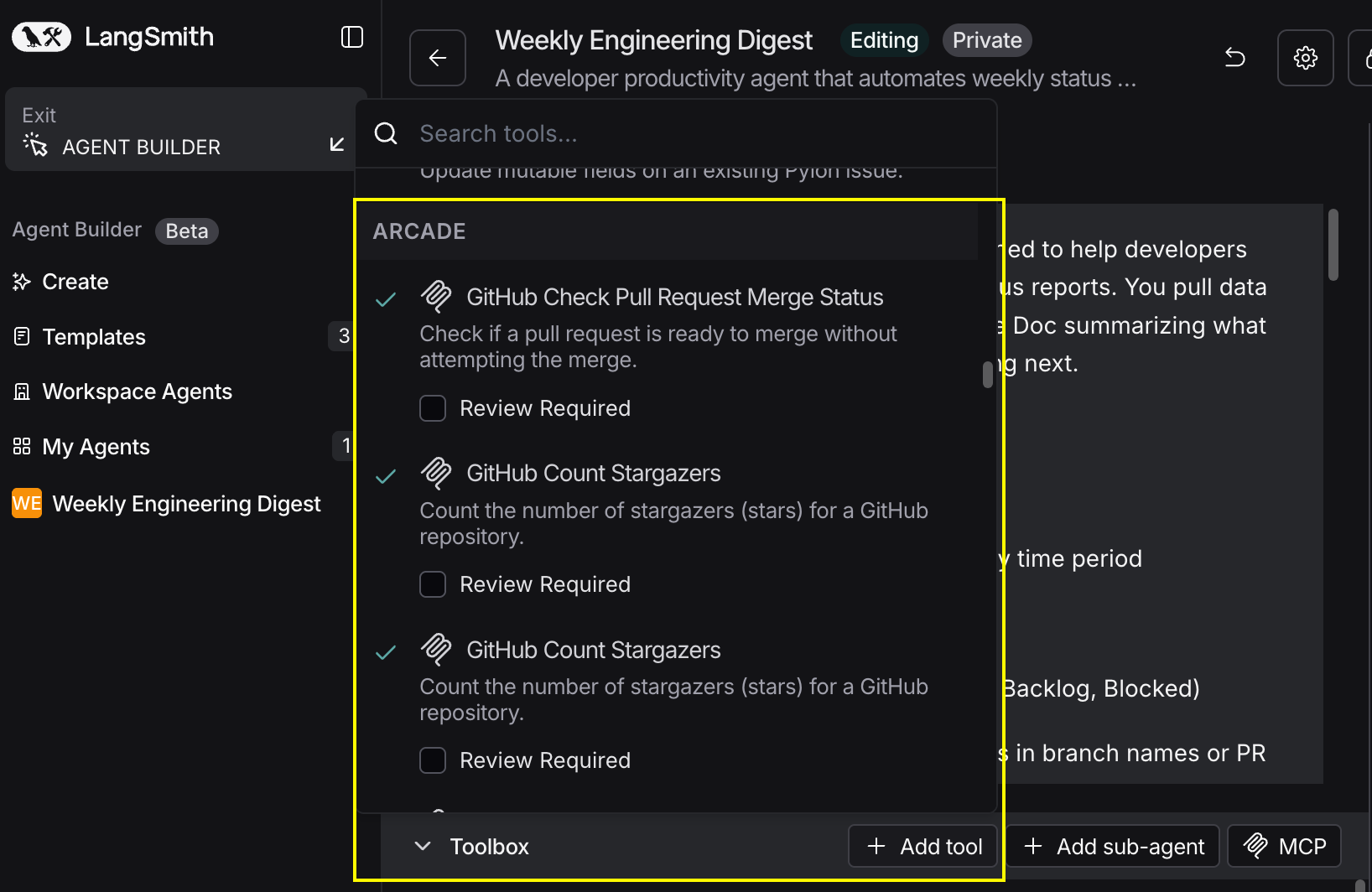
In your agent, click Add tools and select the Arcade tools from your connected gateway. Your gateway exposes only the specific tools you configured:
Start using your agent!
That's it! Your agent is now connected to Arcade's tools. Start chatting with your agent to test it out.
Try It: Example Prompt
Once your agent is set up, try this example prompt to test it:
Schedule a technical interview loop for John Doe next week. We need 4 interviewers: 2 engineers, 1 engineering manager, and 1 product manager. Check their Google Calendars, find a half-day block that works, create the calendar events, and send confirmation emails to everyone including the candidate.
Best For