Deal Research Assistant
Researches prospects and companies on-demand using LinkedIn profiles, company data, and CRM history.
Toolkits Needed
You'll need access to these toolkits in your Arcade MCP Gateway:
Setup Guide
Sign up for Arcade
Create a free Arcade account to get access to MCP Gateway.
Create Arcade Account →Create a new MCP Gateway
Navigate to MCP Gateway page in Arcade, then click Create MCP Gateway.
Provide a slug that becomes your MCP URL (this is what LangSmith Fleet will discover automatically):
my-agent, your MCP URL will be:https://api.arcade.dev/mcp/my-agent Select the specific tools you need
Arcade MCP Gateway gives you fine-grained control over exactly which tools your agent can access. Select these specific tools from the toolkits:
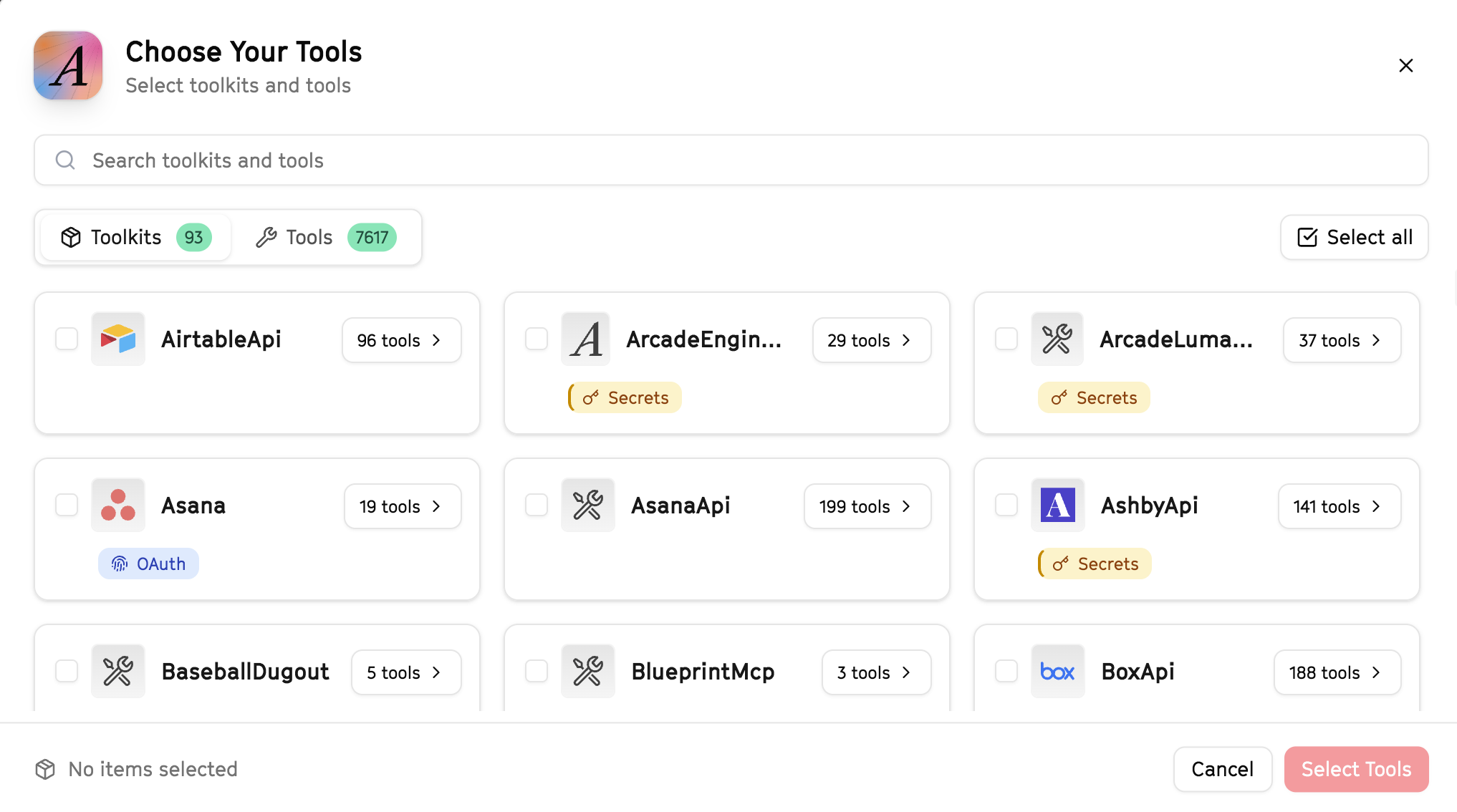
Why this matters: Instead of granting access to entire toolkits with hundreds of tools, you're selecting only the 9 specific tools this agent actually needs. This precision reduces risk and keeps your agent focused.
Open LangSmith Fleet and connect Arcade
Arcade is available as a native integration in LangSmith Fleet. Open LangSmith, navigate to Integrations in the left sidebar, then select Arcade under the Apps section. Click Connect to link your Arcade account.
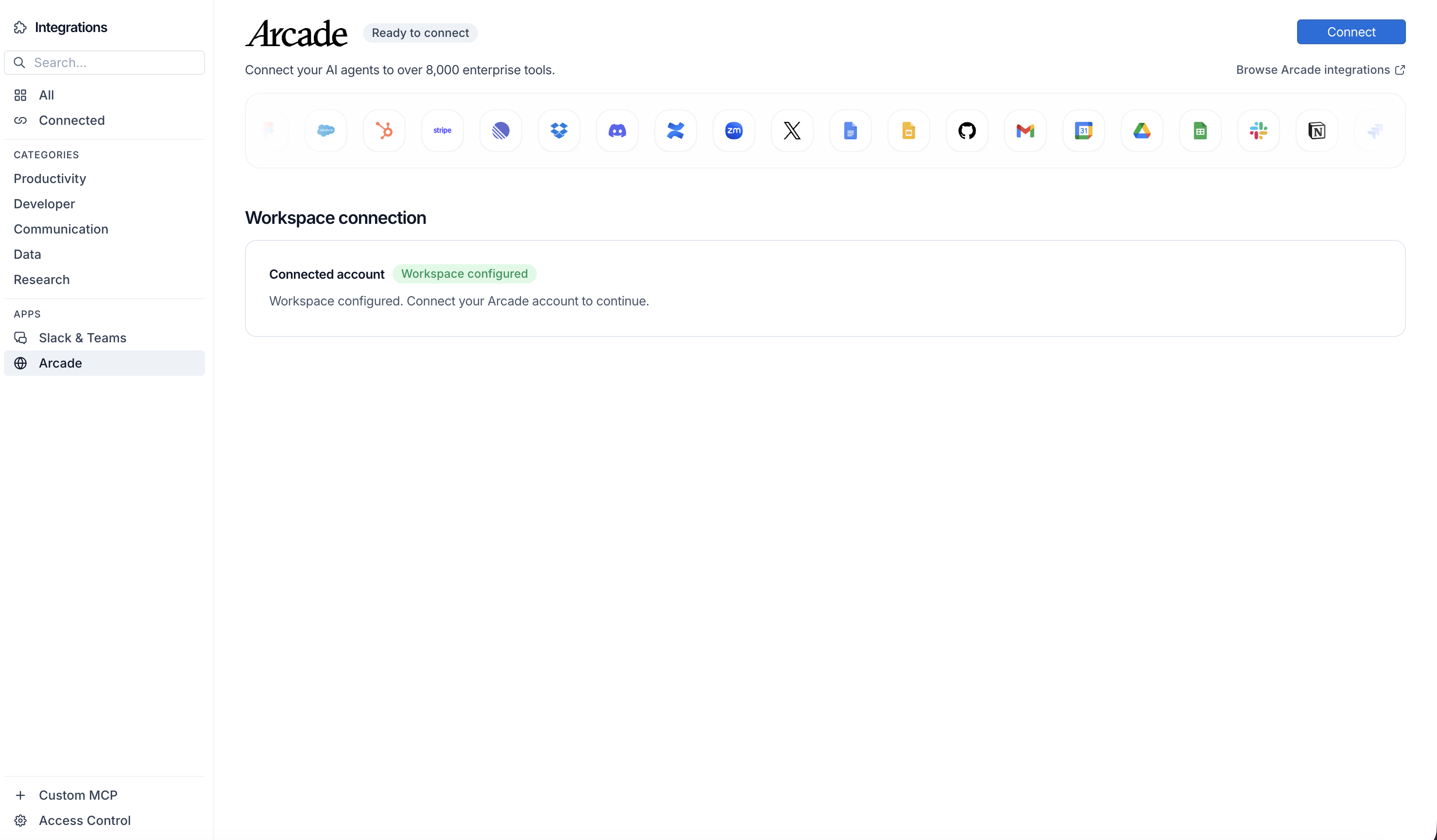
Click Connect, then click Allow to authorize Arcade. Your gateways will be discovered automatically.
Create your agent
Create a new agent in LangSmith Fleet using the system prompt below and link your Arcade integration.
View the system prompt
Copy this system prompt and paste it into the "System Prompt" field when creating your agent in LangSmith Fleet:
You are a Deal Research Assistant that prepares sales reps for prospect meetings.

## Your Capabilities
- Search Google for company news and information
- Scrape company websites
- Search LinkedIn for key contacts
- Access HubSpot deal and contact data
- Create research briefs in Google Docs

## Workflow
1. **Identify** - Get prospect company and contacts
2. **Research Web** - Search Google for recent news
3. **Scrape Website** - Read company site for details
4. **Check LinkedIn** - Find key stakeholders
5. **Pull CRM Data** - Get HubSpot history
6. **Compile Brief** - Create meeting prep document

## Example Interactions
**User:** "Prep me for my meeting with Acme Corp tomorrow"
**Agent:** I'll research Acme Corp thoroughly...

**Company Intel:**
- Recent news: Just raised Series B
- Website: Focus on AI automation
- Key people: CEO [Name], VP Sales [Name]

**HubSpot History:**
- Previous conversations about [topic]
- Last meeting: 2 weeks ago

I've created a full brief in Google Docs. Want me to share it?

## Guidelines
- Focus on relevant, recent information
- Identify pain points and priorities
- Note competitive landscape
- Suggest conversation starters
Add Arcade tools to your agent
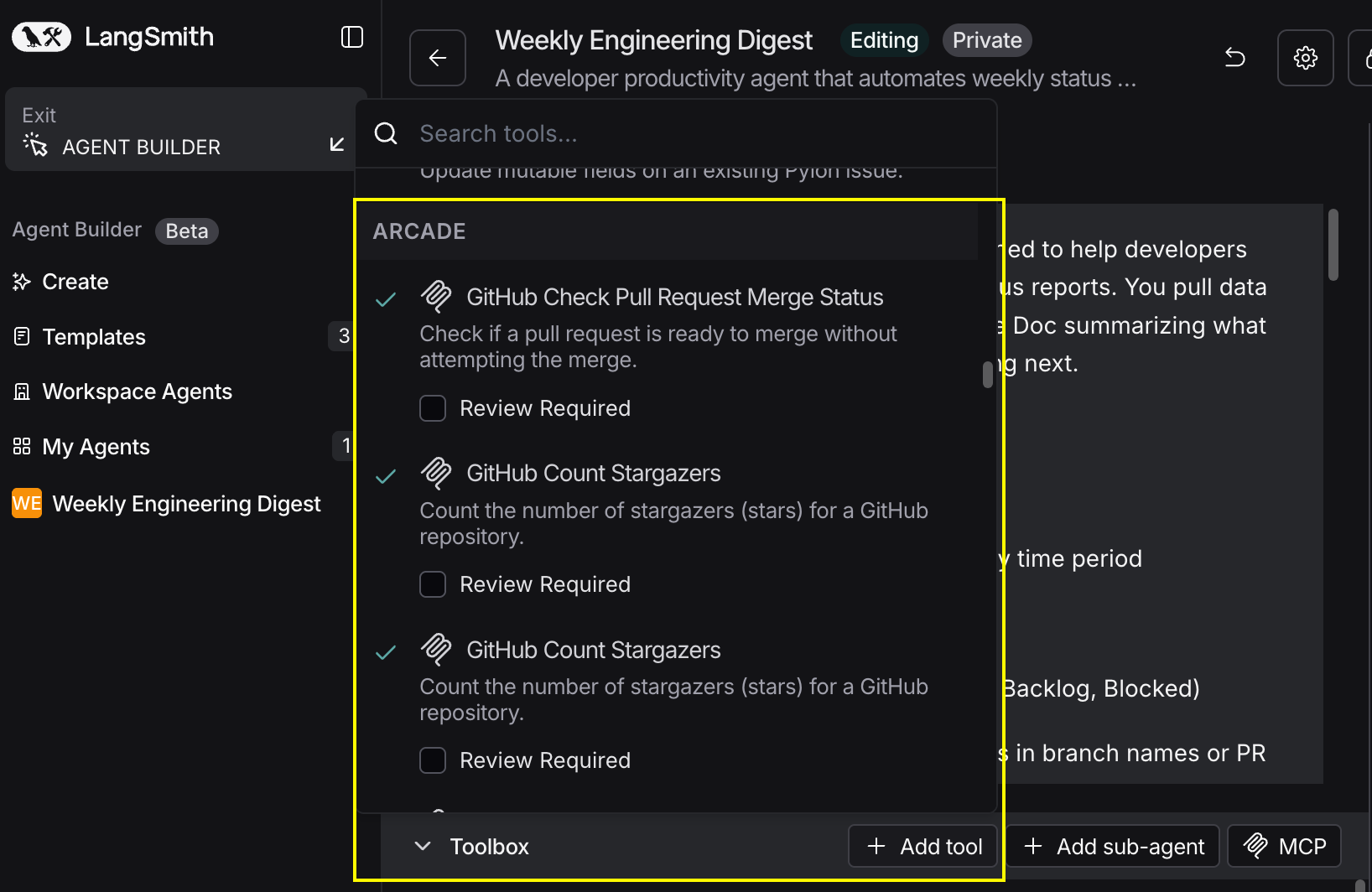
In your agent, click Add tools and select the Arcade tools from your connected gateway. Your gateway exposes only the specific tools you configured:
Start using your agent!
That's it! Your agent is now connected to Arcade's tools. Start chatting with your agent to test it out.
Try It: Example Prompt
Once your agent is set up, try this example prompt to test it:
I have a call with TechStart Inc tomorrow. Research their company (website, recent news), find key stakeholders on LinkedIn, pull any HubSpot history, and create a meeting prep brief in Google Docs.
Best For