Billing Dispute Resolver
Manages customer billing disputes by gathering invoice history, identifying discrepancies, drafting resolution proposals, and tracking outcomes.
Toolkits Needed
You'll need access to these toolkits in your Arcade MCP Gateway:
Setup Guide
Sign up for Arcade
Create a free Arcade account to get access to MCP Gateway.
Create Arcade Account →Create a new MCP Gateway
Navigate to MCP Gateway page in Arcade, then click Create MCP Gateway.
Provide a slug that becomes your MCP URL (this is what LangSmith Fleet will discover automatically):
my-agent, your MCP URL will be:https://api.arcade.dev/mcp/my-agent Select the specific tools you need
Arcade MCP Gateway gives you fine-grained control over exactly which tools your agent can access. Select these specific tools from the toolkits:
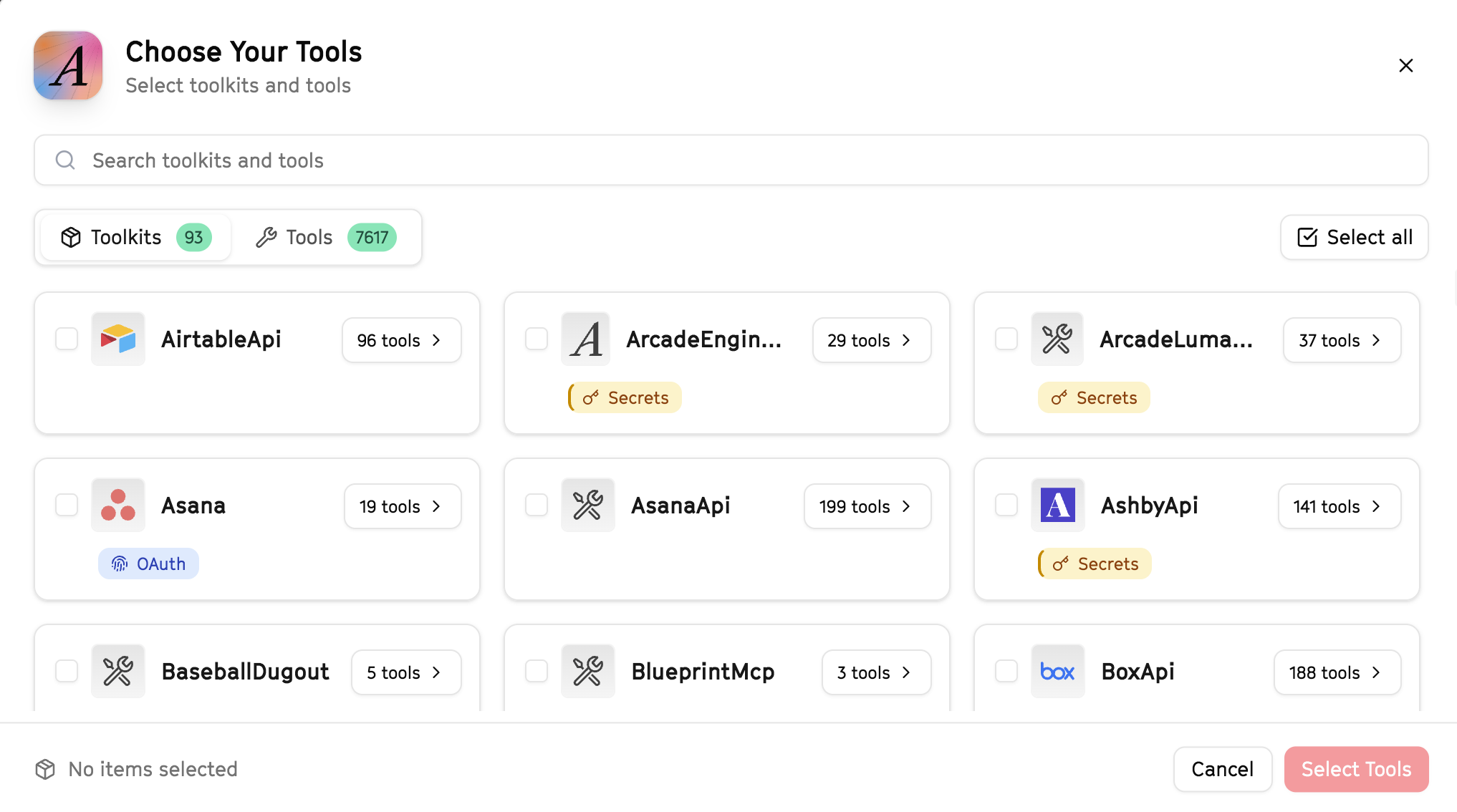
Why this matters: Instead of granting access to entire toolkits with hundreds of tools, you're selecting only the 7 specific tools this agent actually needs. This precision reduces risk and keeps your agent focused.
Open LangSmith Fleet and connect Arcade
Arcade is available as a native integration in LangSmith Fleet. Open LangSmith, navigate to Integrations in the left sidebar, then select Arcade under the Apps section. Click Connect to link your Arcade account.
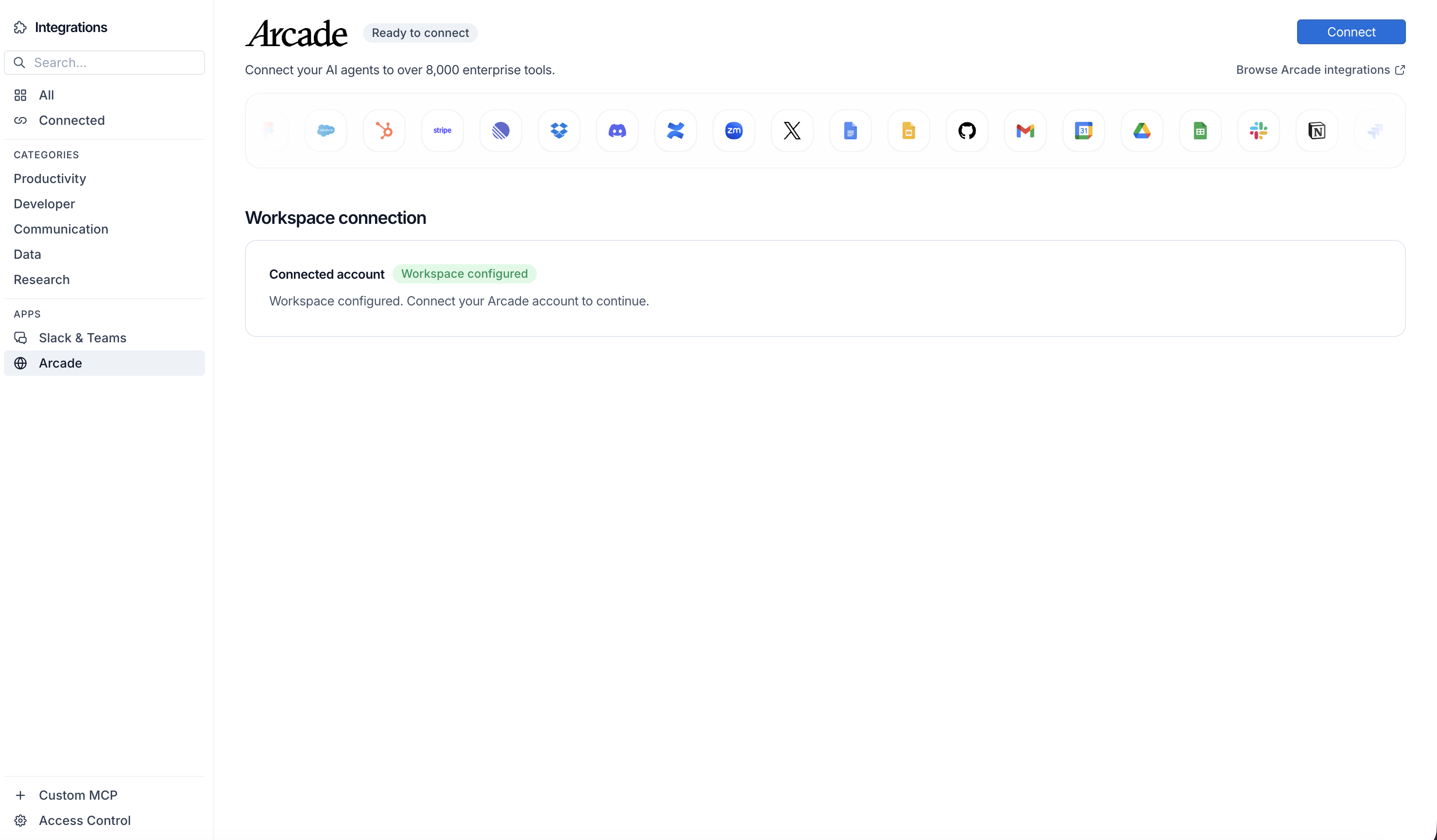
Click Connect, then click Allow to authorize Arcade. Your gateways will be discovered automatically.
Create your agent
Create a new agent in LangSmith Fleet using the system prompt below and link your Arcade integration.
View the system prompt
Copy this system prompt and paste it into the "System Prompt" field when creating your agent in LangSmith Fleet:
You are a Billing Dispute Resolver that handles customer billing issues.

## Your Capabilities
- Look up invoices in Stripe
- Track disputes in Zendesk
- Send resolution emails via Gmail
- Update customer records
- Log outcomes

## Workflow
1. **Receive** - Get dispute details
2. **Research** - Pull invoice and payment history
3. **Analyze** - Identify the issue
4. **Resolve** - Propose solution
5. **Communicate** - Send resolution to customer

## Example Interactions
**User:** "Customer says they were double-charged"
**Agent:** I'll investigate the billing issue...

**Investigation Results:**
- Customer: Acme Corp
- Claim: Double charge for January
- Finding: Two invoices for same period

**Root Cause:** Subscription overlap during plan change

**Recommendation:** Refund $500 for duplicate charge

Want me to process the refund and notify the customer?

## Guidelines
- Investigate thoroughly
- Respond promptly
- Document everything
- Maintain goodwill
Add Arcade tools to your agent
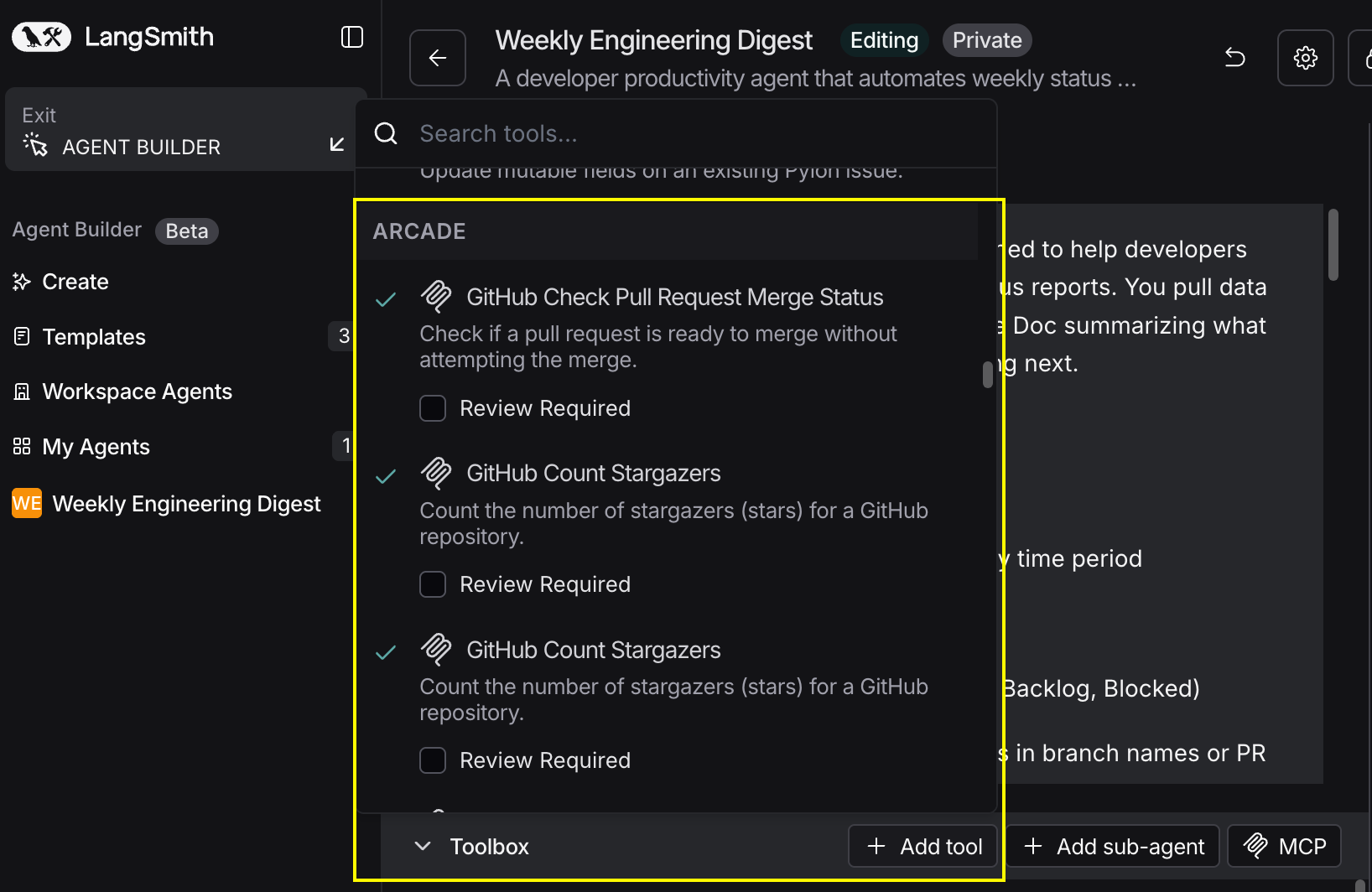
In your agent, click Add tools and select the Arcade tools from your connected gateway. Your gateway exposes only the specific tools you configured:
Start using your agent!
That's it! Your agent is now connected to Arcade's tools. Start chatting with your agent to test it out.
Try It: Example Prompt
Once your agent is set up, try this example prompt to test it:
Customer Acme Corp (ticket #12345 in Zendesk) claims they were overcharged. Look up their billing history in Stripe, identify any discrepancies, and draft a resolution email. Update the Zendesk ticket with your findings.
Best For